The 3 Places Claude Lives
Web, Desktop, Code. Same skills. Different install paths.
The Same Skill Works Everywhere. The Install Path Is Different.
You will use Claude in one of three places.
The good news: skills work the same way in all of them. The same folder, the same instructions, the same result.
The thing that changes is where you put the folder. Three places, three install paths. Pick the one you actually use.
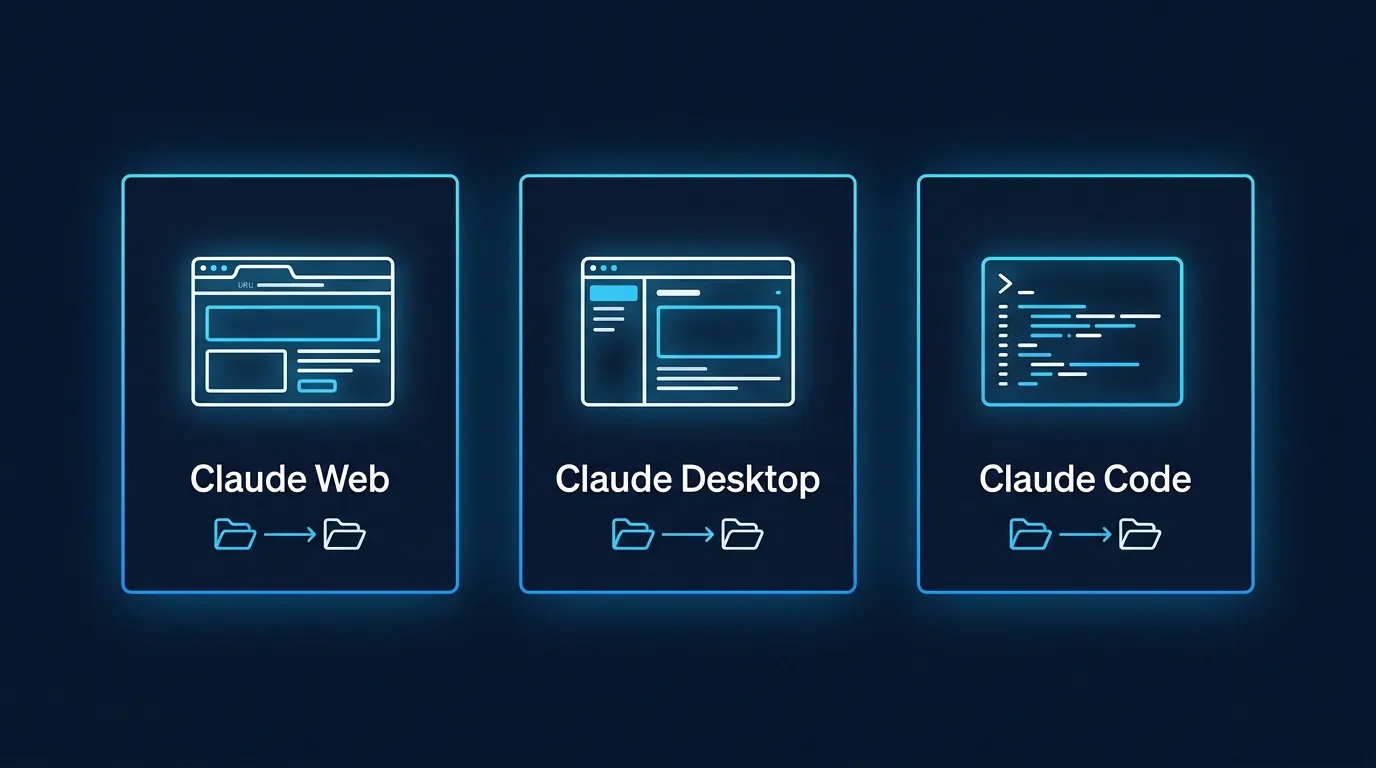
On Claude Web (claude.ai)
This is the browser app at claude.ai. You log in, you chat, you close the tab.
Nothing to install.
To use a skill here, you upload it through Settings. The browser stores it on Anthropic's side, attached to your account.
It follows you to any device you log in from.
Where the skill lives: your Claude account, in the cloud.
How you install: click your name in the bottom-left, open Settings, find the Skills section, then upload a zipped folder.
Best for: people who use Claude as a daily chat assistant and never open a terminal.
On Claude Desktop (the app)
This is the standalone Mac or Windows app you download from claude.ai/download. It feels like a chat app.
It can talk to files on your computer through MCP connectors. Otherwise the experience is very close to the web.
Skills install the same way as web, through Settings.
The desktop app and the web app share your account, so a skill you upload on the web is available in desktop too.
Where the skill lives: your Claude account (same as web).
How you install: Settings → Skills, then upload a zipped folder. Identical to the web flow.
Best for: people who want a real app icon in the dock, want to use MCP connectors to local services, or like a tidy chat history outside the browser.
On Claude Code (the terminal)
This is the command-line tool you install on your computer with npm install -g @anthropic-ai/claude-code (covered in our Claude Code 101 course if you have never used a terminal).
Claude Code is the most powerful surface for skills. It can run scripts, edit files, and chain workflows together.
It is what we use for everything technical at Waboom AI.
Skills here live on your hard drive in a folder Claude Code reads automatically. The default location is:
- Mac / Linux / WSL:
~/.claude/skills/ - Windows:
%USERPROFILE%\.claude\skills\
Drop a skill folder into that directory and Claude Code finds it on startup. No upload, no zip, no Settings panel. Just files.
Where the skill lives: your local hard drive.
How you install: copy or download a skill folder into ~/.claude/skills/.
Best for: anyone building skills (because Claude Code has the skill-creator skill that writes new skills for you, Module 4), anyone running scripts or repeatable workflows, and anyone who wants their skills version-controlled in git.
A Quick Comparison
The folder is identical in all three cases. Only the install action differs.
🎓Go further: Skills are composable. Plan for it.click to expand
You will quickly end up with more than one skill. Claude can run many skills at once, which is the point. But it also means your skills should coexist gracefully.
Three rules:
-
Be specific in your description. If you have a "summarise meeting notes" skill and a "summarise blog drafts" skill, do not write both descriptions as "summarise text". They will fight for triggers. Specific descriptions let Claude pick the right one.
-
Do not assume you are alone. Avoid writing "always do X" in your skill, because another skill might be loaded that needs you to do Y. Instead write "when the user asks for Z, do X".
-
Cap your active skills. Anthropic recommends staying under 20 to 50 enabled at once. Past that, Claude can lose track. Disable skills you have not used in a month.
We run about 12 active skills at Waboom. Each one has a sharp description and a clean scope. None of them say "always". All of them say "when".
Which One Should You Use for This Course?
If you have Claude Code installed, use that. The walkthrough in Module 4 uses skill-creator which runs in the terminal and is the fastest path to a working skill.
If you have never opened a terminal in your life, that is fine.
Use Claude Web or Desktop, follow along, and where Module 4 shows a terminal command we will give you the equivalent web/desktop steps.
Want to learn Claude Code first? Our free Claude Code 101 course walks you through installing it from zero, including how to open a terminal on Mac, Windows, and Linux. It is a 2-hour course. Worth it if you plan to do anything more ambitious than chat.
What's Next
Module 3 is where you stop reading and start clicking. You will turn on a skill that already exists and feel the difference for yourself. Win first, then build.