Your First Skill in 15 Minutes
Build a real skill with skill-creator. No YAML by hand.
The Headline Lesson: Build a Real Skill in 15 Minutes
This is the module everything else has been building towards.
By the end of the next 15 minutes, you will have a working skill of your own, doing a real job, in the place you actually use Claude.
The secret: you are not going to write the skill.
A tool called skill-creator will write it for you.
You describe the workflow in plain English. It writes the file. You test. Done.
Why skill-creator matters. The technical guide to writing skills has a whole chapter on YAML frontmatter, kebab-case rules, and security restrictions. You can skip all of it. skill-creator knows the rules and writes the file correctly. You stay in plain English.
The Skill We Are Going to Build
The workflow: summarise a meeting note in my voice.
You paste raw notes. The skill turns them into a tight summary written like you would write it.
Decisions at the top. Owners and dates next. Open questions at the bottom. No fluff.
We picked this because almost everyone has done it manually at least once.
You know what good looks like. You will spot it instantly when the skill gets it right (or wrong).
If meeting notes are not your thing, swap the workflow for something you already re-explain to Claude two or three times a week.
Same steps, different topic.
Three Paths. Pick Yours.
There are three ways to build a skill, depending on where you use Claude.
- Path A: Claude Desktop "Write skill instructions" (Recommended for beginners)
- Path B: Claude Desktop "Create with Claude" (Even easier. Claude builds it for you)
- Path C: Claude Code terminal with
skill-creator(For power users)
All three produce the same thing: a working skill, in your account or on your computer, that triggers automatically when you need it. Pick the one that fits how you actually use Claude.
If you have never opened a terminal, skip Path C. Path A and B are designed for you.
Path A: Claude Desktop "Write skill instructions"
This is the most beginner-friendly path. A simple dialog with three fields. No coding, no terminal, no upload.
Step 1: Open the Skills panel. In Claude Desktop, click your account icon, Settings, then Customize. You will see the Skills list.
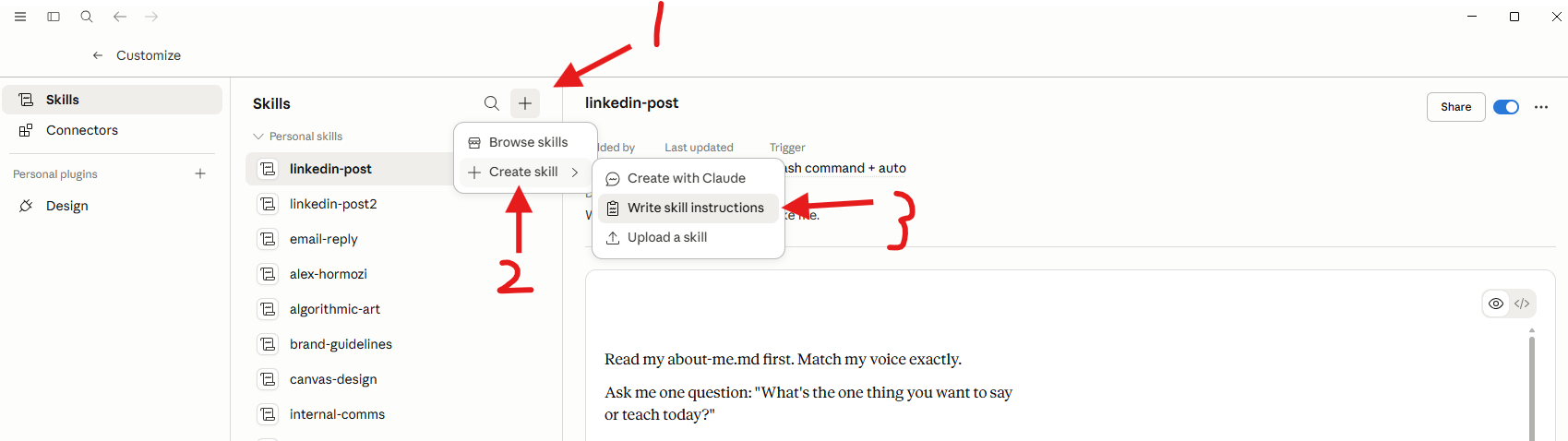
Step 2: Click the + button next to "Skills". A small menu appears. Hover over Create skill and choose Write skill instructions.
Step 3: Fill in the dialog. Three fields, in plain English.
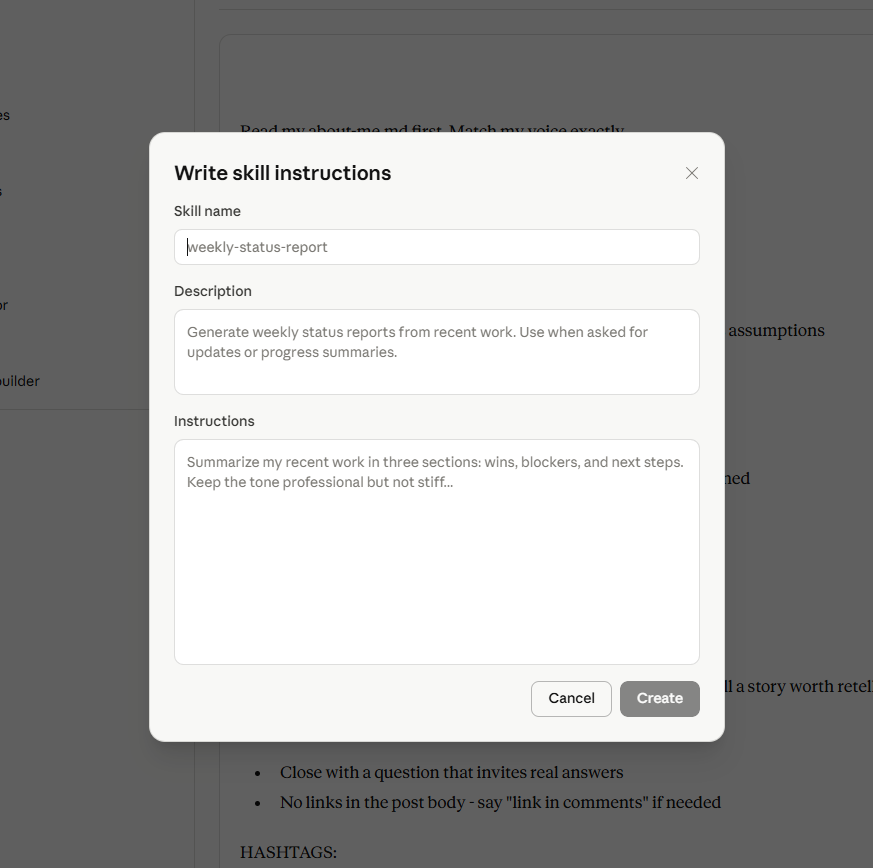
For our example skill, fill it in like this:
- Skill name:
meeting-notes-summary(lowercase, hyphens, no spaces) - Description: "Summarises meeting notes, transcripts, and call recordings into a tight format with decisions, owners, and open questions. Use when the user pastes raw notes and asks for a summary, recap, or action items."
- Instructions: "Pull out decisions and who agreed. List owners and due dates. List open questions. Write in short, direct sentences. No filler words. Decisions go at the top, open questions at the bottom."
Step 4: Click Create. The skill is live in your account. No file management. No terminal.
Step 5: Test it. Start a new chat. Paste a raw meeting note. Ask Claude to summarise it. The skill triggers automatically.
Why this path is great. You never see a file. You never write YAML. You just fill in three fields and click Create. For 80% of skills, this is all you ever need.
Path B: Claude Desktop "Create with Claude"
The same starting point, but instead of writing the instructions yourself, you describe the skill in chat and Claude writes it for you.
Step 1 + 2: Same as Path A. Click + next to Skills, hover Create skill, but this time pick Create with Claude (the top option).
Step 3: A chat opens. Tell Claude what you want.
Build me a skill that summarises meeting notes. I want it to
pull out decisions, list owners and dates, and list open
questions. Write in short direct sentences, no filler.
Claude will ask 2 or 3 follow-up questions, draft the skill, and offer to save it. You confirm. Done.
This is the easiest path of all. The only reason it is Path B and not Path A is that it gives you slightly less direct control over wording.
Path C: Claude Code Terminal with skill-creator
If you live in the terminal, this is your path. It uses the skill-creator skill you can install from github.com/anthropics/skills.
claude
Welcome to Claude Code!

What would you like to build?
>
You are in.
From here, every interaction is plain English. No commands to memorise.
To use skill-creator:
/
You will see a list of available skills.
If skill-creator is in the list, you are ready.
If not, install it the same way you installed frontend-design in Module 3.
Now ask Claude Code to use it:
Use the skill-creator skill to help me build a skill that
summarises meeting notes in my voice.
Claude Code will load skill-creator and start asking you questions.
This is the magic. You answer in plain English. It writes the skill.
The Five skill-creator Questions (Path C)
skill-creator walks you through the same five questions every time.
Here is roughly what it asks, and how to answer for this skill.
1. What does the skill do?
Summarises meeting notes into a tight format with decisions, owners, dates, and open questions. Writes in my voice (direct, no fluff, no buzzwords).
2. When should Claude use it?
When the user pastes meeting notes, transcripts, or call summaries and asks for a summary, recap, or action items.
3. What are the steps?
- Read the raw notes.
- Pull out decisions, what was agreed, by whom.
- Pull out owners and due dates, who does what by when.
- List open questions that did not get answered.
- Write everything in short, direct sentences. No "key takeaways" or "moving forward".
4. Are there examples of good output?
Paste two of your own meeting summaries (the kind you write when you do this manually). The skill learns your voice from real examples.
5. What is the skill name?
meeting-notes-summary
skill-creator will spit out a complete skill, properly formatted, kebab-case naming, valid frontmatter, the whole thing.
You will not see a single line of YAML unless you ask.
Test the Skill (Whichever Path You Picked)
Once the skill is created (Desktop or terminal, does not matter), test it the same way.
Open a new chat. Paste a real raw meeting note, something messy from a recent call.
Then ask:
Summarise this meeting:

[paste your raw notes here]
**Decisions**
- Pricing locked at $99 (John, Leo agreed).

**Owners**
- Leo: draft pricing page copy by Friday.
- John: confirm Stripe webhook handler by Wednesday.

**Open**
- Do we need a free trial? No decision yet.
If it gets the format right but the voice still feels generic, that is normal first time. The next step fixes it.
Iterate Until It Sounds Like You
The first version is rarely the final version. That is fine.
If you used Path A or B (Desktop): open the skill from the Skills panel, click the Edit button, and tweak the instructions directly. Save. Test again.
If you used Path C (terminal): loop back to skill-creator.
That summary was too formal. Loop back to skill-creator and
update the skill to use shorter sentences, drop the "Owners"
header label, and never use the word "stakeholders".
skill-creator will edit the skill in place.
Test it again. Keep going until the output reads like you wrote it.
Most people get to "yes, that is mine" in three iterations. Some in one. Some in five.
None of those iterations involve YAML.
What You Just Built
A real, working skill that triggers automatically when you paste meeting notes.
If you used Path A or B (Desktop), the skill lives in your Claude account. It follows you across devices.
If you used Path C (terminal), it lives in a folder on your computer at ~/.claude/skills/meeting-notes-summary/. That file is your skill, plain text, openable in any text editor.
Either way, right now the skill is only enabled for you. Module 6 covers how to share it with your team or the world.
Save what worked. If you found a phrasing that nailed your voice, copy the final version of the skill somewhere safe (a Notion page, a private repo). When you ever need to rebuild it, you have the working version to start from.
🎓Go further: The pro description formula + when to bundle a scriptclick to expand
Most people get to a working skill and stop. Here is what changes when you start writing great skills.
The description formula. Anthropic's house style for a description is three parts:
[What it does] + [When to use it] + [Key capabilities / specific triggers]
Example:
Summarises Linear sprint planning notes into a structured weekly digest. Use when the user pastes meeting notes from a sprint planning session, asks for a sprint recap, or asks to "turn this into Monday's update". Outputs decisions, owner assignments, blockers, and carried-over tickets.
That description says exactly what triggers it, what it produces, and what it does not do. Claude can match precisely against natural user prompts.
When to bundle a script. Language instructions like "make sure the total adds up" are interpretable. Claude usually gets it right. Usually is a problem in production.
For critical validation, drop a Python or Bash script into a scripts/ subfolder and reference it from your SKILL.md:
Before finalising the invoice, run `scripts/validate_totals.py`
and only proceed if it returns 0.
Code is deterministic. Language is not. Anything that absolutely must be true (compliance checks, totals match, required fields filled, date in the future) belongs in a script. Anything that just needs to "feel right" stays in language.
Length matters. Keep the description under 1024 characters. Keep SKILL.md under 5,000 words. Push longer content (style guides, reference docs) into a references/ subfolder. Claude only opens those when the task requires them.
The 4-part instruction frame. Operator Karol Zieminski frames every skill instruction the same way, and it works:
- End state. What does "done" look like? Be specific.
- Format. docx, xlsx, md, pptx, plain text, JSON? Name it.
- Audience. Leadership, team, self, a client? Tone follows audience.
- Constraints. What can Claude not guess? ("Do not delete, only move." "Cite sources." "Never write more than 1,500 words.")
A skill instruction written through this frame triggers reliably and produces consistent output. Most beginner skills miss the constraints line, which is why their output drifts.
What's Next
You have a skill. It works most of the time.
Sometimes it does not trigger when you expect it to, or it triggers on the wrong kind of input.
Module 5 explains exactly why that happens, and the one-line fix that solves 90% of the cases.