Learn Claude Code: The Complete Operator's Guide
You did a 90-minute task last week that should have taken 10. You are still chatting with Claude when you could be running it. This is the playbook for closing that gap. Plan Mode, the 5 prompts, Skills, Connectors, Cowork, Projects, Artifacts, and which model to pay for. Written at Waboom AI in Auckland for operators across New Zealand and Australia.
22 minute read · Last updated 14 May 2026

What is Claude Code, really?
Open Claude. Ask a question. Get an answer. Close the tab. That is how most people meet it. That is also the floor of what it can do.
Claude Code (the brand) is the same model with the chat box turned inside out. An operating system for AI work, not a tab you visit. To make sense of it, hold two axes in your head:
- Where you work: Web, Desktop, or Terminal. These are the three surfaces Claude ships in.
- How you work: Chat, Cowork, or Code. These are the three modes inside Claude Desktop.
Pick one from each axis. Some combinations exist, some do not.
The three surfaces (where you work)
- Claude Web at claude.ai. Browser-based. Chat only. The version most people meet first.
- Claude Desktop, the standalone app for Mac and Windows. Three tabs inside (Chat, Cowork, Code), connectors, plugins, scheduled tasks. This is where most operators live.
- Claude Code (the terminal CLI), a developer-facing command-line tool. Same engine as the Code tab inside Desktop, just exposed for people who prefer the terminal. Optional if you have Desktop.
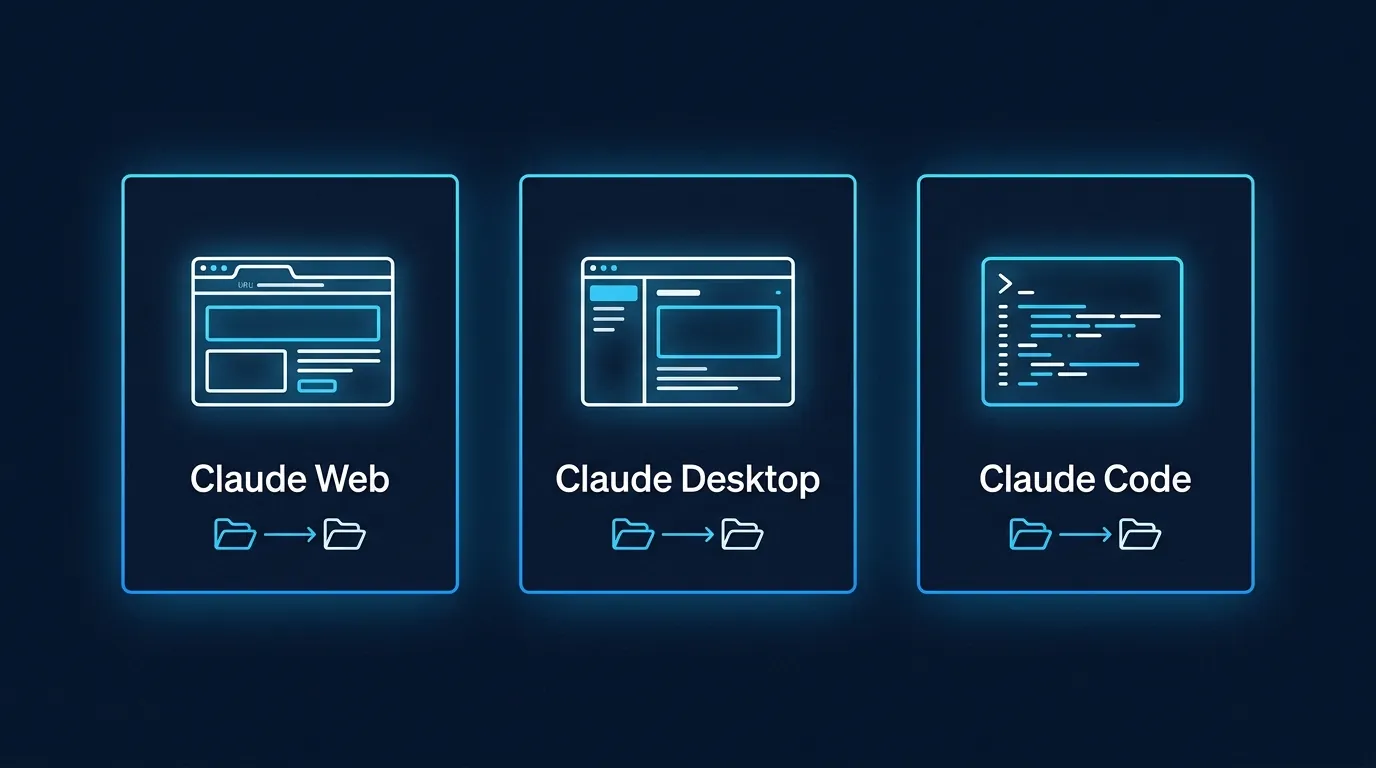
Which surface supports which modes
| Surface | Chat | Cowork | Code | Skills + Connectors |
|---|---|---|---|---|
| Web (claude.ai) | Yes | No | No | Yes |
| Desktop app | Yes | Yes | Yes | Yes |
| Terminal CLI (Claude Code) | No | No | Yes (it IS Code) | Yes |
A note on the "Code" naming overlap. Anthropic uses the word "Code" in two related places. The terminal CLI is officially called Claude Code. Inside Claude Desktop there is also a tab called Code. Both run the same engine. The CLI is just the standalone version for people who live in the terminal. If you install Desktop, you already have the Code engine, and the CLI is optional.
You do not have to pick one. Most operators we train at our Claude Code workshop (Auckland and Wellington runs) use all three. We jump between Desktop and the terminal CLI half a dozen times a day at Waboom.
If you have never installed Claude Code on a real machine before, start with our free Claude Code 101 course. Six modules. Two hours. You will leave with a live landing page on the internet. (We built ours over flat whites in Mt Eden. So can you.)
Pick Your Model (and the Plan That Goes With It)
Claude is not one model. It is a family of three, each tuned to a different shape of work, each sitting on a different price/performance curve. Operators who do not know the difference end up paying too much for trivia or paying too little for real engineering.
The three models, in plain English
Opus (currently Opus 4.7)
The flagship. Best at complex reasoning, multi-file refactors, hard architectural decisions, and long autonomous coding sessions. Burns the most credits. Use when the task is genuinely hard or you need the best answer.
Sonnet (currently Sonnet 4.6)
The daily driver. Smart enough for almost everything an operator builds. Faster and cheaper than Opus. The default on the Pro plan, and the model most Claude Code sessions should run on.
Haiku (currently Haiku 4.5)
The fast and cheap one. Great for tasks Claude only needs to do quickly: classifying emails, naming images, transcribing notes, calling APIs at scale. Roughly 10x cheaper per token than Sonnet for the same throughput.
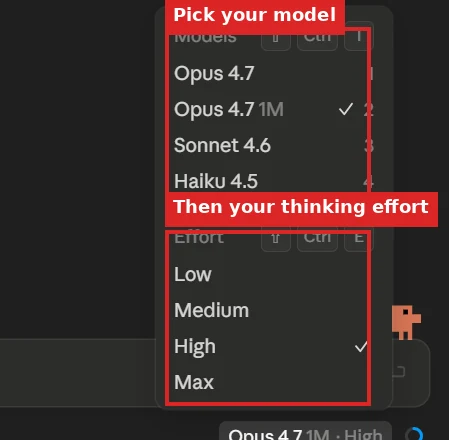
You pick the model and the "thinking effort" from a single picker in Claude Code (and the equivalent surface in claude.ai). Switch mid-session whenever the task changes shape.
Which plan you actually need
Anthropic publishes four consumer plans at claude.com/pricing:
- Free ($0): access to Sonnet for chat. No Claude Code. Fine for tasting the product.
- Pro ($17/month annual, $20 monthly): Sonnet for everything, Opus for harder asks, Haiku for cheap. Claude Code included. This is where most operators should start.
- Max (from $100/month): Two tiers, 5x or 20x more usage than Pro. If you hit Pro's limits because you keep Cowork running scheduled tasks or you run Opus a lot, this is the upgrade. We run Max at Waboom.
- Team ($20-25/seat) and Enterprise ($20/seat with usage scaling): for organisations deploying Claude across a team.
The simple rule
Start on Pro at $20 a month. Default your work to Sonnet. Switch to Opus when you hit a hard problem (a complex refactor, a real architecture decision, a Ralph Loop on a big PRD). Switch to Haiku when you are calling Claude programmatically and quality matters less than cost.
We spent six weeks on Pro before upgrading to Max. Hit the limit twice in a week, both times running an Opus session on something we should have planned better. Pay attention to what tripped you up, not just the count. (Me: "It's the model." Also me, two hours later: "It was my prompt.")
If you hit Pro's usage limit twice in a week, upgrade to Max 5x. If you hit Max 5x's limit, you are probably running Cowork autonomously enough that Max 20x or Team pays for itself.
Who Should Use What?
Four common starting points. Find the one that sounds most like you, then follow the "first action" line. You can always graduate to a wider stack later.
Casual chat user
You ask Claude something once a week
- Where: Web (claude.ai)
- Mode: Chat
- Plan: Free ($0)
- Model: whichever the free tier ships
Start here: sign in at claude.ai and chat. No install. No setup.
Operator running a business (recommended for most readers)
You want Claude doing real work, not just answering questions
- Where: Claude Desktop
- Modes: Chat for thinking, Cowork for delegated work
- Plan: Pro ($17 annual / $20 monthly)
- Model: Sonnet 4.6 default, Opus 4.7 for the hard tasks
Start here: download Claude Desktop, run a few Chat sessions in week 1, build your first skill, graduate to Cowork in week 2.
Power operator running team workflows
You have Cowork tasks running on a schedule for your whole team
- Where: Desktop + Terminal CLI
- Modes: Cowork for recurring jobs, Code (CLI or tab) for solo deep work
- Plan: Max from $100/mo (5x or 20x usage)
- Model: Opus 4.7 when it matters, Sonnet 4.6 for volume
Start here: get Pro running first. Move to Max only after you hit Pro's usage limit twice in a week.
Developer or engineer
You write code and live in a terminal
- Where: Terminal CLI (Desktop optional)
- Mode: Code
- Plan: Pro or Max depending on usage
- Model: Opus 4.7 for architecture, Sonnet 4.6 for daily
Start here: install Claude Code via npm, then work through Claude Code 101 for the operator patterns.
If none of these fit exactly, the safe default is the second one: Desktop on Pro at $20/month. It covers about 80% of operators we train at our Claude Code workshop.
The Operator's Stack
Underneath every powerful Claude Code workflow is the same four-layer stack. All four working together is the moment Claude stops feeling like a chat tool and starts feeling like a coworker.
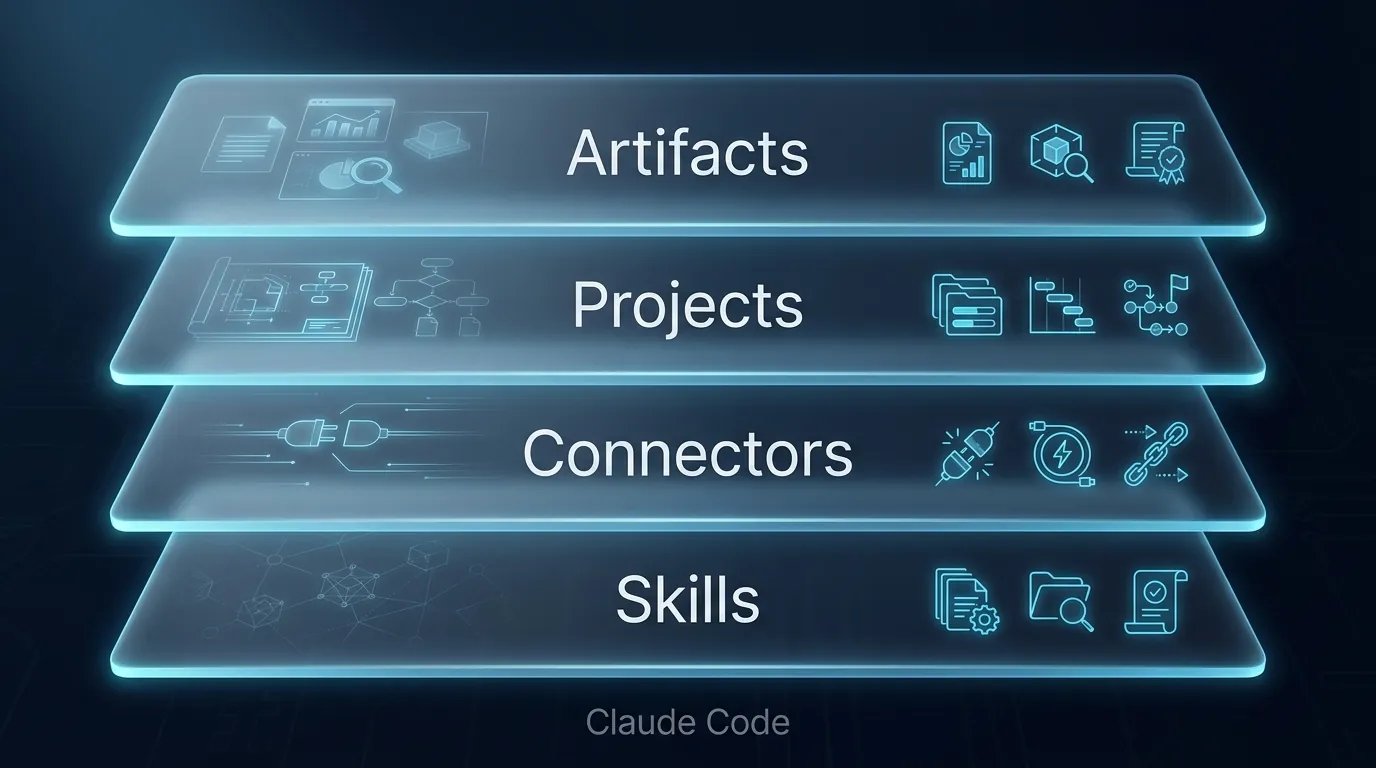
Layer by layer:
Layer 1: Skills (the workflow layer)
A skill is a folder that teaches Claude a workflow once so you stop re-explaining yourself. Write in your voice. Run your team's code review. Generate your weekly report. Anything you have re-explained three times to Claude is a skill candidate.
Skills are the compounding layer of the stack. Most operators we train at the Claude Code workshop get their first working skill running before the end of hour one.
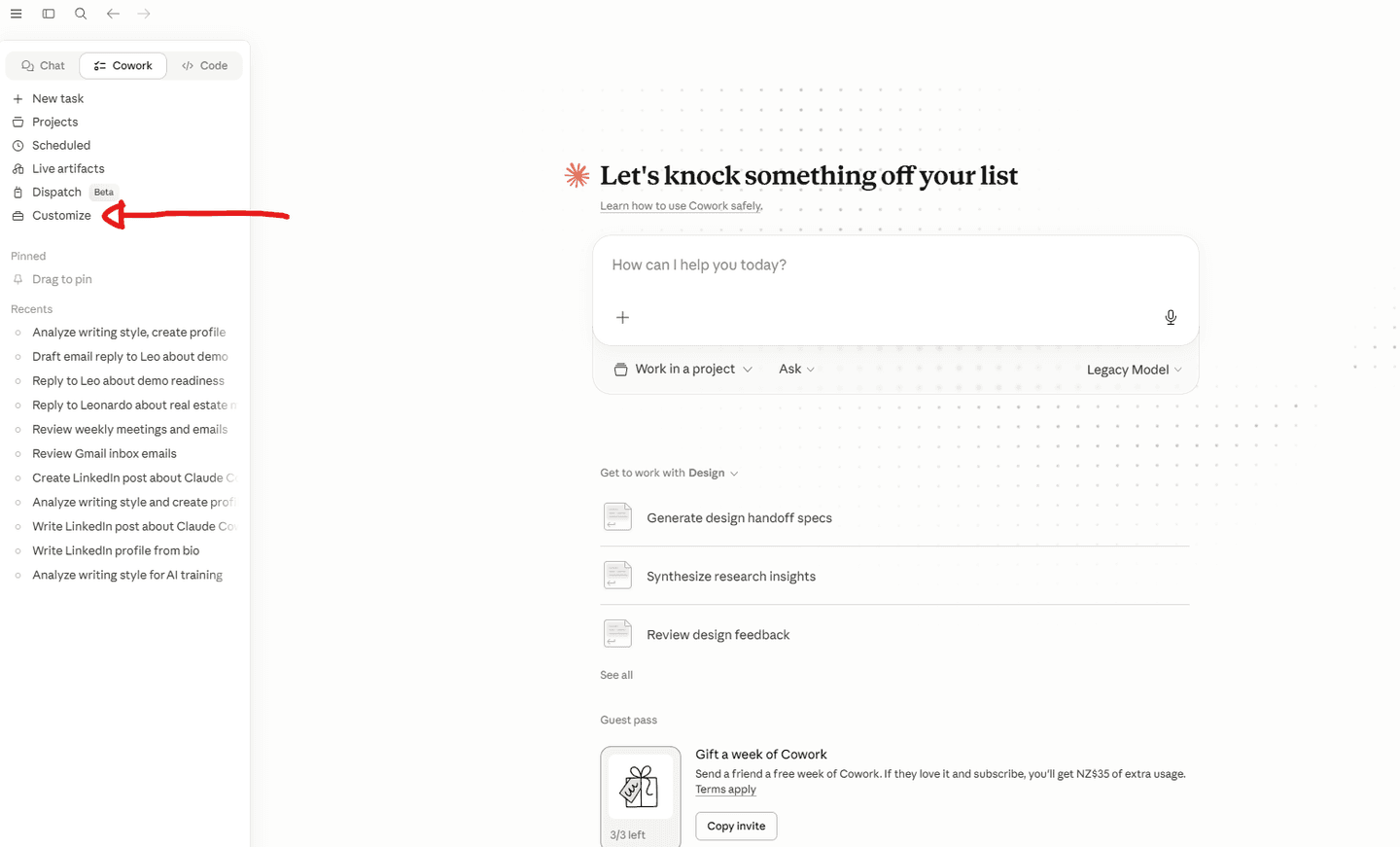
Inside Claude Desktop, click the + next to Skills and hover over Create skill. You get three ways to actually build one:
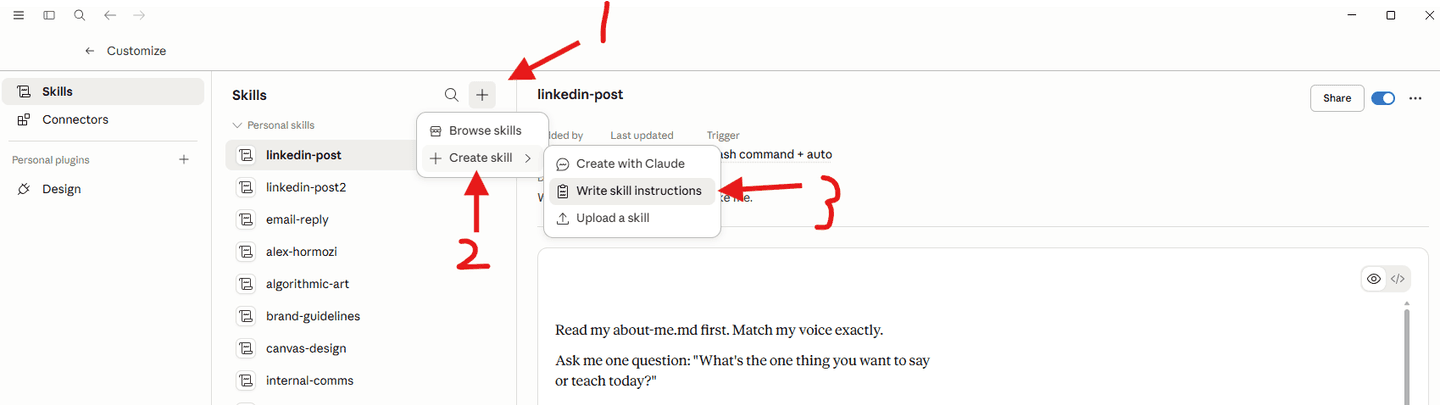
Create with Claude
The easiest path. A chat opens. You describe the workflow in plain English. Claude asks 2-3 follow-up questions, drafts the skill, saves it. No file management, no dialogs, no terminal. Good for your first skill.
Write skill instructions
A short dialog with three fields. Name (kebab-case, like weekly-report). Description (what the skill does plus when it should trigger). Instructions (the actual prompt-like body). You stay in control of every word.
Upload a skill
For skills you already have. Zip the folder containing the SKILL.md (plus any optional scripts, references, or assets), upload, done. This is how you share skills across teammates or install one you grabbed from GitHub.
All three produce the same thing: a working skill in your account that triggers automatically when a chat matches its description. Pick whichever fits your hour.
Layer 2: Connectors (the access layer)
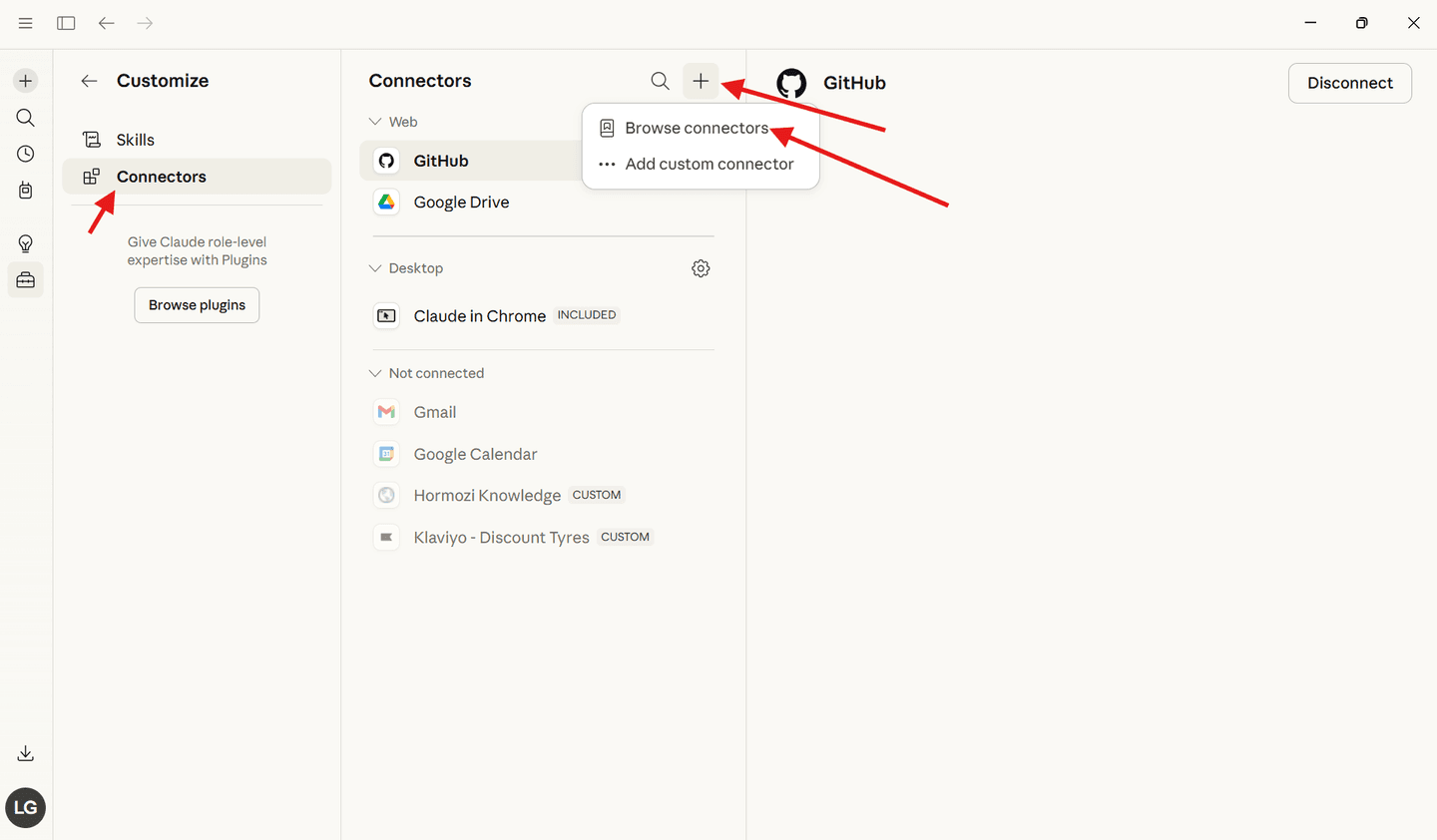
Connectors plug Claude into the tools you already use. Notion, Gmail, Linear, Google Drive, HubSpot, Slack. Once connected, Claude can read your meeting notes, draft replies to your inbox, summarise this week's sprint.
If you know what an MCP server is, Connectors are the user-facing wrapper around that. If you do not, do not worry. They are just toggles in Settings.
Layer 3: Projects (the workspace layer)
Anthropic's own description is direct: "Projects in Claude Cowork let you group related tasks into dedicated workspaces with their own files, context, instructions, and memory."
A Project is the folder Claude works inside. It bundles together five things:
- Instructions: your tone, formatting, rules, anything Claude should follow inside this Project
- Files: reference docs you attach so Claude can read them on every task
- Context: a local folder, a linked chat project, or a URL Claude treats as the working source
- Scheduled tasks: recurring Cowork jobs scoped to this Project
- Memory: Claude remembers what happened in earlier tasks within the same Project
When you create one, Cowork offers three starting points:
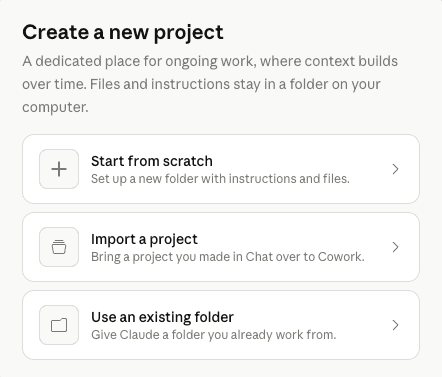
- Start from scratch: a fresh folder with instructions and files
- Import a project: bring across an existing Claude Chat project into Cowork
- Use an existing folder: point Claude at a folder you already work from on your computer
The setup dialog itself is short, name, instructions, attached files, save location:
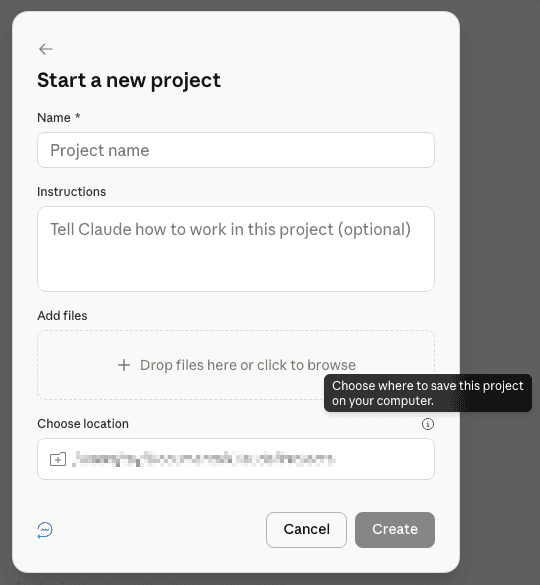
One Project per retainer client. One Project per repeating workflow. The brief and reference files become the working memory the next task starts from, so you never re-explain who you are or what you build.
Deep dive:
Layer 4: Artifacts (the shipping layer)
An Artifact is the side-panel deliverable Claude builds while you chat. Instead of writing a 1,200-word answer in the message thread, Claude opens a panel on the right and renders a real thing: a document you can edit, a chart you can adjust, a working HTML page you can use immediately, a small calculator, a comparison table. You iterate with Claude in the chat on the left, the artifact updates on the right.
Think of it as the difference between Claude telling you what your proposal should say and Claude showing you the proposal, already formatted, with your logo, ready to send.
Live Artifacts in Cowork (the upgrade)
Anthropic recently shipped a stronger version called Live Artifacts, specifically for Cowork. Their definition: "A persistent, interactive HTML page that Claude creates for you in Cowork. A tracker, a dashboard, a comparison tool, a reference, shaped around your specific work."
Three things make Live Artifacts different from regular chat artifacts:
- They persist. Live Artifacts get their own tab in your Cowork sidebar. You do not have to find the chat they came from. Open them like any document.
- They refresh themselves. When you open a live artifact, it can pull from your connected apps and local files. Today's data, not the day it was built.
- Version history. Every update saves a version. You can review how the artifact has evolved and restore an earlier one.
Real Live Artifact examples Anthropic ships
- A dashboard of open tasks by project, pulling from Asana or Linear
- A competitive intelligence tracker monitoring competitor releases, blog posts, and pricing changes
- A morning brief combining Slack mentions, calendar events, and pull-request status
- A persistent team dashboard with weekly metrics from your analytics tools
- A working project tracker pulling real-time data across multiple apps you have connected
Pair an Artifact (or a Live Artifact) with a brand-guide Skill and a client Project and the deliverable comes out finished. Not a draft. Finished.
Heads-up from Anthropic: Live Artifacts use your connectors without asking on every refresh. Take care creating ones that touch connectors with write or delete permissions. Live Artifacts are also not shareable yet at launch (sharing is on Anthropic's roadmap).
Where the Work Happens: Chat, Cowork, and Code
The four capabilities above run inside Claude. But Claude itself has three different ways of working with you, and picking the right one for the task changes everything. Inside Claude Desktop you will see three tabs at the top: Chat, Cowork, and Code.
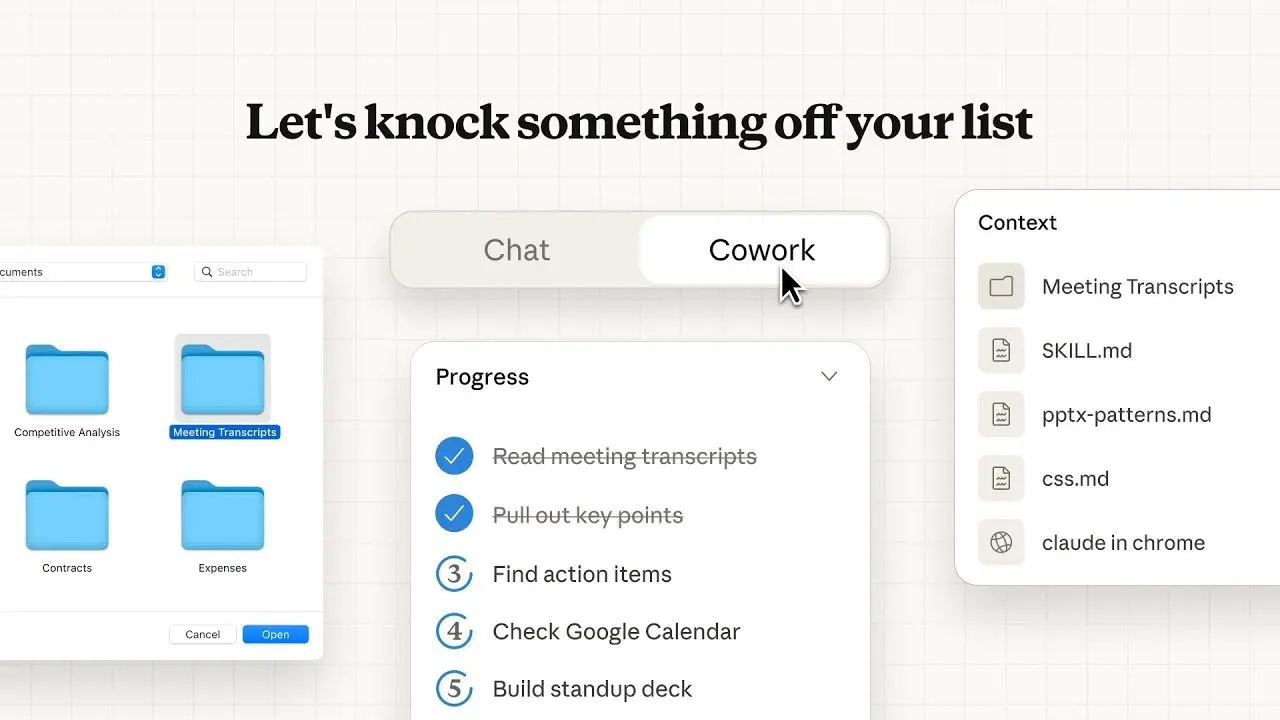
Anthropic's own visual of Cowork: a Progress checklist running through tasks, with a Context panel pinning the files and skills it has access to. Source: anthropic.com/product/claude-cowork.
Chat: thinking together
The mode everyone knows. You ask, Claude answers, you ask again. Synchronous, conversational, great for thinking out loud, drafting, exploring options, deciding.
Stay in Chat when you want to iterate every step. Anything where you would otherwise stand over a junior's shoulder, do it here.
Cowork: work delegated, deliverable returned
Anthropic's description of Cowork is direct: "Cowork handles tasks autonomously. Give it a goal and Claude works on your computer, local files, and applications to return a finished deliverable."
This is the mode for delegated work. Hand Claude a goal, a folder of files, maybe a connector or two, walk away. It reads, drafts, organises, synthesises, returns a finished thing. The same capability the developer-facing Claude Code has, simplified for non-technical knowledge work.
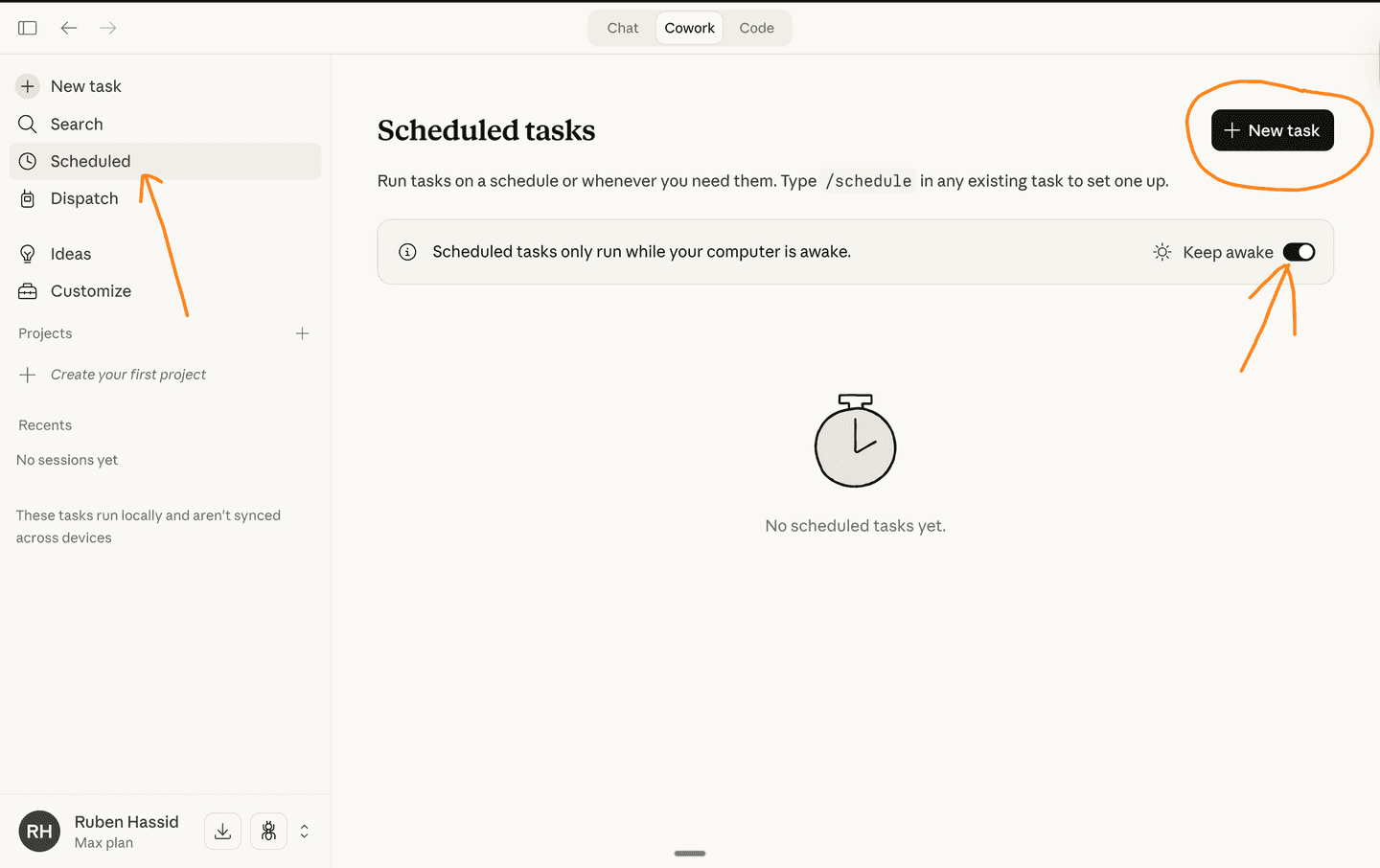
Schedule a Cowork task to run weekly and the Monday-morning briefing writes itself. This is where Skills earn their compounding. A scheduled Cowork task running a voice-DNA-enforced skill on your inbox is what an "AI coworker" actually looks like.
Code: terminal-grade power
The Code tab is the developer-facing surface. Read your repo. Run scripts. Chain workflows. Edit files end to end. The same engine that powers Cowork, exposed for people who live in the terminal.
Quick note on the naming
The Code tab inside Claude Desktop is the same engine as the standalone terminal CLI named Claude Code. The CLI is just the version of this tab exposed for people who prefer to live in a terminal. You do not need both. If you have Desktop, you already have the Code engine. The CLI is optional.
Non-developers can skip Code at first. Once you have a few Cowork tasks running and want more control, this is where you graduate to. The full installation course is in Claude Code 101.
Inside Claude Code: Plan Mode and the 5 Prompts That Change Everything
Most operators install Claude Code, type their first prompt, get a half-built thing back, and conclude AI is not ready. (We did the same thing in week one. Built nothing useful. Blamed the model.)
The real problem: they treated Claude Code like a chat. It is not a chat. It is a junior engineer who needs a brief and a definition of done.
This section is the workflow we drill in the first hour of every Claude Code workshop. Get this right and Claude Code stops feeling unreliable.
Plan Mode: make Claude think first, build second
Claude Code has a mode called Plan Mode. In Plan Mode, Claude reads your brief, asks clarifying questions, proposes a technical plan, lists the files it will create or change, and waits for your approval before touching anything. Nothing builds until you say go.
Turn it on by clicking the dropdown next to the + button at the bottom-left of Claude Code and selecting Plan mode. Or hit Shift + Tab to toggle it.
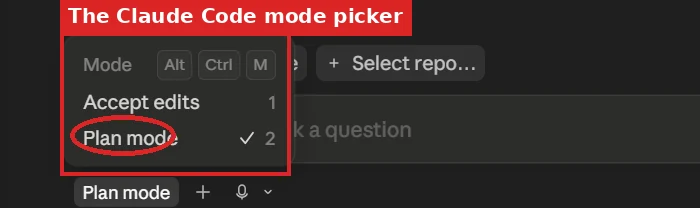
The trick: in Plan Mode, drop your raw brainstorm. Bullet points, fragments, half-thoughts. Claude organises it into a clean brief using the Role / Task / Format / Context framework and proposes the architecture. You did not need to know what Next.js or Tailwind is. Claude chose the right tools, you approve, then Claude starts building.
The 5 prompt checks (the 30 seconds before you hit Enter)
Before every non-trivial prompt to Claude Code, run through these 5 checks. They take 30 seconds and they 10x the quality of what comes back.
1. Scope it
Define the boundaries. What is in scope? What is explicitly out of scope? Without this, Claude goes wide and slow.
2. Diagnose it
Explain why the task matters. The downstream consequence of getting it wrong. Claude is better at solving real problems than abstract ones.
3. Explore first
Tell Claude to read the relevant files or research the topic before writing anything. Investigation beats invention.
4. Define done
What does "finished" look like? Be specific. "The job is finished when every feature works end-to-end in the browser. Not when the code compiles, but when I can click every button and see the feature do what it should."
5. Verify it (force Claude to check its own work)
The most-skipped step and the biggest quality unlock. Tell Claude to test, validate, or verify before declaring done. "After implementing, run through each feature in the browser. If anything is missing or broken, keep going. Do not stop until every item passes." This single sentence is what separates an operator who ships from an operator who debugs the AI's last attempt.
Memorise Scope, Diagnose, Explore, Define, Verify. Whisper it before every prompt. Inside three weeks it becomes muscle memory and the output quality jumps without you trying harder.
Bonus: make CLAUDE.md do the heavy lifting
Once you have the 5 checks in muscle memory, push the recurring parts (scope rules, voice, "never do this", definition of done) into a CLAUDE.md file at the root of the project. Claude reads it on every prompt automatically. The 30 seconds before Enter shrinks to 5 seconds.
Coming up next:
This Plan Mode plus 5 prompts workflow lives inside Claude Code. The Skills, Connectors, and Cowork capabilities we covered above sit on top of it. Combine them and you get an operating system, not a chat.
Halfway through. Quick pause.
If this is more than a casual read for you, the live workshop is where most of these patterns get drilled into your laptop. Three hours, real work, real laptops. NZ and Australia dates.
See the workshop dates →Choose Your Mode
Inside Claude there are three buttons most people walk past every day: Extended Thinking, Web Search, and Research. Three different jobs.
- Extended Thinking for deliberation. Hard reasoning, multi-constraint problems, design decisions.
- Web Search for live facts. Anything that changed since training cutoff.
- Research for reports. Multi-source synthesis on a topic, with citations.
Thinking is for deliberation. Search is for facts. Research is for reports. That is the whole map.

Power-ups for Operators
Once the stack is wired up, these are the operator-level patterns that separate "has a Claude account" from "runs a real AI workflow".
Browse the skills directory before you build
Most beginner skills already exist inside Claude Desktop's built-in directory. Stop reinventing alt-text generators and weekly-report skills from scratch. Browse first, build second.
Browse Claude Skills: find a working skill in 60 secondsBuild skills that improve themselves
The Karpathy Loop. A producer skill writes, a critic skill scores against your rubric, the loop updates the producer's instructions weekly. Six months in, the skill is genuinely better than it was on day one, and you did not touch it.
The Karpathy Loop: a Claude skill that improves itselfThe CLAUDE.md file
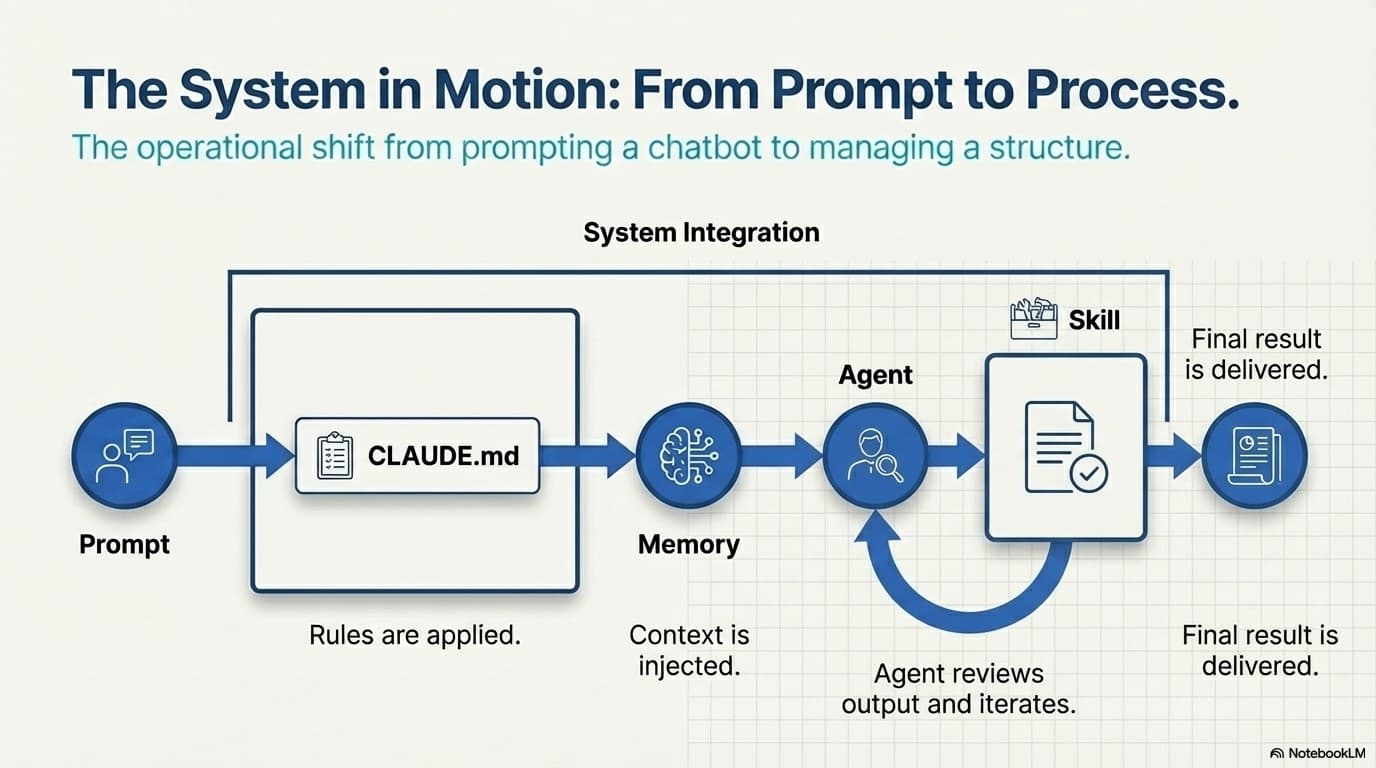
Drop a CLAUDE.md file at the root of any Claude Code project and Claude reads it on every prompt. Project rules. Conventions. Style. The "never do this" list. Anything Claude needs to know to work in that folder, captured in one file.
Two hundred lines of CLAUDE.md replaces an hour of re-explaining yourself every session. Drop the file at the root of your project, list your stack, your style rules, your "never do this" constraints, and Claude reads the lot on every prompt.
We write CLAUDE.md files live with operators in our Claude Code workshop. The first one usually takes 20 minutes. Every Claude Code project you ever start after that gets one.
The Ralph Wiggum Loop
Waboom's name for an autonomous agent loop that grinds a complex task to completion. Give it a product requirements doc, walk away, come back to a finished feature. It is overkill for small tasks and devastatingly effective on big ones.
We demo Ralph live in the Claude Code workshop. Operators usually watch one Ralph run and start spotting candidates everywhere.
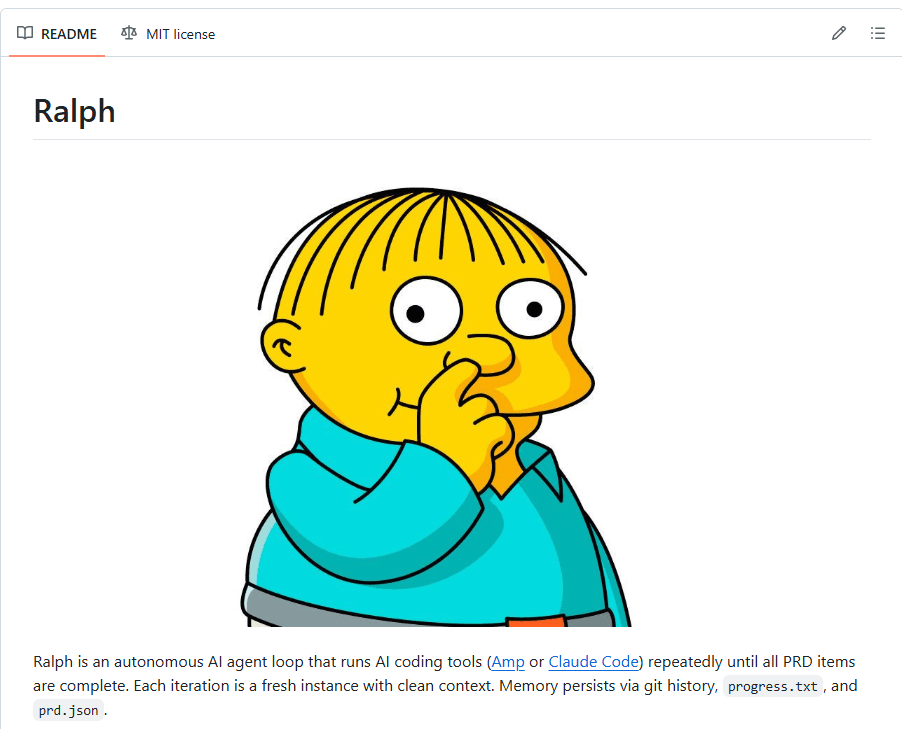
Install Ralph yourself:
Ralph is a custom Claude Code connector. Open Claude Code, then go into the Customize panel:
- Click the + next to Personal plugins, then Add marketplace.
- Paste this GitHub URL:
https://github.com/snarktank/ralphand click Sync. - Find “Ralph skills” by snarktank in the plugin list and click Install.
Trigger a Ralph run with /ralph-skills:ralph followed by the goal you want it to grind to completion, then ralph.sh commence to kick it off.
In Your Tools
Claude is not just a chat window. It plugs into the apps you already live in. Excel, Word, PowerPoint, Outlook all have official Claude add-ins now.
The biggest unlock for non-developers is Claude for Excel. Anthropic describes it as "an add-in that integrates Claude into your Excel workflow, designed for professionals who work extensively with spreadsheets, particularly in financial analysis and modeling."
Point Claude at a workbook and ask in plain English: build a pivot, clean column C, write the formula, explain what this sheet does. Every change goes through a permission dialog so you stay in control.
What Claude for Excel can actually do
- Read and explain: ask questions about your workbook and get answers with cell-level citations
- Update assumptions: change values and watch Claude maintain every formula dependency
- Build and fill templates: create models from scratch or fill an existing template from a 10-K or invoice PDF
- Debug errors: find every #REF, #VALUE, and circular reference in a workbook and explain why
- Track every change: Claude highlights every cell it touches with explanatory comments
- Edit and format natively: sort, filter, edit pivots and charts, apply conditional formatting, set data validation
- Use your Skills and Connectors: any skill you have enabled in Claude works inside Excel too
The permission flow that keeps you safe
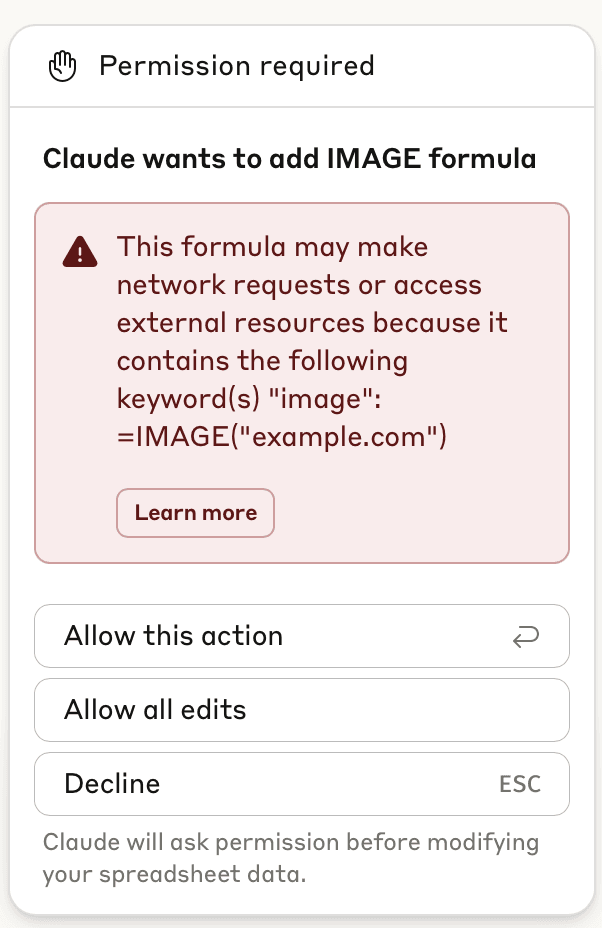
Claude warns before overwriting existing data. Dangerous Excel functions (WEBSERVICE, IMPORTDATA, INDIRECT, CALL, EVALUATE, file-system functions) require explicit approval via a confirmation pop-up before they execute.
For the first month keep "allow this action" as your default rather than "allow all edits". Graduate slowly. Spreadsheets break easily and the dialog is what stops a misphrased prompt from corrupting your model.
Anthropic's explicit guidance: "Only use Claude for Excel with trusted spreadsheets, not spreadsheets from external untrusted sources."
A few real prompts that work
- "Build a three-statement model for a SaaS company."
- "Compare actuals to budget and explain the largest variances."
- "Standardise phone numbers in column F to +1 (XXX) XXX-XXXX format."
- "Find all #REF errors in this workbook and trace each one back to the source cell."
- "Extract the financial table from this PDF into a new sheet."
What it does not do
- No support for VBA, macros, or data tables (the legacy ones)
- Only
.xlsxand.xlsmfiles - Available on Pro, Max, Team, and Enterprise plans only (not free tier)
- Excel on the web, Windows, Mac, and iPad. Not Android. Older Excel 2016/2019 perpetual licences not supported.
Anthropic explicitly cautions: do not use Claude for Excel for final client deliverables without human review, audit-critical calculations without verification, or models containing highly sensitive or regulated data without proper controls.
How We Use This at Waboom AI
Everything above is theory until it ships work. Three workflows we run at Waboom every week:
The landing-page generator (25+ pages in under a day)
We sell AI voice agents to small businesses, and every industry has a different version of the same pain. Dentists with missed after-hours calls. Plumbers losing weekend emergency jobs. Real estate teams letting vendor leads cool. Each one needs its own landing page that opens with their specific pain, their specific revenue lost, and a relatable Waboom example from that industry.
Writing 25 of those pages by hand would have taken a senior copywriter two weeks full-time, easily. Industry research, pain-point interviews, revenue maths per industry, brand-consistent layout, internal links to the matching service page. Per page, a half-day at best.
Instead, we built one skill. The skill knows:
- How to research an industry's pain points (missed-call rates, average ticket value, lost revenue per missed lead)
- Our copy structure (hook, pain, solution, proof, CTA)
- Our brand colours, voice markers, trust signals, and the case studies we draw from
- The internal links into the right Waboom service page for each industry
Building the skill itself took about two hours. Generating all 25 industry pages with it took under an hour of supervised running. Total: roughly three hours of operator time, replacing two-plus weeks of full-time human work.
The pages do real work too. They rank for industry-specific terms ("voice agent for plumbers", "ai answering service for dentists") and route operators to the right Waboom solution before a sales call. The compounding compounds.
The 8-pass SEO checker
Before any blog post ships, a skill called seo-check runs an 8-pass audit: search intent, headings, keyword coverage, image cadence, fact density. The post does not ship until every pass clears. Three hours of agency work, 30 seconds of skill execution.
The voice-DNA enforcer
This entire pillar page got edited by a skill before publish. Voice-DNA rules baked in: no em-dashes, no AI-tells like "imagine this" or "moving forward", short fragments, UK spelling. Six months of Karpathy-loop refinement means the skill catches things we did not know to flag in week one.

This is the exact playbook we teach in the room at our Claude Code workshop. Three hours, bring real work, leave with the same operating stack running.
Two Ways to Learn It
Whichever fits your style.
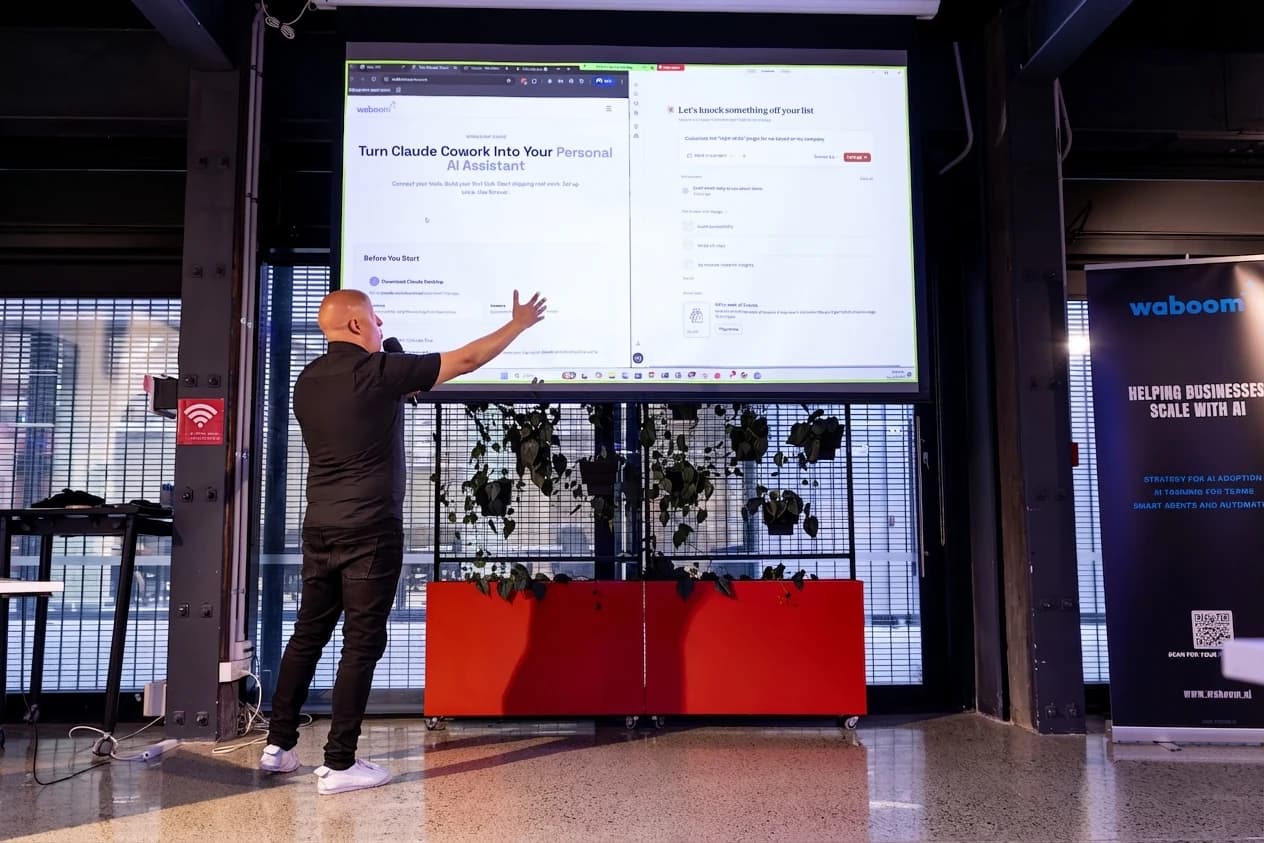
Self-paced: our two free courses cover the foundation. Claude Code 101 walks you from zero to a deployed landing page in six modules. Claude Skills 101 teaches you to build, debug, and share your first skill. Together they are about three hours.
Hands-on: the Claude Code workshop is three hours of live training. You bring a real problem, leave with it shipping. NZ$299 + GST, money-back guarantee, dates monthly across New Zealand and Australia.
Most operators do the free courses first, then come to the workshop with sharper questions. Either way, by the end of next week you stop re-explaining yourself to Claude, stop copy-pasting between tools, and start shipping work you would have charged an agency for.
Common questions we get asked
Pulled straight from operator questions at our last six Auckland and Sydney workshops.
Do I need to be a developer to use Claude Code?
No. About 60% of the room at our last Auckland workshop had never opened a terminal. They left with a deployed landing page. Desktop covers most operator work without ever touching the CLI.
Is Pro at $20 a month enough, or should I jump straight to Max?
Start on Pro. You will know inside a week whether you need Max. We ran Pro for six weeks before upgrading. The upgrade tell: you hit the usage limit twice in seven days, both on real work, not experiments.
What is the difference between Claude Code (the CLI) and the Code tab in Desktop?
Same engine. The CLI is the standalone terminal version. The Code tab is the same thing wrapped inside Claude Desktop. If you have Desktop, you do not also need the CLI. We use both because we live in the terminal half the day, but most operators do not.
Do I need to learn YAML or write the SKILL.md file by hand?
No. Claude Desktop has three buttons that build the skill for you: Create with Claude, Write skill instructions (a 3-field dialog), and Upload a skill. We cover the build flow end-to-end in the 15-minute first-skill walkthrough.
Can I run Claude on my own files without uploading them to a server?
Yes. Claude Desktop reads from your local folders. Cowork operates on your files directly. Claude for Excel runs as an add-in inside your local Excel. None of it requires uploading documents to a cloud service to make it work.
What if my team is on Microsoft 365 / Word / PowerPoint?
Anthropic ships official Claude add-ins for Excel, Word, PowerPoint, and Outlook. Skills you build in your account carry over to all four. We covered the Excel setup in detail under In Your Tools above.
How long until I see a real return on the time I spend learning this?
First skill: 15 minutes to build, saves 20 minutes a week immediately. Three skills running by week three pays for the Pro subscription twenty times over. The landing page generator we run at Waboom built 25 pages in 3 hours, replacing 2+ weeks of senior copy work. ROI is fast if you actually build, slow if you only read.
Self-paced
The free Claude Skills 101 course. Six short modules. Use a skill, build one, debug a trigger, share it. One hour total.
Start Claude Skills 101 →Hands-on with us
Live Claude Code workshop covers Skills, Connectors, Cowork as one operating stack. Bring real work, leave with it shipping. APAC dates monthly.
See the workshop →