7 min read · Connectors setup · Last updated 14 May 2026
Part of Learn Claude Code: The Complete Operator's Guide. For the operator's overview of Skills, Connectors, Cowork, and Artifacts, start there.
You can ask Claude to draft an email. Good.
You can ask Claude to read your inbox, find the three follow-ups you owe today, and draft replies in your voice. It queues them in Gmail for review. Better.
The first is chat. The second is chat plus Connectors. This post is the plain-English setup guide for the three Connectors that matter most: Notion, Gmail, and Linear.
If you have read our Skills vs MCP post and the kitchen analogy stuck, Connectors are the kitchen. This post shows you how to actually walk in and turn on the lights.
What a Connector actually does
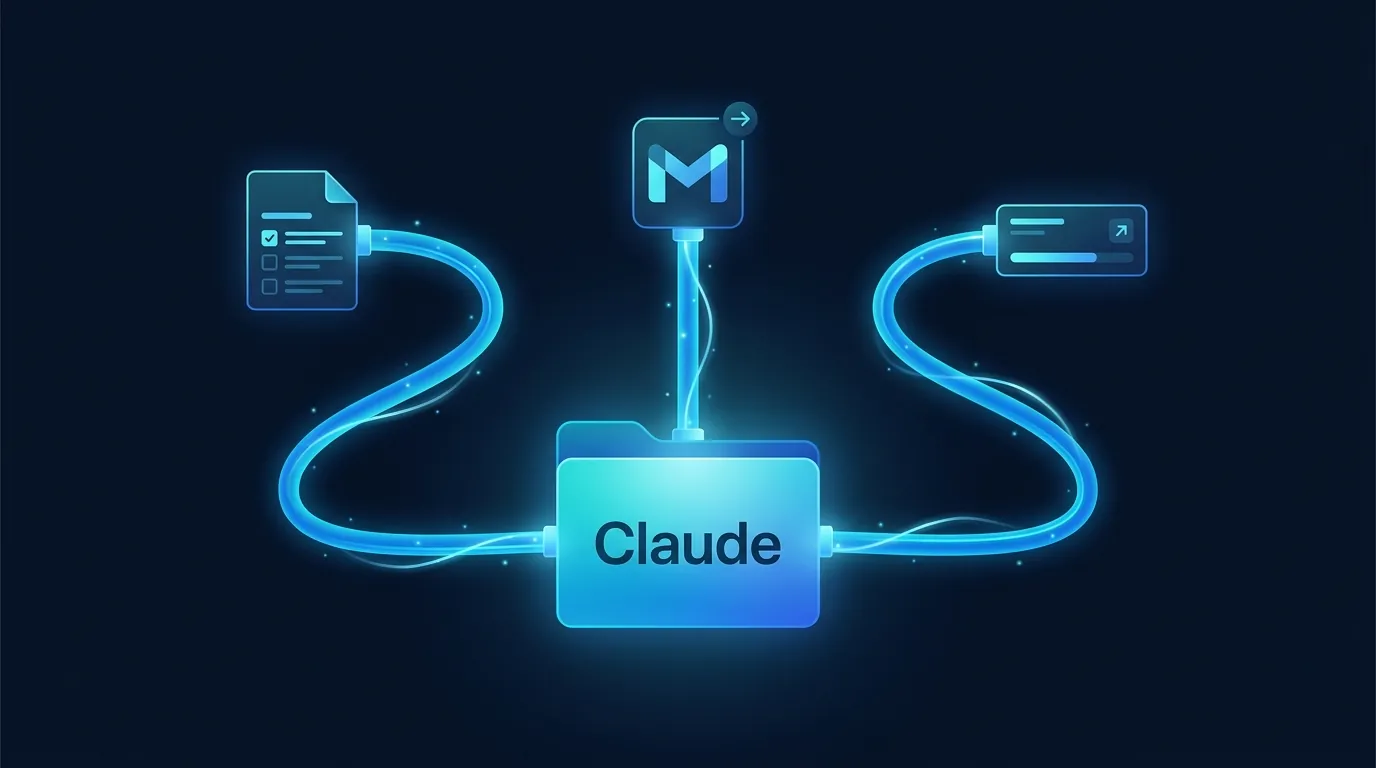
A Connector is the bridge between Claude and a specific tool you already use.
Once you plug in Notion, Claude can read pages from your workspace and search across them. It can create new pages too, if you grant write access. From any chat. No copy-paste.
The same goes for Gmail, Linear, Google Drive, calendar, and a growing list of others.
Connectors are what the developer world calls MCP servers. The plain-English version: live data, live tools, real access.
The first one to set up: Notion (read-only)
Why Notion as your first connector?
Three reasons.
One. If your team already lives in Notion, Claude can read all of it once connected. Meeting notes, client folders, project tracker, knowledge base. Stop pasting context into chat.
Ask "what did we agree with Acme Corp last week" and Claude pulls the meeting note. Ask "what is in our SOPs for new-hire onboarding" and Claude reads the whole page.
Two, Notion's permission model is the cleanest of any connector. You pick exactly which pages or databases Claude can see, down to a single doc. Lowest-risk way to learn what a connector actually does.
Three, read-only first. Claude can search your workspace and summarise, but it cannot write, delete, or restructure anything. That makes it perfect for the first week.
If you do not use Notion, the same flow works for Google Drive (skip ahead, the setup is identical), Confluence, OneDrive, or Dropbox. Pick whichever already has your team's documents in it. The point is to connect Claude to the place you already store knowledge, not to switch tools.
Setting up these connectors with a real workspace alongside other operators is one of the most-asked-for things at our Claude Code workshops. Half the room arrives never having clicked into Settings.
1. Open Connectors
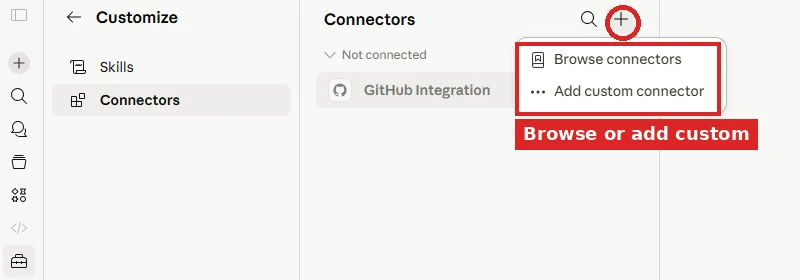
In Claude.ai or Claude Desktop, you head to Settings → Connectors. Click the + button in the Connectors header to open the picker.
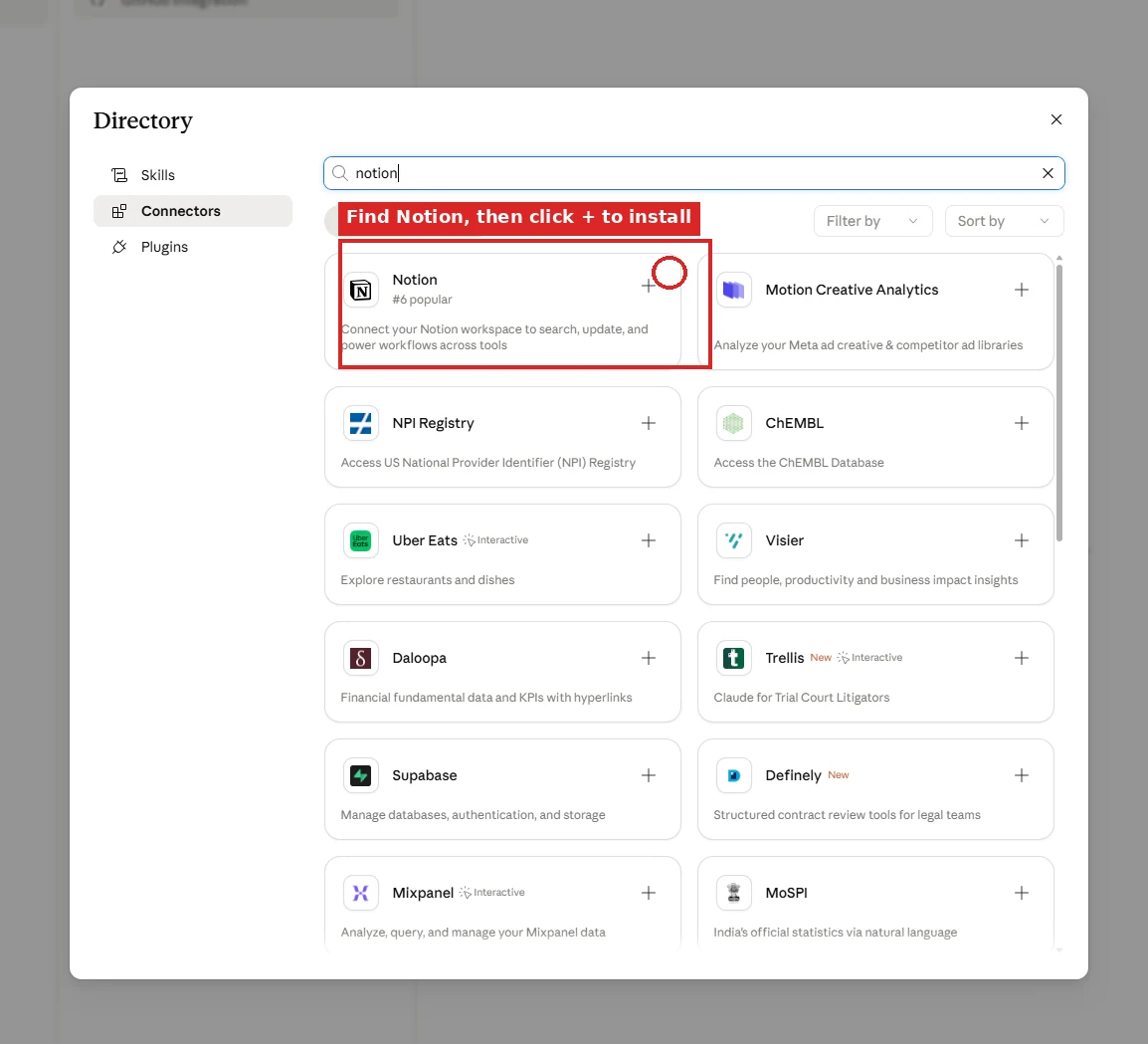
2. Find Notion in the directory, then click +
The connector directory opens. You search for Notion (it is usually in the top few) and click the + next to its card to start the connection.
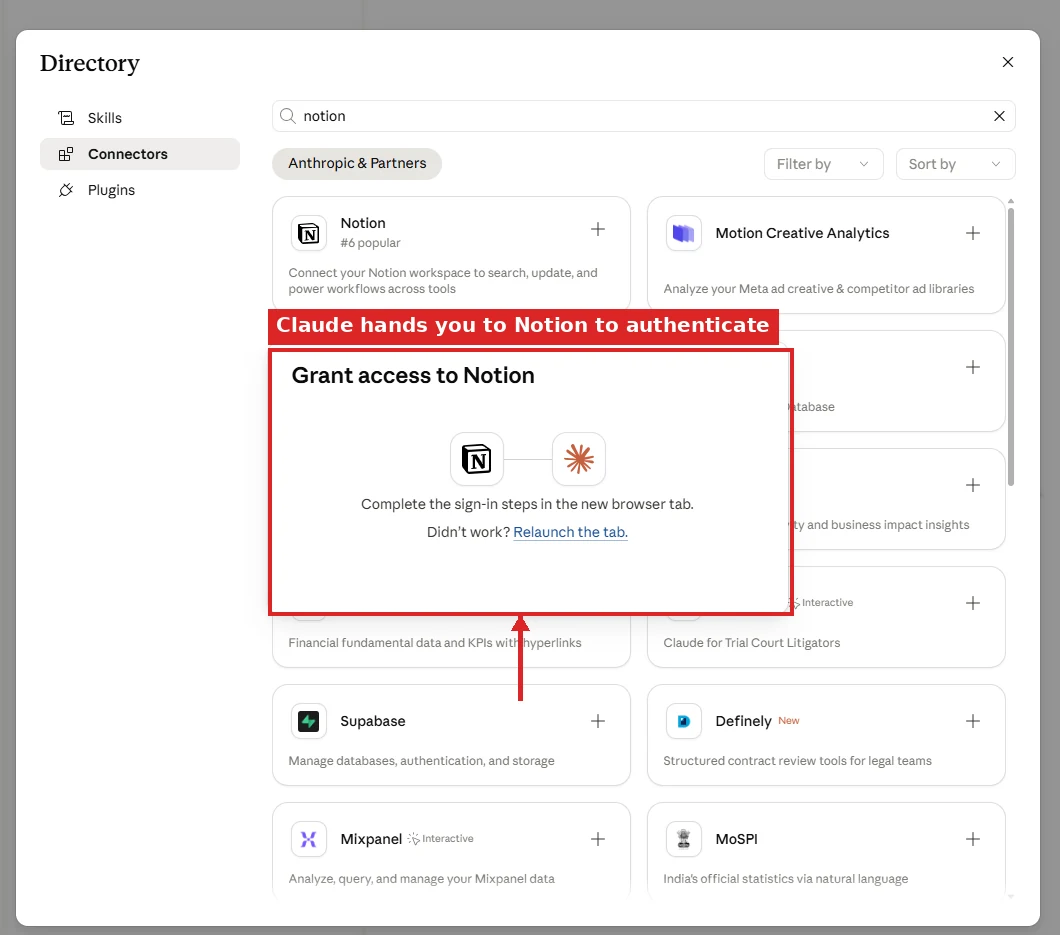
3. Authenticate with Notion
Claude hands you off to Notion in a new browser tab. This is where you sign in if you are not already, and pick the workspace.
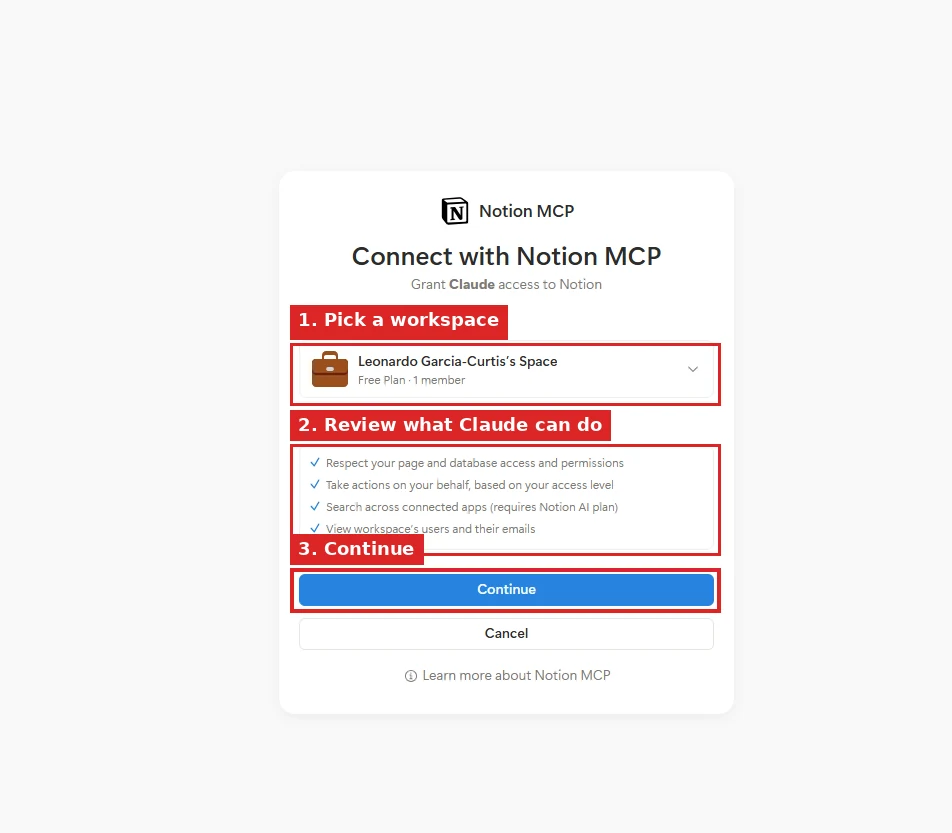
4. Pick a workspace and review what Claude can do
For your first setup, pick a single Notion workspace and a specific page or database to scope access. Do not give Claude your entire workspace on day one. Start narrow, expand later. Read the permission list before you click Continue.
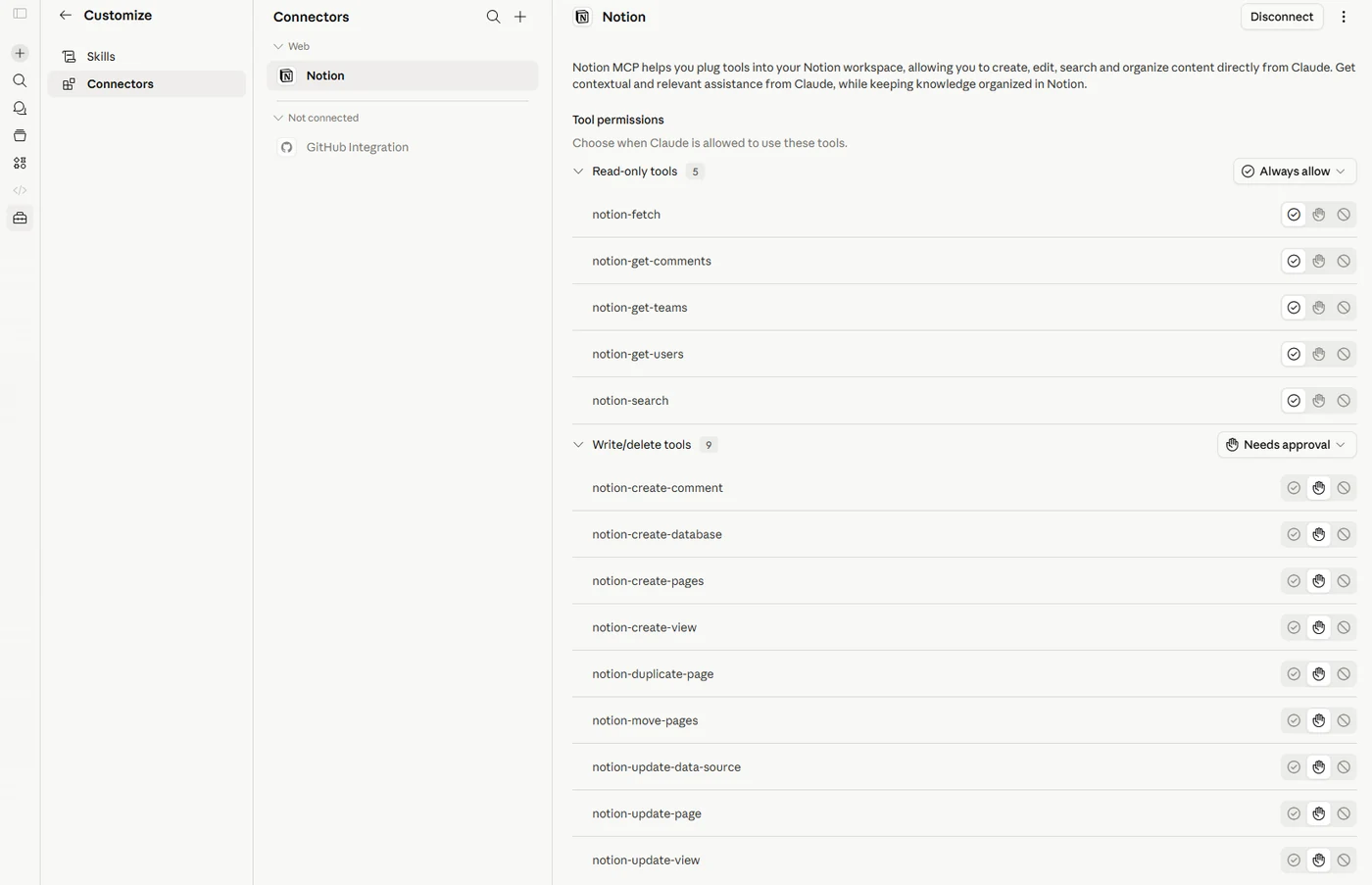
5. You are connected. Tune the tool permissions.
Notion bounces you back to Claude. The Connector shows as connected, and you get a per-tool permission view where read-only tools are auto-allowed and write tools require approval. Leave the defaults for now.
Total time so far: about 90 seconds.
4. Test it
Start a new chat. Ask Claude: "What is in the Notion page I just connected? Summarise it in three bullets."
Claude reaches into Notion, pulls the page, summarises. You have a working Connector.
The second one: Gmail (read first, draft later)
Gmail is where the productivity gains start to feel real. But it is also where you should be most careful with write access.
1. Connect
Settings > Connectors > Gmail > Connect. Google's permission page opens.
2. Choose read-only first
Google's screen will show you exactly what Claude is asking for. For your first week, pick "read email" and skip "send email".
You still get to ask Claude to "read my inbox and draft three replies". The drafts appear in chat for you to review. They do not send themselves.
3. Test it on a real prompt
Try: "Read my inbox from this morning. Group the messages by who they are from. Tell me which three need a response today."
If that works smoothly, you can graduate to draft-and-send later. Most of us stay on read + draft-to-review for a while. The marginal time saving from auto-send is not worth the marginal risk.
The third one: Linear (or your team's ticket system)
For software or product teams, Linear changes how planning chats work. Same setup pattern.
Settings > Connectors > Linear > Connect. Approve in Linear. Test with: "What are the open tickets in our 'Voice Agents' project sorted by priority?"
Once that works, you can ask Claude to draft a sprint plan, write release notes from completed tickets, or summarise this week's blockers. All by reading from the live source.
If your team is not on Linear, the same flow applies to most ticket systems with a Connector: Jira, GitHub Issues, Asana, ClickUp.
The permissions that matter
Every Connector asks for a set of scopes, and Claude is upfront about what it wants. Most people skim past this part. Read it.
Three habits worth building from day one:
1. Start read-only
Always start read-only, even for tools you trust. The first month is for getting comfortable, and read-only lets you see what Claude does without it being able to change anything.
2. Scope to the smallest thing that works
If Claude can read your "Marketing" Notion page, that is better than reading your entire workspace. If Claude can see your "Inbox" Gmail label, that is better than your full mail history.
You can always widen access later. Narrowing it after a leak is harder.
3. Review the audit log
Settings > Connectors > [tool name] shows you the calls Claude has made. Check it weekly for the first month.
This is also the Karol Zieminski "always ask for a change log" habit, applied to your Connectors. We covered the change-log discipline in Module 6 of Skills 101.
Three workflows that change the next time you open your laptop
Workflow 1: Monday morning inbox triage
You run this with Gmail read + draft-to-review: "Look at my inbox from the weekend. Group by sender. Tell me the three I need to reply to this morning. Draft replies in my usual short, direct tone."
Five minutes of your work becomes 30 seconds. The drafts sit in Gmail for you to read, tweak, send.
Workflow 2: Pull a client one-pager from your notes
With Notion read: "In my 'Acme Corp' Notion database, find all meeting notes from the last 30 days. Summarise the open items, the agreed decisions, and what we promised by when. Write it as a one-page client update."
Half an hour of scrolling and reformatting becomes one prompt.
Workflow 3: Sprint summary for the team
With Linear read: "From the tickets closed in our last sprint, write a 200-word summary of what shipped. Group by area. Note any blockers carried over."
The Friday update writes itself.
Bonus workflow: build a client record from your inbox
This is where Notion plus Gmail get powerful together.
With Gmail read + Notion write: "Find every email from Acme Corp in the last 90 days. Pull the key decisions, requests, and promises. Save it as a new page in the 'Client Records' Notion database with sections for Decisions, Open Requests, and Watch-outs."
Two minutes later you have a structured client record built from your real inbox history. The kind of thing operators promise themselves they will "do properly one day" and never get to.
Connectors plus Skills
Connectors give Claude access to your tools. Skills give Claude the workflow for using them well.
On their own, Connectors are powerful but generic. Add a skill that says: "when I ask for an inbox triage, group by sender, flag client mail as priority, draft in my short voice". Now the workflow is consistent every Monday.
The pairing is what we cover in the live workshop. It is also what makes the difference for you between Claude as a tool and Claude as a coworker.
What to do next
Pick one Connector and do the 90-second setup tonight, starting with read-only.
Run one real prompt against it tomorrow morning. See what changes.
Then come back and read What is a Claude Skill to layer the workflow side on top. That is where your gains start to compound.
Frequently asked questions
What is a Claude Connector?
A Connector is the bridge between Claude and a tool you already use. Plug in Notion and Claude can read and search your workspace from any chat, with no copy-paste.
The same applies to Gmail, Linear, Google Drive, calendar and a growing list of others. Developers call these MCP servers. The plain-English version is live data and real access.
Which Connector should I set up first?
Notion, read-only. Its permission model is the cleanest of any connector. You can scope Claude down to one page while you learn what a connector actually does.
If your team does not use Notion, the identical flow works for Google Drive, Confluence, OneDrive or Dropbox. Connect Claude to wherever your documents already live rather than switching tools.
Should I give Claude write access to my Gmail?
Not in your first week. Pick "read email" and skip "send email".
You can still ask Claude to read your inbox and draft three replies. The drafts appear for you to review and they do not send themselves. The time saved by auto-send is not worth the risk.
How do I see what Claude has actually done with a Connector?
Go to Settings, then Connectors, then the tool name. That view shows the calls Claude has made.
Check it weekly for the first month. It is the same change-log discipline you would apply to anything else with access to your data.
How long does it take to connect one?
About 90 seconds for Notion, start to finish. Open Settings and Connectors, click the plus, find the tool, authenticate, then pick a single workspace and scope it to one page or database.
Then test it. Start a new chat and ask Claude to summarise the page you just connected in three bullets.
What permissions should I grant a Connector?
Start read-only, even for tools you trust. Scope to the smallest thing that works. One Marketing page beats your whole workspace. One Inbox label beats your full mail history.
You can always widen access later. Narrowing it after a leak is harder.
Self-paced
The free Claude Skills 101 course. Six short modules. Build the workflow layer that turns Connectors from "data access" into "actual coworker".
Start Claude Skills 101 →Hands-on with us
Live workshop wires up your real Connectors on your real tools with skills layered on top. You leave with three workflows already running.
See the workshop →If your team wants hands-on help, see Waboom's AI team training.
Leonardo Garcia-Curtis
Founder & CEO at Waboom AI. Building voice AI agents that convert.
Want your team to actually use these tools?
Waboom AI runs hands-on AI training and Claude workshops for teams across New Zealand and Australia.
Explore AI Team Training