Installing Claude Code
Module 2: Setup
Step 1: Check for Node.js
Claude Code needs Node.js to run. Let's check if you have it:
node --version
If you see a version number (v18 or higher):
v20.10.0
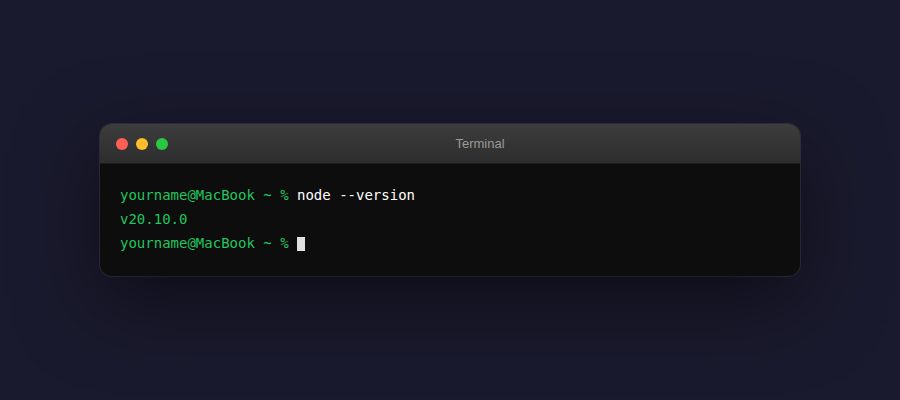
Great! Skip to Step 2.
If you see "command not found" or an old version:
Install Node.js from nodejs.org. Download the LTS version (the one that says "Recommended for most users").
After installing, close and reopen your terminal, then run node --version again to confirm.
Step 2: Install Claude Code
Now install Claude Code globally on your machine:
npm install -g @anthropic-ai/claude-code
added 1 package in 2s
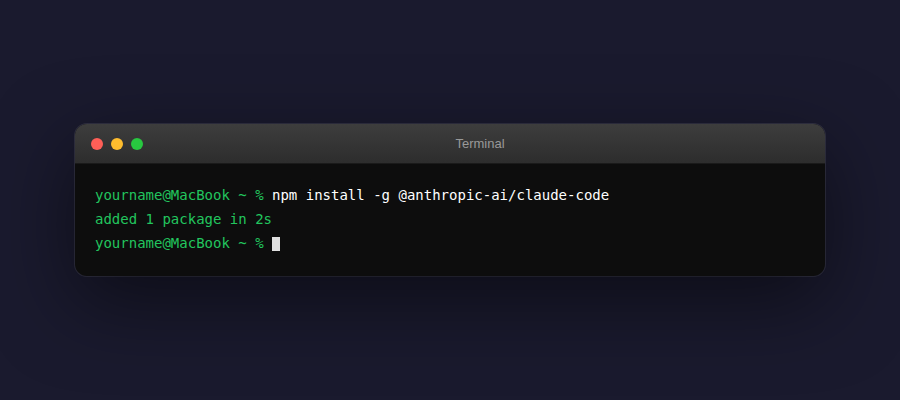
What does this command do? npm is Node's package manager. install -g means "install globally" so you can run Claude Code from any folder.
Step 3: Start Claude Code
Let's fire it up!
claude
Step 4: Connect Your Claude Account
On first run, Claude Code will ask you to authenticate. This connects Claude Code to your Anthropic account.
Welcome to Claude Code!

To get started, you'll need to authenticate with your Anthropic account.

Press Enter to open the browser and log in...
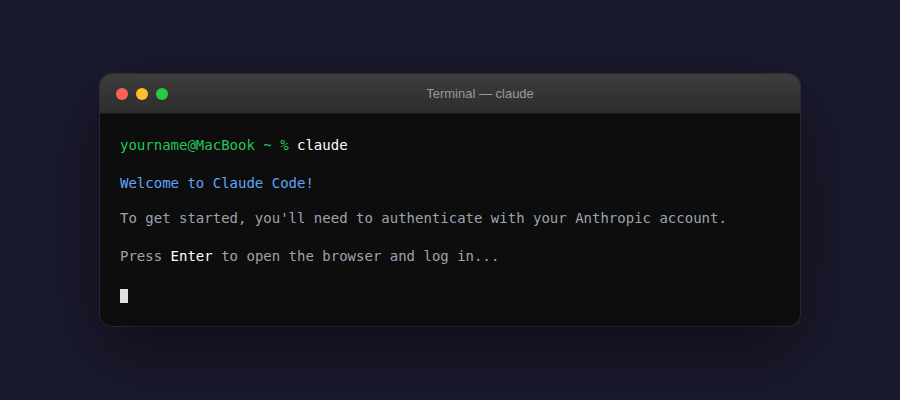
Follow these steps:
- Press Enter — your browser will open automatically
- Log in to your Claude account (or create one if you haven't)
- Click "Authorize" to allow Claude Code access
- Return to your terminal — you should see a success message
╭──────────────────────────────────────────╮
│                                          │
│   Welcome to Claude Code!                │
│                                          │
│   I am Claude, your AI coding assistant. │
│   I can help you build, debug, and       │
│   understand code.                       │
│                                          │
╰──────────────────────────────────────────╯

>
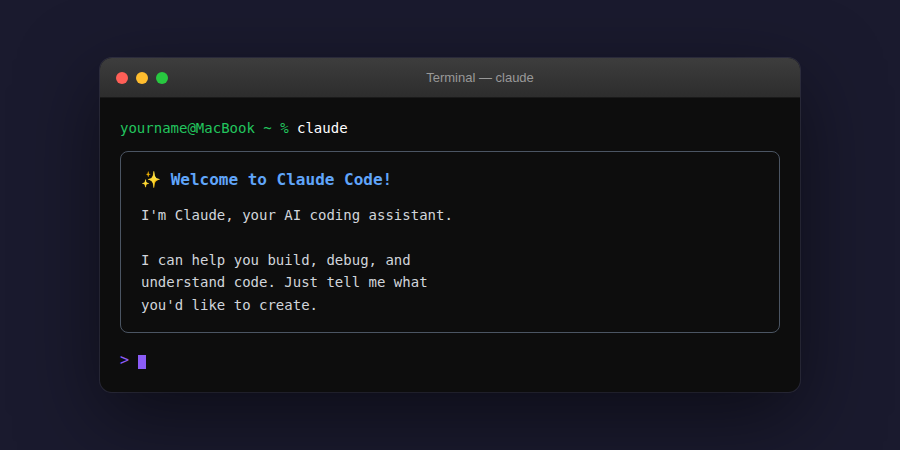
That > prompt means Claude is authenticated and ready for your commands!
Authentication is one-time. You only need to do this once. Claude Code remembers your login for future sessions.
About Claude Plans
Which plan do you need? Claude Code works with the Claude Pro plan ($20/month) or Claude Max plan ($100/month for heavy users). The Pro plan is plenty to get started and build real things. Sign up at claude.ai if you haven't already.
Troubleshooting
Permission denied error on Mac/Linux?
Try running with sudo:
sudo npm install -g @anthropic-ai/claude-code
'claude' is not recognized on Windows?
Close your terminal completely and reopen it. The PATH needs to refresh after installing npm packages globally.
Still stuck?
Check the official Claude Code docs or ask in our community.
What you just did: Claude Code is installed and running. In the next lesson, you'll learn how to talk to it.