Opening Your Terminal
Module 2: Setup
What is the Terminal?
The terminal (also called "command line" or "shell") is a text-based way to control your computer. Instead of clicking buttons, you type commands.
Don't worry — you don't need to become a terminal expert. You just need to know how to open it and type a few commands. Claude Code handles the rest.
Find Your Terminal
Option 1: Spotlight Search (Fastest)
- Press Command + Space to open Spotlight
- Type Terminal
- Press Enter
Option 2: Finder
- Open Finder
- Go to Applications → Utilities
- Double-click Terminal
💡 Pro tip: Right-click Terminal in your Dock and select "Keep in Dock" so it's always one click away.
You should see: A window with a prompt like yourname@MacBook ~ %
Test Your Terminal
Let's make sure it's working. Type this command and press Enter:
echo "Hello from my terminal!"
Hello from my terminal!
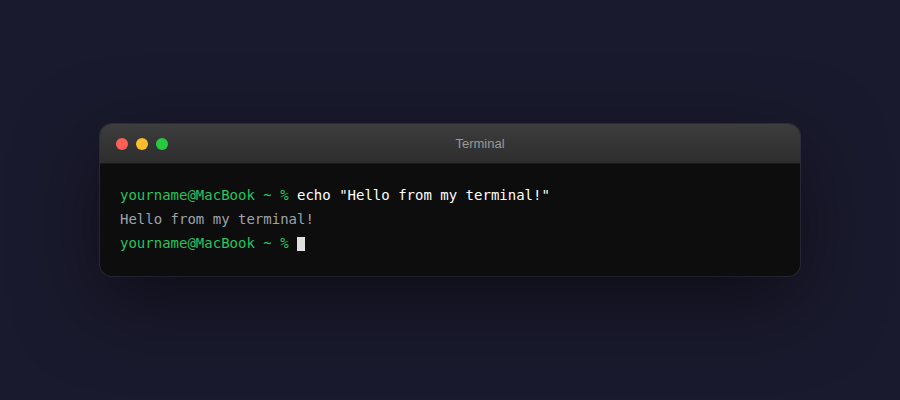
If you see that message, your terminal is working. You're ready for the next lesson!
What you just did: You found your terminal and ran your first command. That's all you need to know for now — Claude Code will handle the complex stuff.