Building Your Page
Create a complete landing page structure with Claude Code.
Choose Your Path
Two ways to complete this module:
Before You Start
Make sure you're in your project folder with Claude Code running.
📋 Copy this command:
cd ~/my-landing-page && claude
Get Your Images Ready
Before we start building, grab some images. A landing page without visuals feels empty — let's fix that upfront.
What to Gather
Grab 2-4 images from your computer:
- A headshot — photo of yourself or your team
- Product shots — screenshots, photos of what you're selling
- Your logo — if you have one
- Stock photos — try Unsplash for free, high-quality images
Add Them to Your Project
Put your images in the images folder. You can drag and drop in your file explorer, or ask Claude:
Copy my headshot from ~/Downloads/my-photo.jpg to the images folder in my project
Claude will move the files and confirm they're ready to use.
Image Tips:
- Use .jpg or .png files — Claude handles both
- Name them something memorable:
headshot.jpg,product-screenshot.png - We'll add these to your landing page as we build each section
⚡ One-Shot Build — Skip to the End
Ready to go fast? Copy the mega-prompt below. Builds your entire page in one shot.
Copy this mega-prompt. Customize with your own headline, pain points, and business details.
Build me a complete landing page in index.html with professional styling. Include all CSS in a linked styles.css file.

## Structure & Content:

**Hero Section:**
- Headline: "Build Landing Pages Without Code"
- Subheadline: "Go from idea to live website in hours, not weeks. No developers needed."
- CTA button: "Start Building Free"
- Add my headshot (images/headshot.jpg) on the right, circular with shadow
- Gradient background (dark blue to purple)

**Pain Points Section:**
- Headline: "Sound Familiar?"
- 3 pain points with icons:
  1. "Waiting weeks for your developer to make simple changes"
  2. "Paying agencies thousands for landing pages that don't convert"
  3. "Losing leads while your website sits unfinished"

**Solution Section:**
- Headline: "There's a Better Way"
- Show how we solve each pain point
- Add my product screenshot (images/product-screenshot.png) styled as a browser window

**Testimonials Section:**
- Headline: "What People Are Saying"
- 3 testimonial cards with quotes, names, roles, and circular photo placeholders

**Final CTA Section:**
- Headline: "Ready to Build?"
- Subheadline: "Your landing page is one conversation away."
- Big button: "Start Building Now"
- Contrasting background color

**Footer:**
- Copyright 2025
- Links to Privacy Policy and Terms (use # as placeholders)

## Design Requirements:
- Modern, clean design
- Mobile responsive
- Consistent color scheme throughout
- Professional typography
- Smooth hover effects on buttons

Build everything now and open it in my browser when done.
After it builds, iterate: "Make the headline bigger", "Change the button to green", etc.
Done with One-Shot? Skip ahead to Module 4: Adding Interactivity.
📚 Step-by-Step Guide
Want to learn the process? Start here. We'll build your landing page section by section, learning as we go.
Landing Page Psychology
Before we build, you need to understand what makes a landing page work. This isn't about making something pretty — it's about creating something that converts visitors into customers.
The 5-Section Framework
Every effective landing page follows the same basic structure:
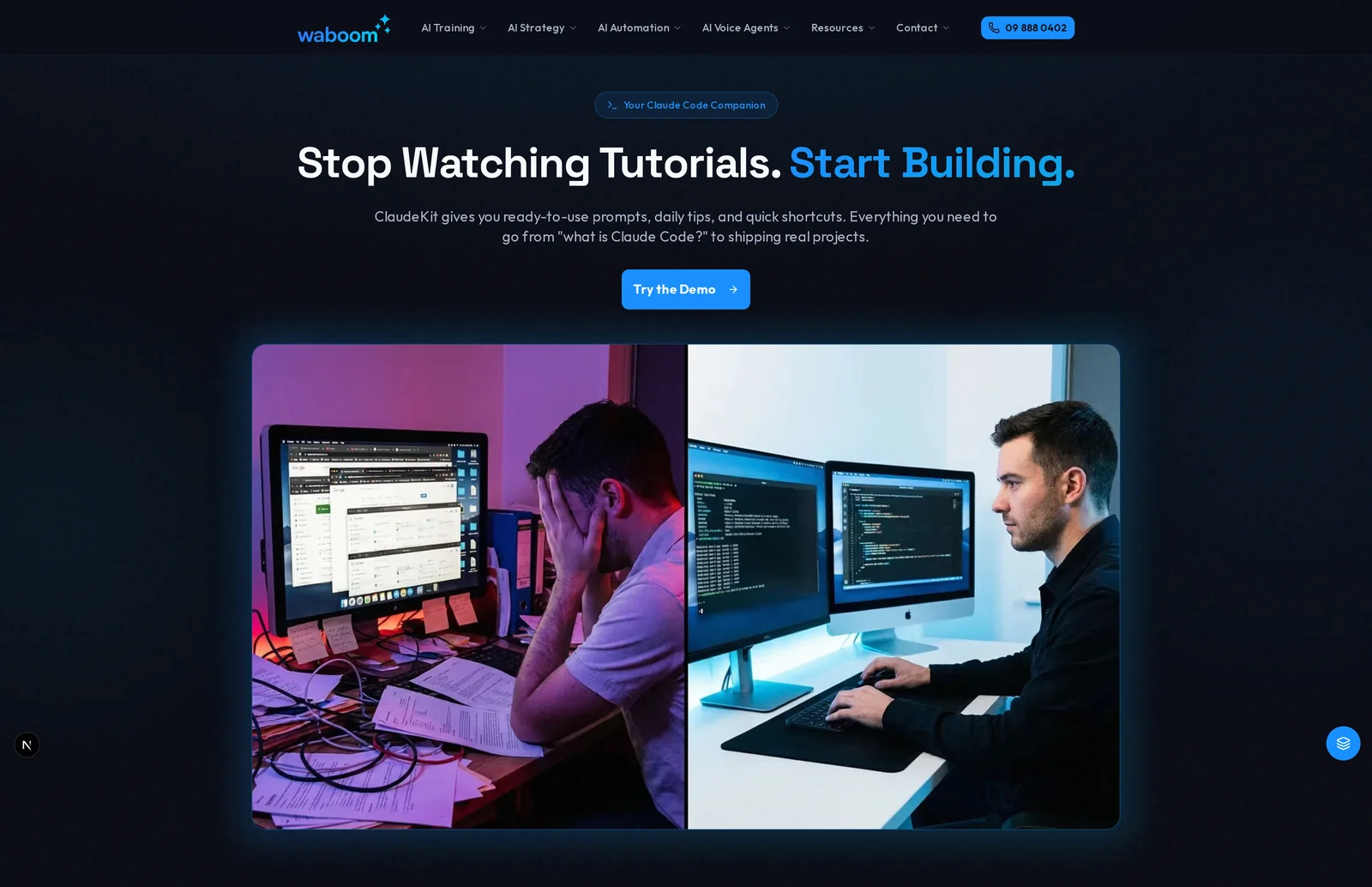
1. Hook (Hero Section)
Purpose: Grab attention and promise a result
This is the first thing visitors see. You have about 3 seconds to convince them to keep scrolling. It needs:
- A clear headline that promises an outcome
- A subheadline that explains how
- A call-to-action button
Example: "Build Landing Pages Without Code — In Hours, Not Weeks."
2. Pain
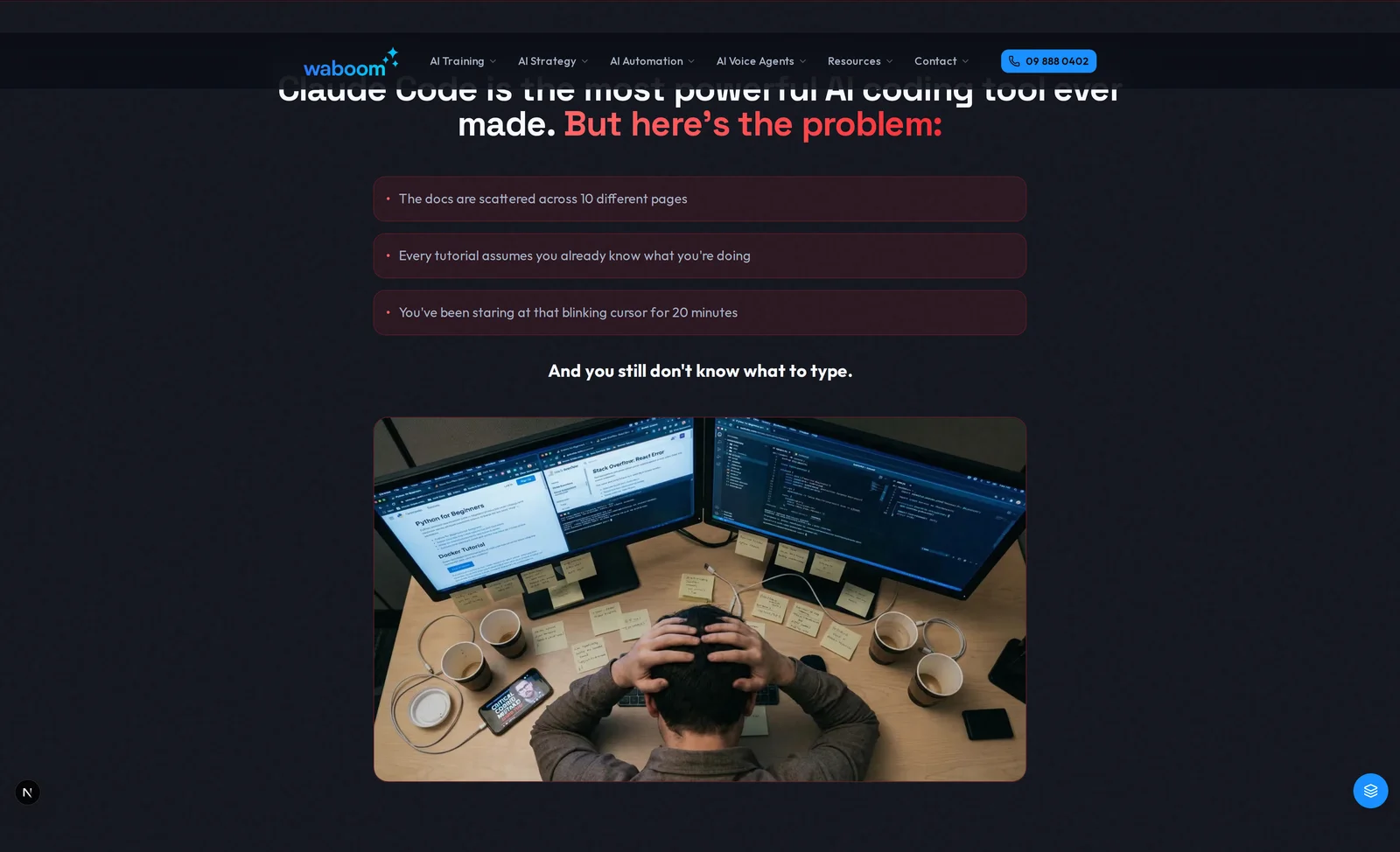
Purpose: Make them feel understood
Before you offer a solution, show that you understand their problem. This builds trust and makes them think "this is for me."
Example: "Tired of waiting weeks for your developer? Frustrated by expensive agencies that don't get your vision?"
3. Solution
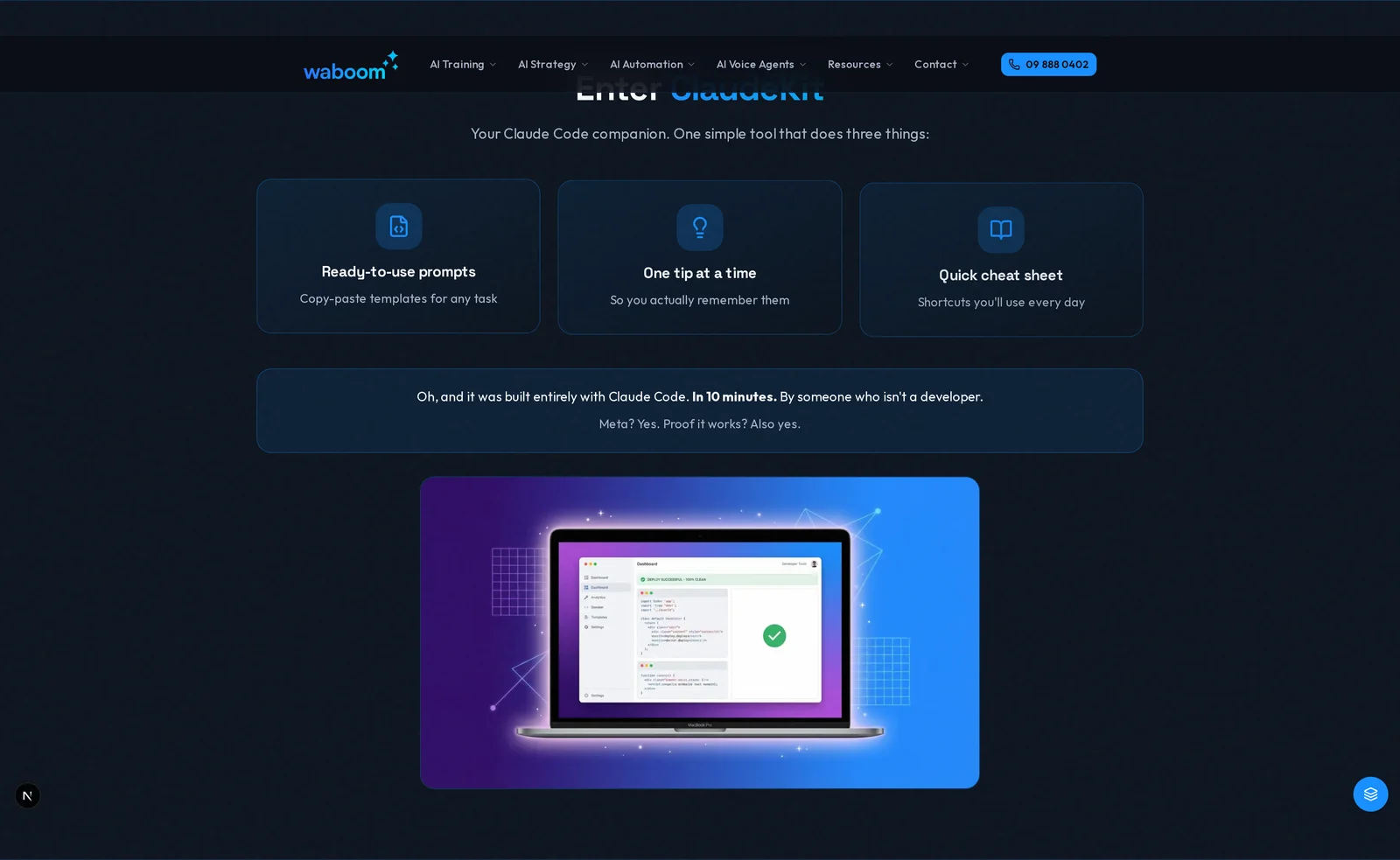
Purpose: Present your offer as the answer
Now introduce what you're offering. Connect it directly to the pain points you just described.
Example: "ClaudeKit lets you build professional landing pages by describing what you want. No coding. No waiting."
4. Proof
Purpose: Remove doubt with evidence
People are skeptical. Show them that this actually works. Use:
- Testimonials
- Case studies
- Numbers and results
- Screenshots or demos
Example: "500+ landing pages built. Average time: 3 hours."
5. CTA (Call to Action)
Purpose: Tell them exactly what to do next
Don't leave it vague. Give them one clear action to take.
Example: "Start Building Free" or "Get Instant Access"
Building Your Hero
Let's create a complete hero section. Give Claude all the details it needs.
Create a hero section for my landing page in index.html.

Use this content:
- Headline: Build Landing Pages Without Code
- Subheadline: Go from idea to live website in hours, not weeks. No developers needed.
- CTA button text: Start Building Free

Add my headshot (images/headshot.jpg) on the right side of the text, make it circular with a subtle shadow. Nice gradient background.
I'll create a hero section for your landing page.

Updating index.html...

Done! I've created a hero section with:
- Your headline and subheadline
- A call-to-action button
- Centered layout with a professional color scheme

Would you like me to open it in your browser so you can see it?
The Iteration Pattern
This is how you'll work for the rest of the course:
- Ask Claude to build something
- Look at it in your browser
- Tell Claude what to change
- Repeat until you're happy
You don't need to know CSS or design rules. Just describe what you want:
- "Make it bigger"
- "More space here"
- "Change that color to blue"
- "Center this"
- "Add a shadow"
Claude translates your words into code.
What you just did: You built a complete landing page structure following proven psychology. It has a hook, addresses pain, presents a solution, proves it works, and tells visitors exactly what to do. In the next module, you'll add interactivity to make it even more engaging.