Turn Claude Into Your Email + Calendar Assistant
Connect Gmail or Outlook. Teach Claude your voice. Draft replies that sound like you, triage your inbox, and get a daily briefing that pulls email and calendar together. 15 minutes to set up.
Get Claude Desktop
Download Claude Desktop from claude.com/download. Available on macOS and Windows.
You need at least a Pro plan ($20/month) — Cowork requires a paid subscription.
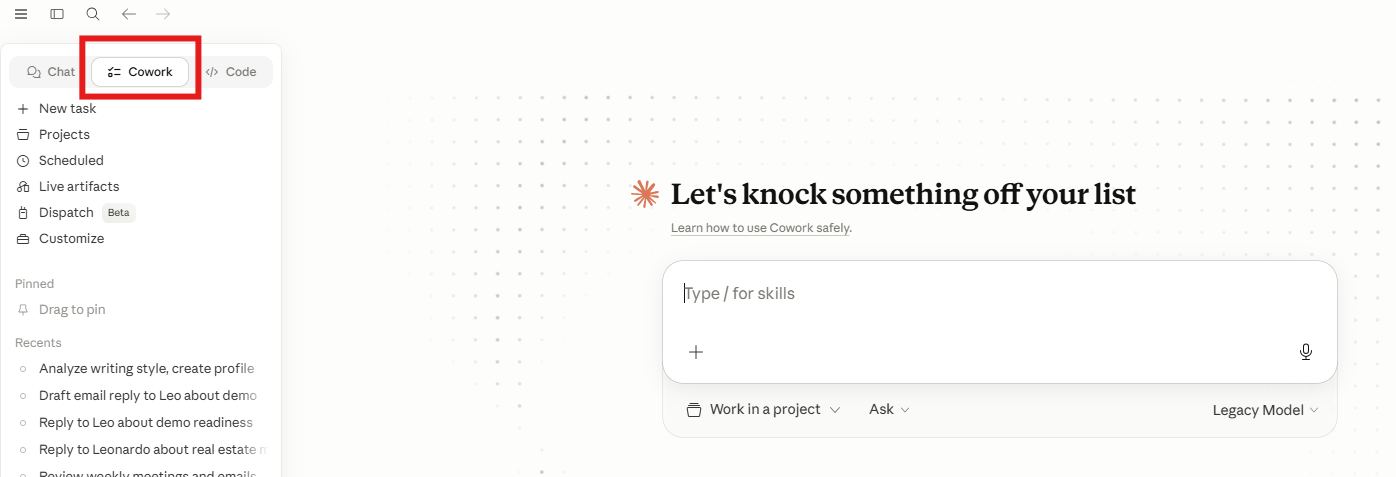
Open the Cowork Tab
Open Claude Desktop. Click the Cowork tab at the top. Set the model to Sonnet — it's fast, cost-effective, and handles email work perfectly.
Create Your Folder
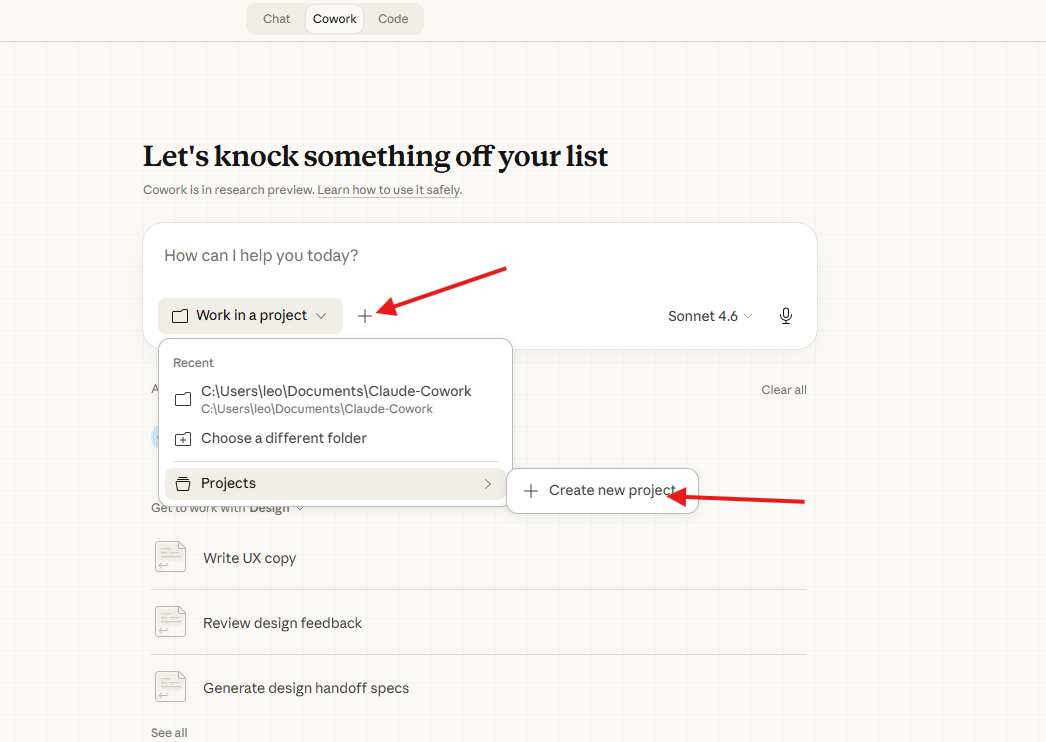
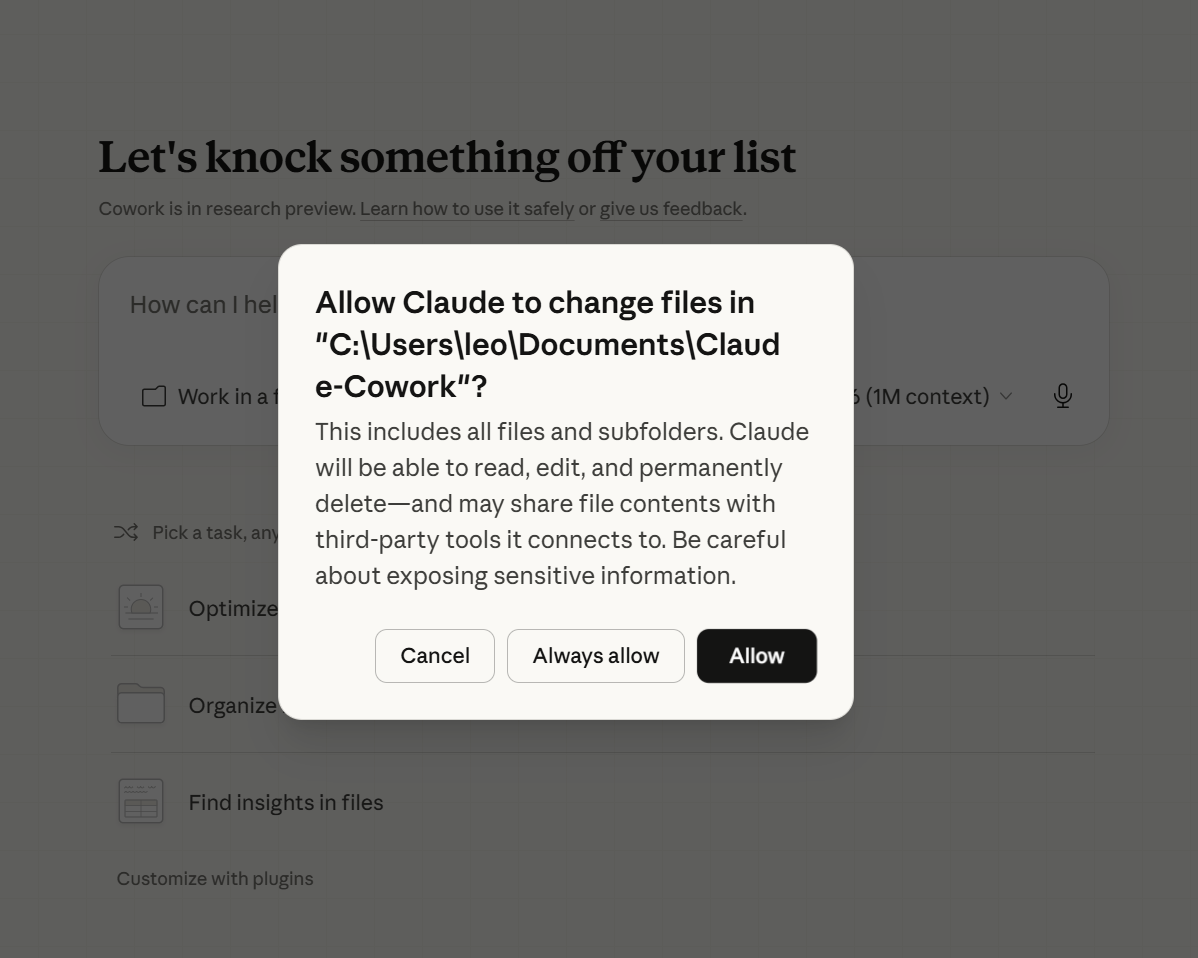
Create a folder on your Desktop or Documents called Claude-Cowork. One folder. Empty for now. Then in Cowork, click Work in a project and select your Claude-Cowork folder (or click Choose a different folder to find it). When you point Cowork at this folder, it will ask for permission to read and write files. Click Always allow so Claude can work in your folder without asking every time.
Teach Claude Your Voice
Grab 2-3 emails you've actually written — old replies, internal messages, anything pre-AI. Paste them into Cowork with this prompt:
Here are samples of my real writing:

[PASTE 2 OR 3 EMAILS YOU'VE ACTUALLY WRITTEN]

Now create a file called about-me.md in my Claude-Cowork folder.

Use my writing samples to analyse how I write. Look at sentence length, formality, quirks, tone, what I avoid. Be specific and use examples from my text.

Combine that with these details:

Name: [Your first name]
Role: [Your job title]
Company: [Where you work or "freelance"]
Day to day: [2 or 3 things you actually do at work]
I know a lot about: [Your deep expertise]
I write for: [Who reads your stuff. Clients, team, public]

Structure it as two sections:
1. "Who I Am" with my role, expertise, and audience
2. "How I Write" with the voice analysis from my samples

Keep it under 300 words. No fluff. Make it something an AI could read and immediately write like me.
Fill in everything in [brackets] — your name, role, company, what you do day-to-day, your expertise, and who you write for. The more detail you give Claude here, the better it understands you and the more natural your drafts will sound.
This file is your secret weapon. Every email Claude drafts will match YOUR voice, not generic AI. The more real writing samples you give it, the better it gets.
Connect Your Email
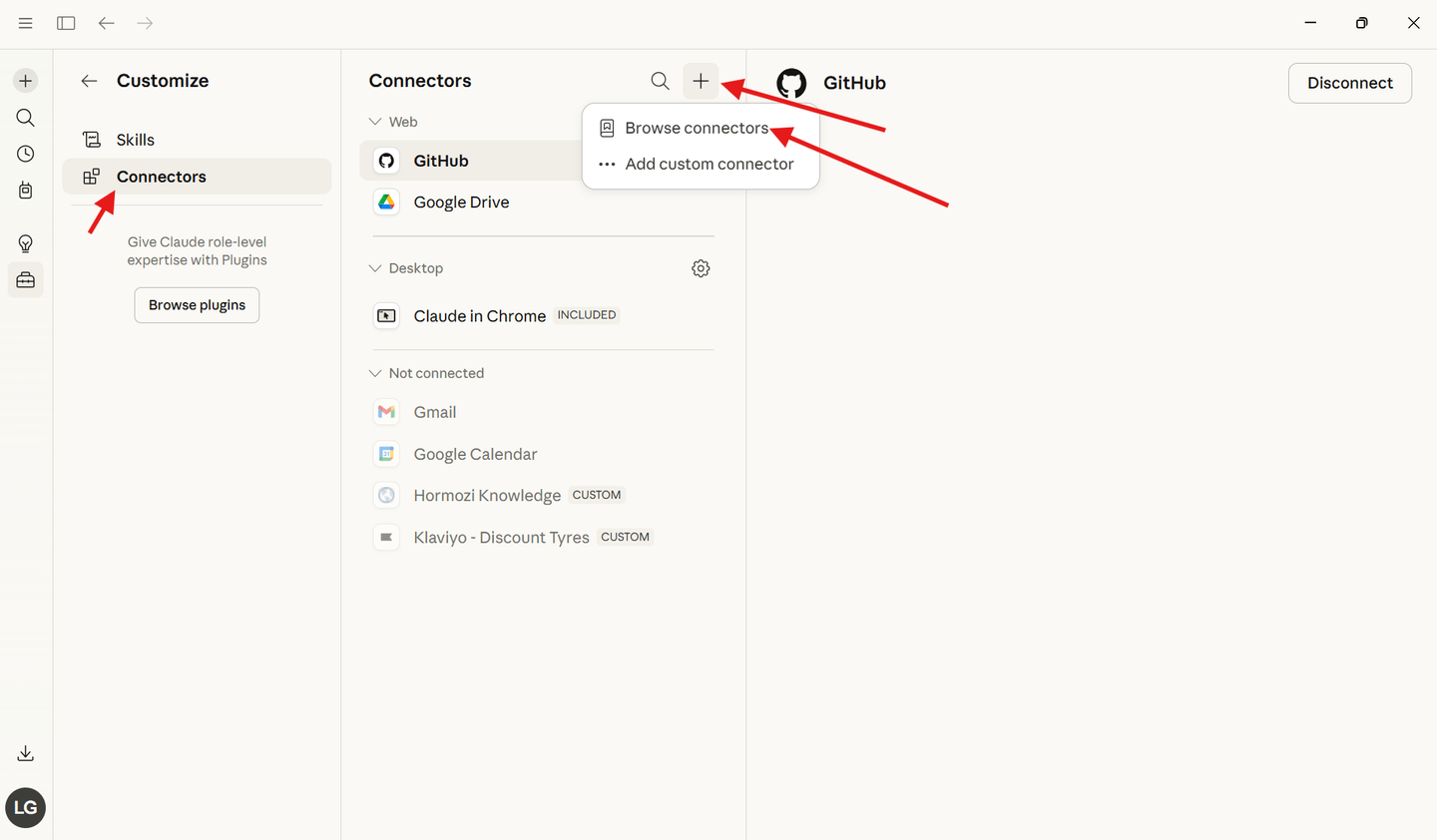
In the Claude Desktop sidebar, click the Customise button (the briefcase icon, bottom left), then go to Connectors. Click the + button and select Browse connectors. Find your email provider and authorise it.
Gmail
Can read emails, search threads, and create drafts.
Set both "Read-only tools" and "Write/delete tools" to "Always allow" — Claude needs both switched on to search your inbox and create draft replies.
Outlook (Microsoft 365)
Can read and search emails. Read-only access, so you'll copy the drafted reply from Claude and paste it into your reply manually.
Set "Read-only tools" to "Always allow" so Claude can search and read your inbox without asking each time.
Important: After connecting each provider, click on it in your Connectors list and switch the permissions to Always allow (as shown in the screenshot below). If you leave them on "Ask every time", Claude will interrupt you with a permission popup for every email action.
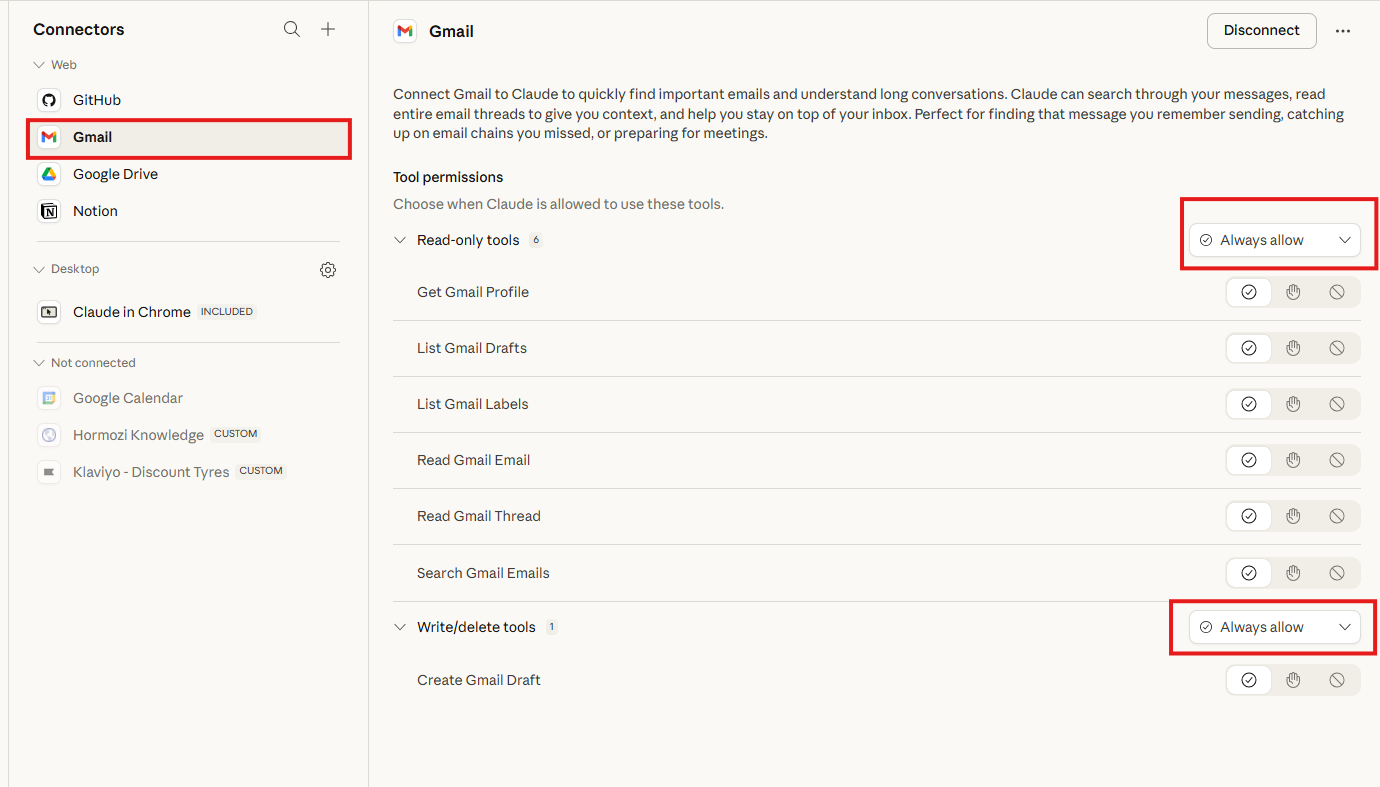
You stay in control. Neither connector can auto-send emails. Claude creates drafts. You always review and hit send yourself.
Build the /email-reply Skill
Click the Customise button again (the briefcase icon, bottom left). This time click Skills (just above Connectors). Click the + button and select Write skill instructions. Fill in the three fields below with the prompts provided:
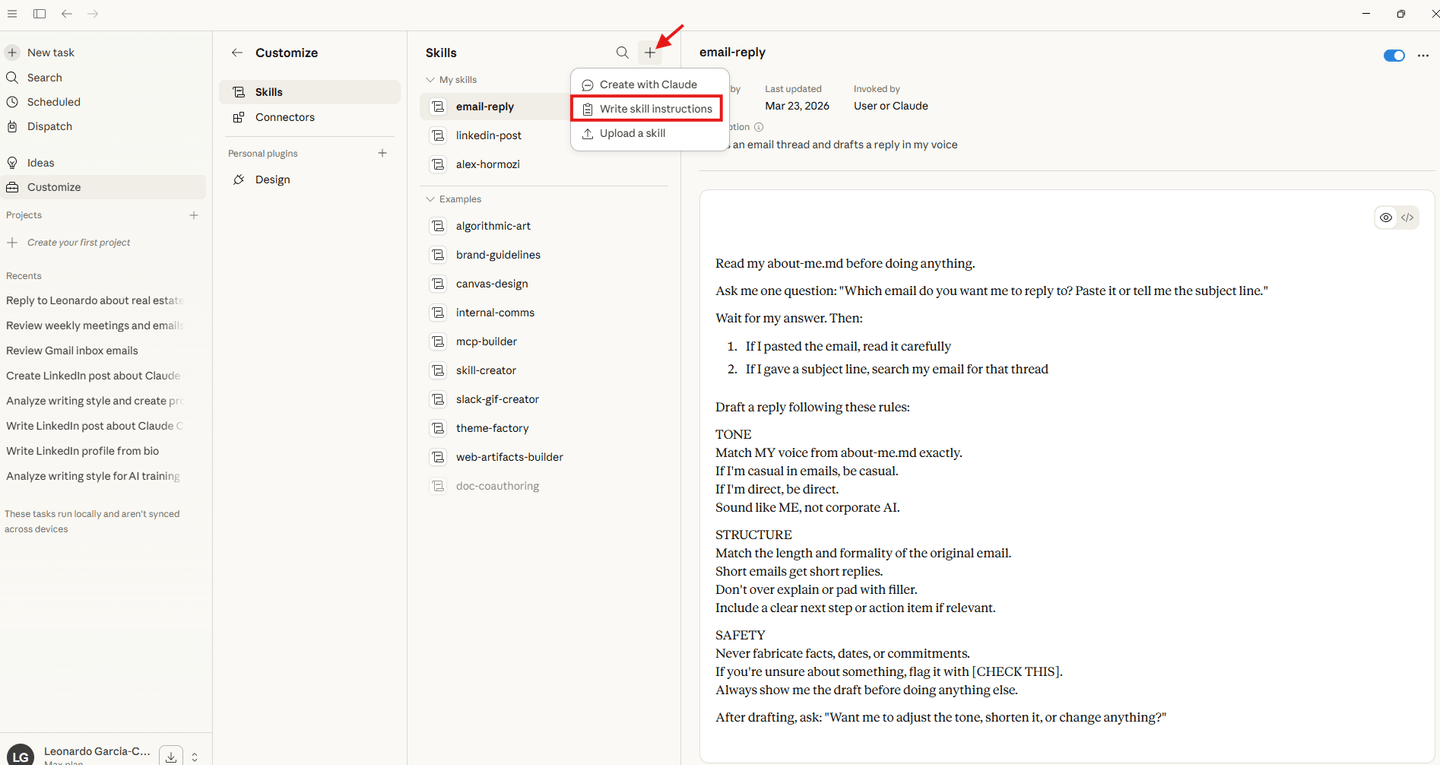
email-reply
Reads an email thread and drafts a reply in my voice
IMPORTANT: Never use dashes, bullet points, or hyphens in any output. Write in plain sentences and short paragraphs only. No lists with dashes ever. This is a hard rule.

Read my about-me.md before doing anything.

Ask me one question: "Which email do you want me to reply to? Paste it or tell me the subject line."

Wait for my answer. Then:

1. If I pasted the email, read it carefully
2. If I gave a subject line, search my email for that thread

Draft a reply following these rules:

TONE
Match MY voice from about-me.md exactly.
If I'm casual in emails, be casual.
If I'm direct, be direct.
Sound like ME, not corporate AI.

STRUCTURE
Match the length and formality of the original email.
Short emails get short replies.
Don't over explain or pad with filler.
Include a clear next step or action item if relevant.
Never use dashes or bullet points. Write in natural sentences.

SAFETY
Never fabricate facts, dates, or commitments.
If you're unsure about something, flag it with [CHECK THIS].
Always show me the draft before doing anything else.

After drafting, ask: "Want me to adjust the tone, shorten it, or change anything?"
Draft Your First Reply
Open a new Cowork conversation. You can trigger your skill two ways: type / and select email-reply from the menu, or just type /email-reply directly into the conversation. Both do the same thing.
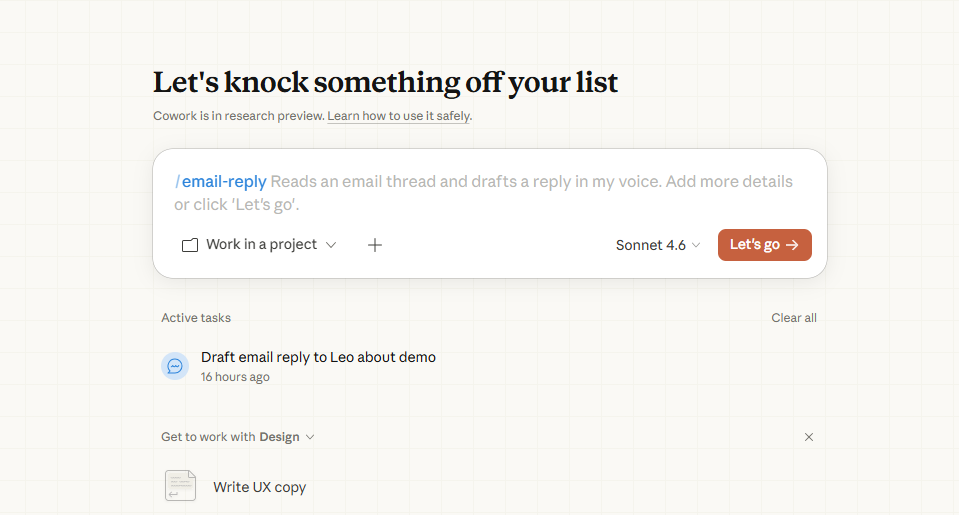
You have two options. You can paste the email directly into the chat. Or because Gmail is connected, you can just tell Claude the subject line or the person's name and it will pull the entire email thread from your inbox automatically. Then it drafts a reply in your voice.
What just happened:
- Read your voice profile automatically
- Pulled the email thread directly from your inbox
- Drafted a reply that sounds like you, not AI
- You stayed in control. Nothing sent without your approval
- The whole thing took one command
Try these with your connected inbox
Beyond drafting replies, Claude can search, triage, and summarise your entire inbox. Just type naturally.
“Check if I've missed anything from any clients this week”
Scans your inbox for unanswered client emails
“Find any emails where someone is waiting on me to reply”
Surfaces messages that need your attention
“Do I have any meetings or calls being requested over email?”
Finds scheduling requests buried in threads
“Search for anything from Sarah in the last 30 days and summarise it”
Builds a complete picture of one contact
“Look through my inbox and tell me what needs attention today”
Your daily email triage in seconds
“Draft a reply to that proposal from Mark. Keep it short, say we're interested but need to discuss pricing”
Voice-matched reply with specific direction
Now connect your calendar. This is where it gets powerful.
Add Google Calendar or Outlook Calendar the same way you connected email. Go to Customise → Connectors → + and find Google Calendar (or Outlook Calendar). Authorise it. Once connected, email and calendar work together.
Google Calendar
Full access. Create, update, delete events. Find free time. RSVP to invites.
Outlook Calendar
Read access to events, attendees, and meeting details via Microsoft 365 connector.
What Claude can do with your calendar
Email + Calendar together
“What meetings do I have this week and is there anything in my email I need to read before them?”
Cross-references meetings with related email threads
“Check if everyone invited to my meeting tomorrow has confirmed”
Checks RSVPs and flags missing confirmations
“Find emails related to any of my upcoming meetings”
Pulls context from your inbox for each meeting
“Do I have a meeting with James this week and what did we last email about?”
Combines calendar lookup with email history
Schedule meetings straight from email
“That email from Dave asking for a call. Check my calendar and find a free slot, then draft a reply with the time”
Reads the email, checks your availability, drafts the reply
“Book a 30 min catch up with sarah@example.com next week”
Finds a slot, creates the event, sends the invite
The Daily Briefing
This is the one that changes everything
Just say “What's my day looking like?” and Claude pulls your calendar for today, cross-references your emails, and gives you a full rundown:
One sentence. Full situational awareness. Every morning.