Turn Claude Cowork Into Your Personal AI Assistant
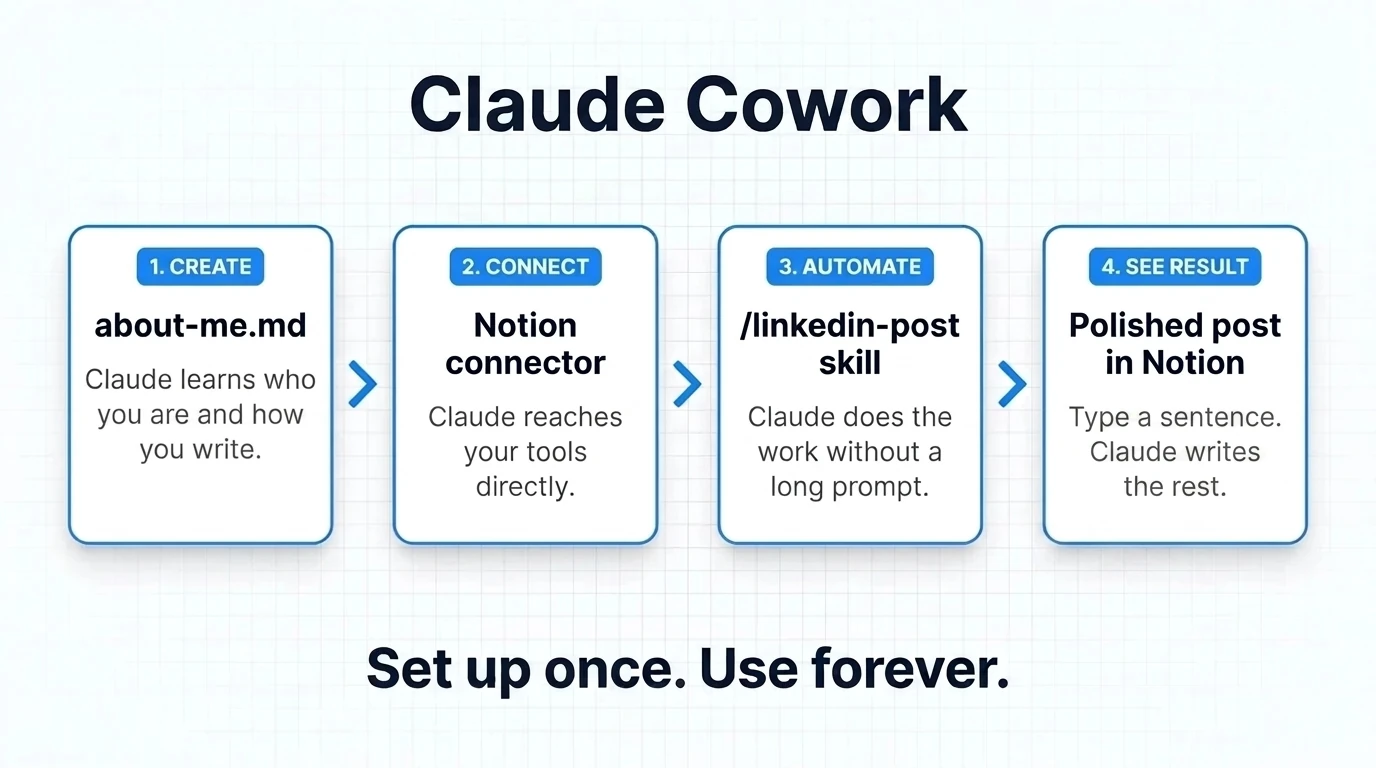
Connect your tools. Build your first Skill. Start shipping real work. Set up once. Use forever.
Open your browser and type waboom.ai/cowork to land on this page that we are going to be working together.
Before You Start
Download Claude Desktop
Go to claude.com/download and install the app.
macOS
Download the .dmg file and drag it into Applications
Windows
Download the .exe file and run the installer
Sign up for Claude Pro
You need a Claude Pro account as a minimum ($20/month). If you don't have one, sign up at claude.ai beforehand so we're not delayed by email verification during the session.
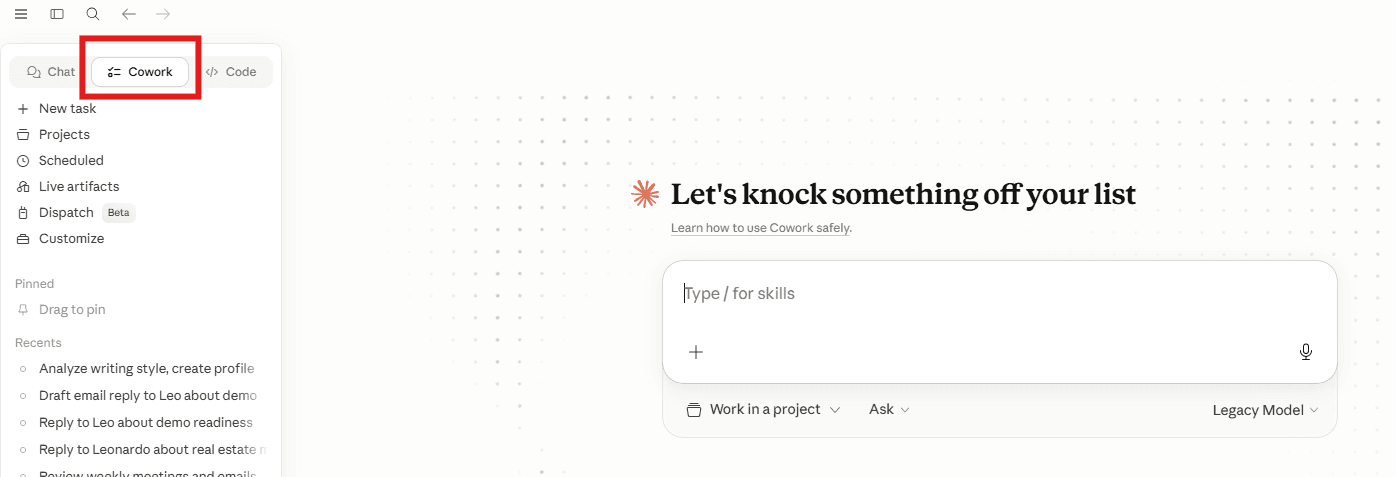
Open Cowork
Open the Claude Desktop app and click the Cowork tab at the top. Set the model to Sonnet (not Opus — saves your usage for the whole session).
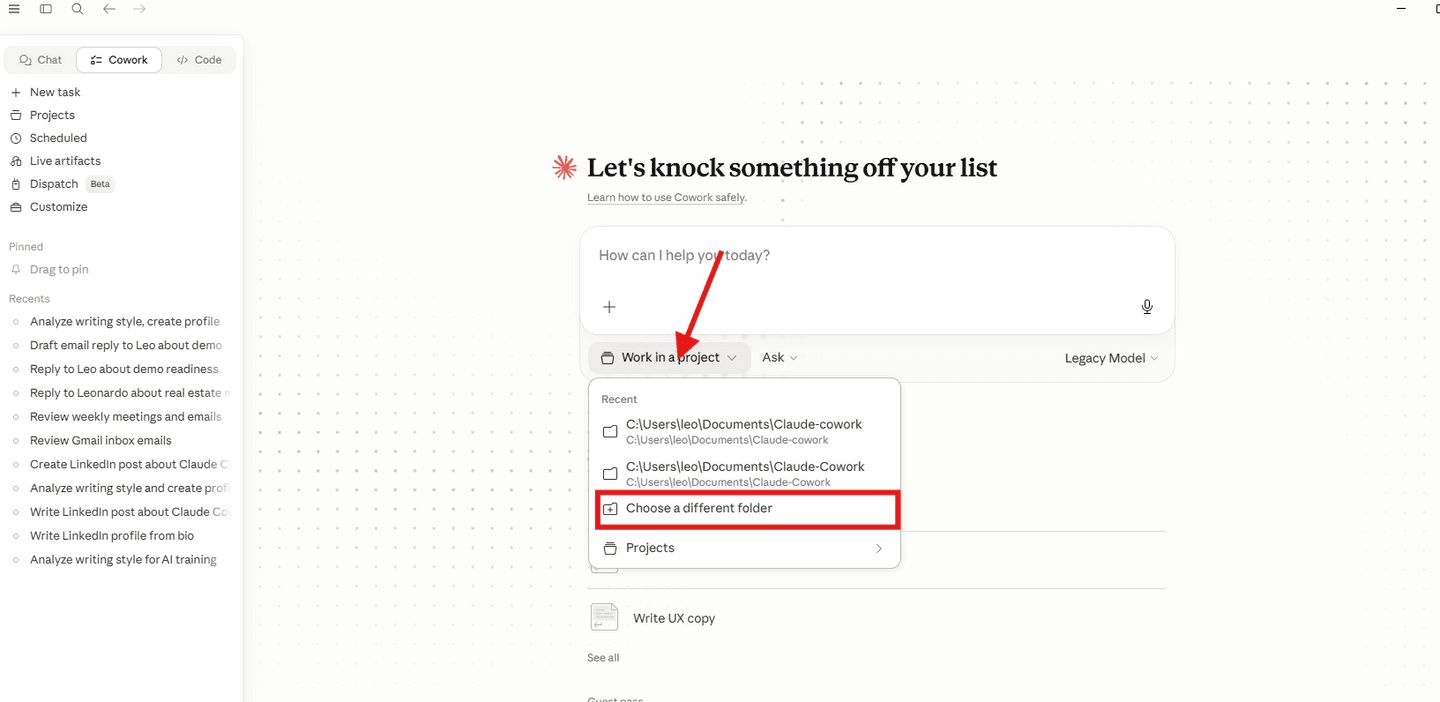
Create Your Folder
Create a folder on your Desktop or Documents called Claude-Cowork. That's it. One folder. Empty for now.
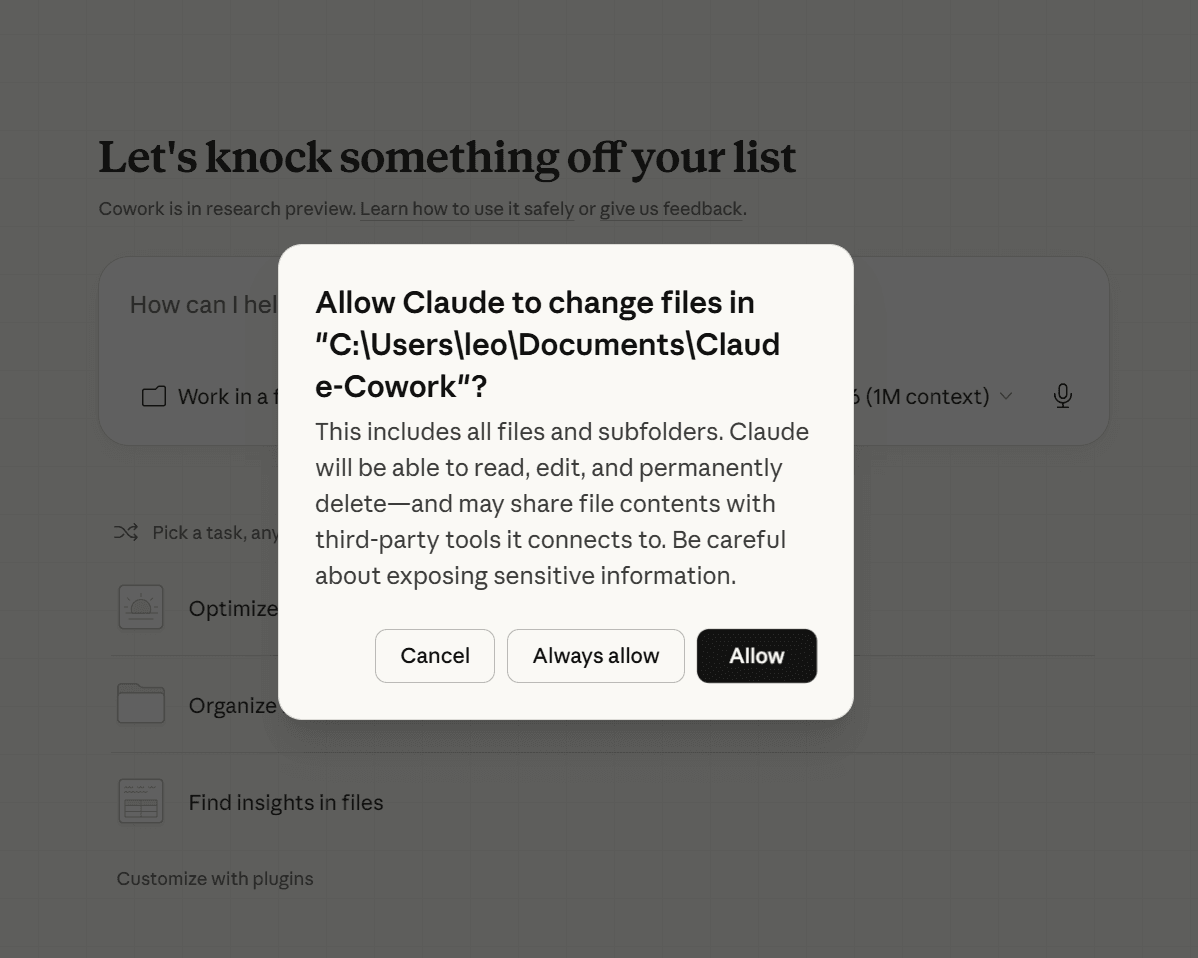
When you point Cowork at this folder, it will ask for permission to read and write files. Click Always allow so Claude can work in your folder without asking every time.
Build Your Profile
This is where it gets personal. One prompt, two things you fill in before sending: your writing samples, and a few facts about you. Then Claude does the rest in one go.
Before you start
Have 2-3 pieces of your own writing ready: old emails, reports, posts. Anything you wrote before AI. 300-500 words total is enough.
Copy this prompt into Cowork. Then grab your writing, paste it over the writing-sample placeholder, and fill in your details.
I want you to learn how I write and build a profile of me in one go.

PART 1. Read these writing samples carefully so you understand how I naturally write:

[PASTE YOUR 2-3 WRITING SAMPLES HERE — 300-500 words total]

PART 2. Combine the writing analysis with these facts about me:

- Name: [Your first name]
- Role: [Your job title]
- Company: [Where you work, or "freelance"]
- Day-to-day: [2-3 things you actually do]
- I know a lot about: [Your deep expertise]
- I write for: [Who reads your stuff: clients, team, public]

PART 3. Create a file called about-me.md in my Claude-Cowork folder. Structure it as two sections:

1. "Who I Am" — my role, expertise, and audience.
2. "How I Write" — voice analysis from my samples: sentence length, formality, quirks, tone, what I avoid. Be specific and quote examples from my text.

Keep the whole file under 300 words. No fluff. Make it something an AI could read and immediately write like me.
What happens
Claude reads your samples, analyses your voice, and creates about-me.md in your folder. Open it. Read it. You'll see your own writing voice described back to you. This one file is worth more than any prompt you'll ever write.
Set Your Instructions
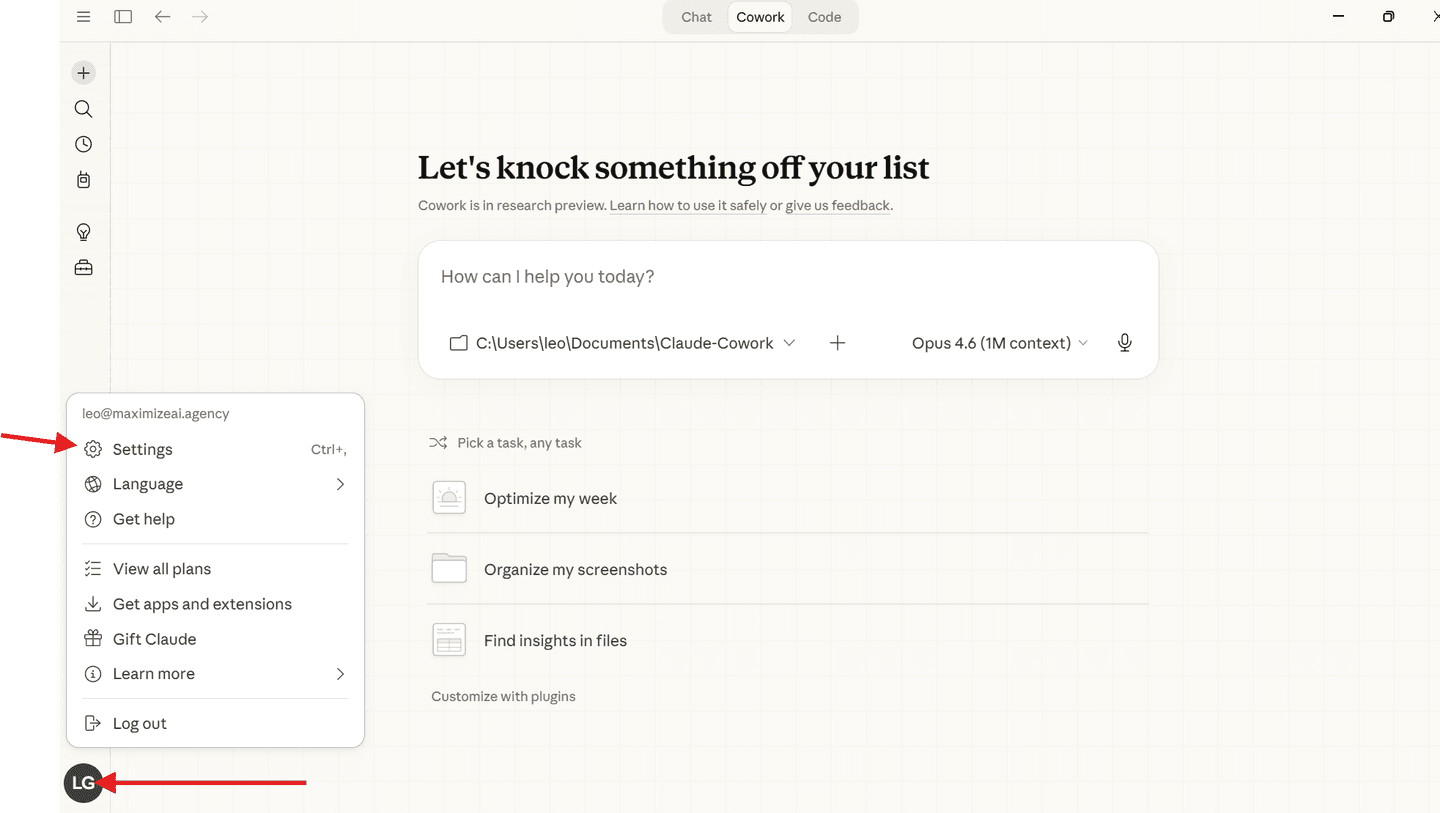
Click your profile icon (bottom left) → Settings → Cowork → find Global Instructions → click Edit.
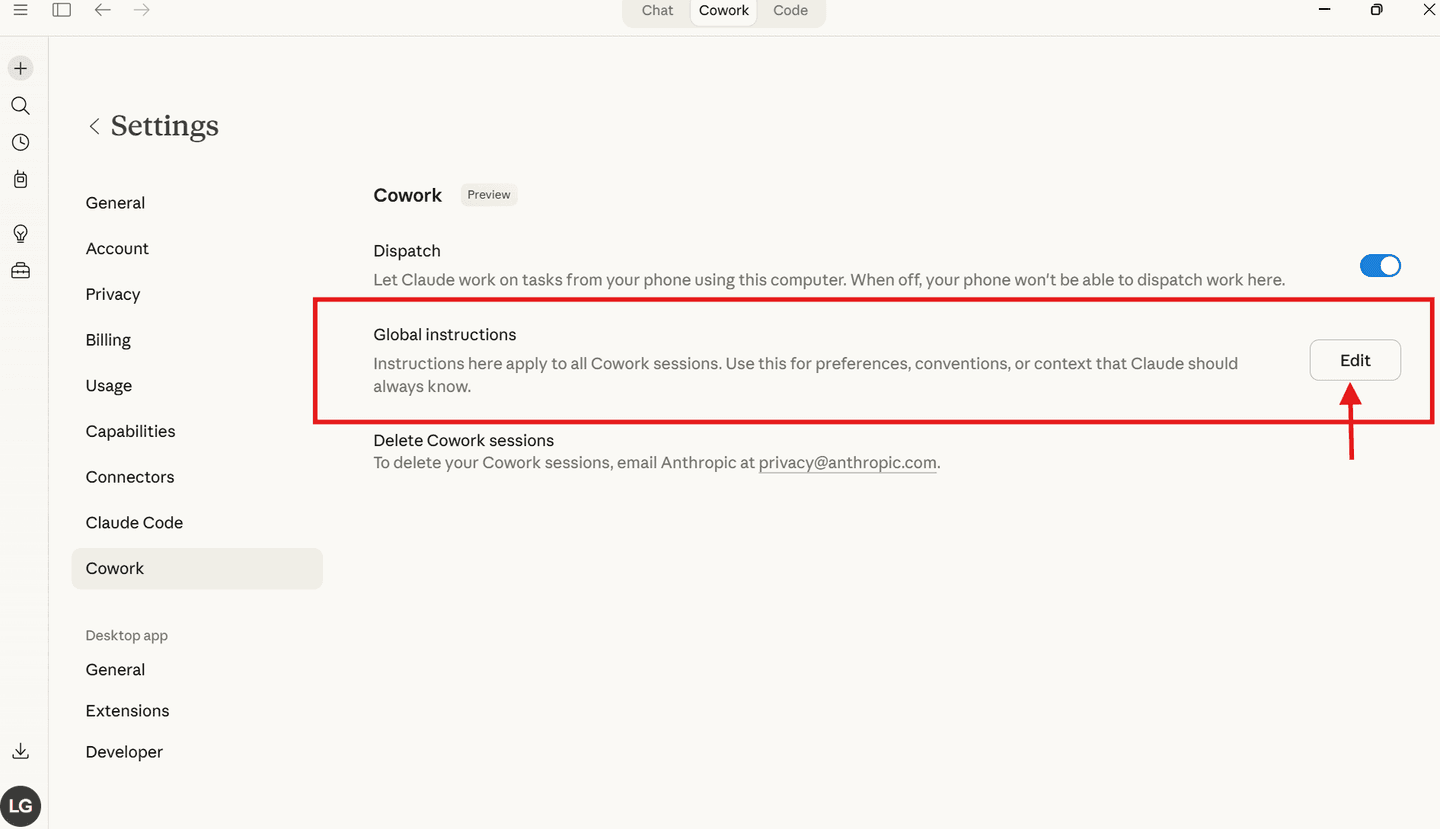
Read my Claude-Cowork folder before every task. Use my about-me.md to understand who I am and how I write. Ask me at least one question before executing anything. Show me a plan before making changes. Never delete files without my approval. Always write in my voice, not generic AI voice.
Set once. Runs in the background on every conversation from now on.
Your First Task
Time to test the loop. Open a new Cowork conversation and follow these instructions:
Type @ in the message box to display the files in your Claude-Cowork folder
Select your about-me.md file from the list
Ask Claude to write you a short LinkedIn profile based on the file
What happens
Claude reads your profile and writes a bio that actually sounds like you — not generic AI. This proves the whole loop works: your global instructions fired → your file was read → your voice was matched.
Connect Notion
What are connectors?
Connectors let Claude work directly inside your existing tools — Notion, Slack, Google Drive, Figma, and 50+ more. Instead of copy-pasting between a chat window and your apps, Claude reads from and writes to them directly.
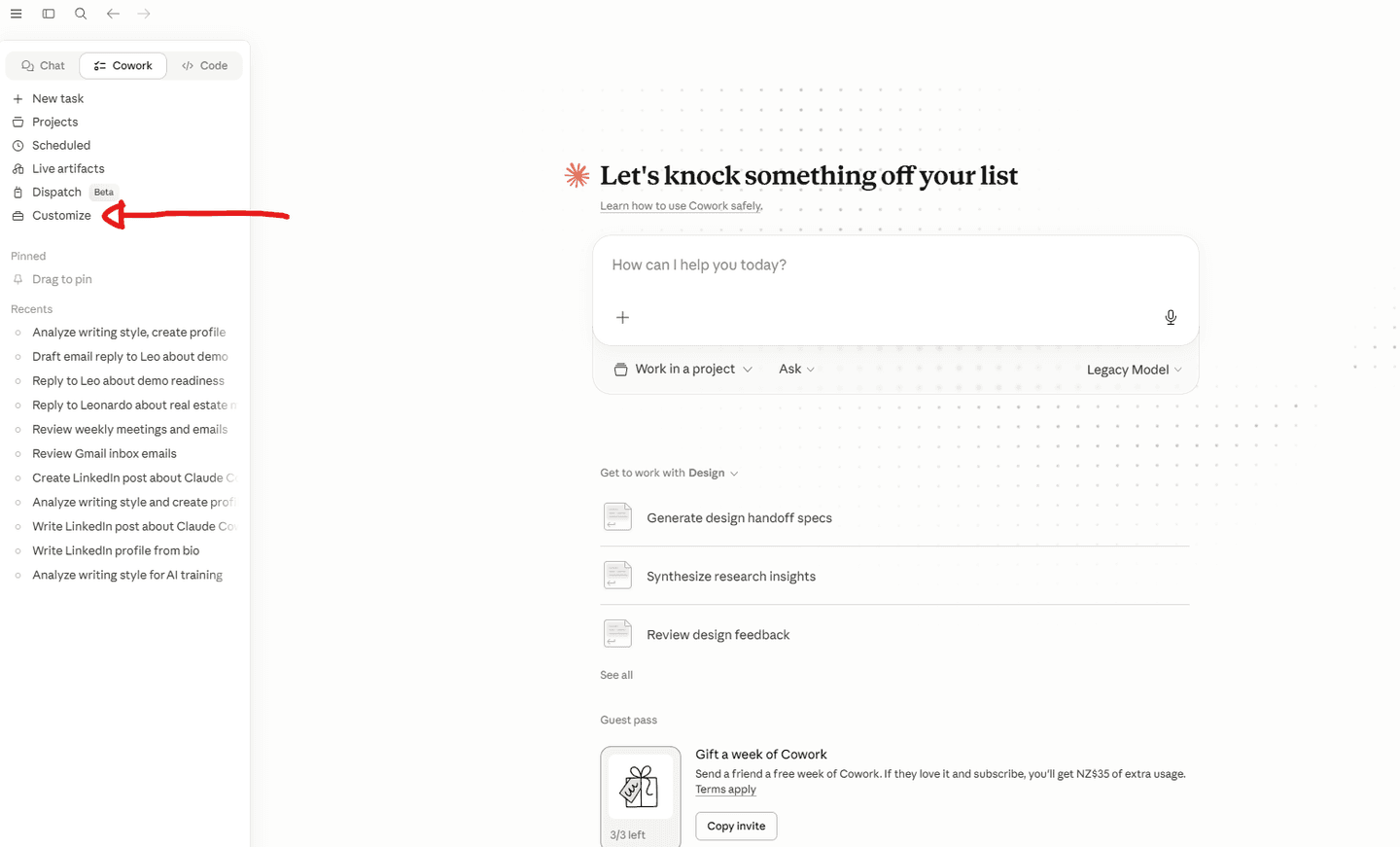
Go to Customise (left sidebar) → Connectors → click the + button → Browse connectors → find Notion and authorise it.
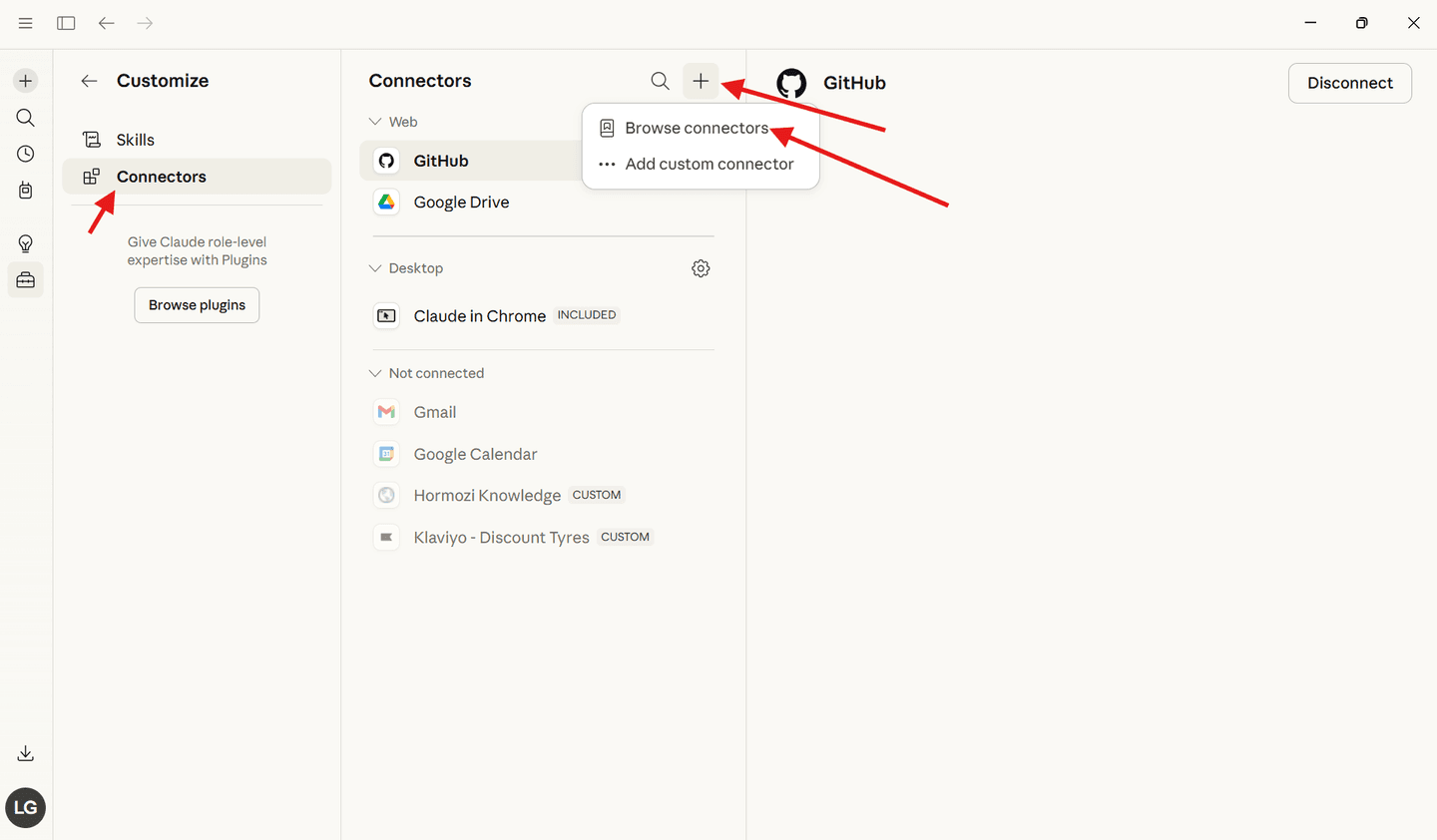

What is Notion?
Notion is an all-in-one workspace for notes, docs, databases, and project plans. Find it in the connector list (or just type Notion in the search) and authorise it so Claude can read and write pages for you.
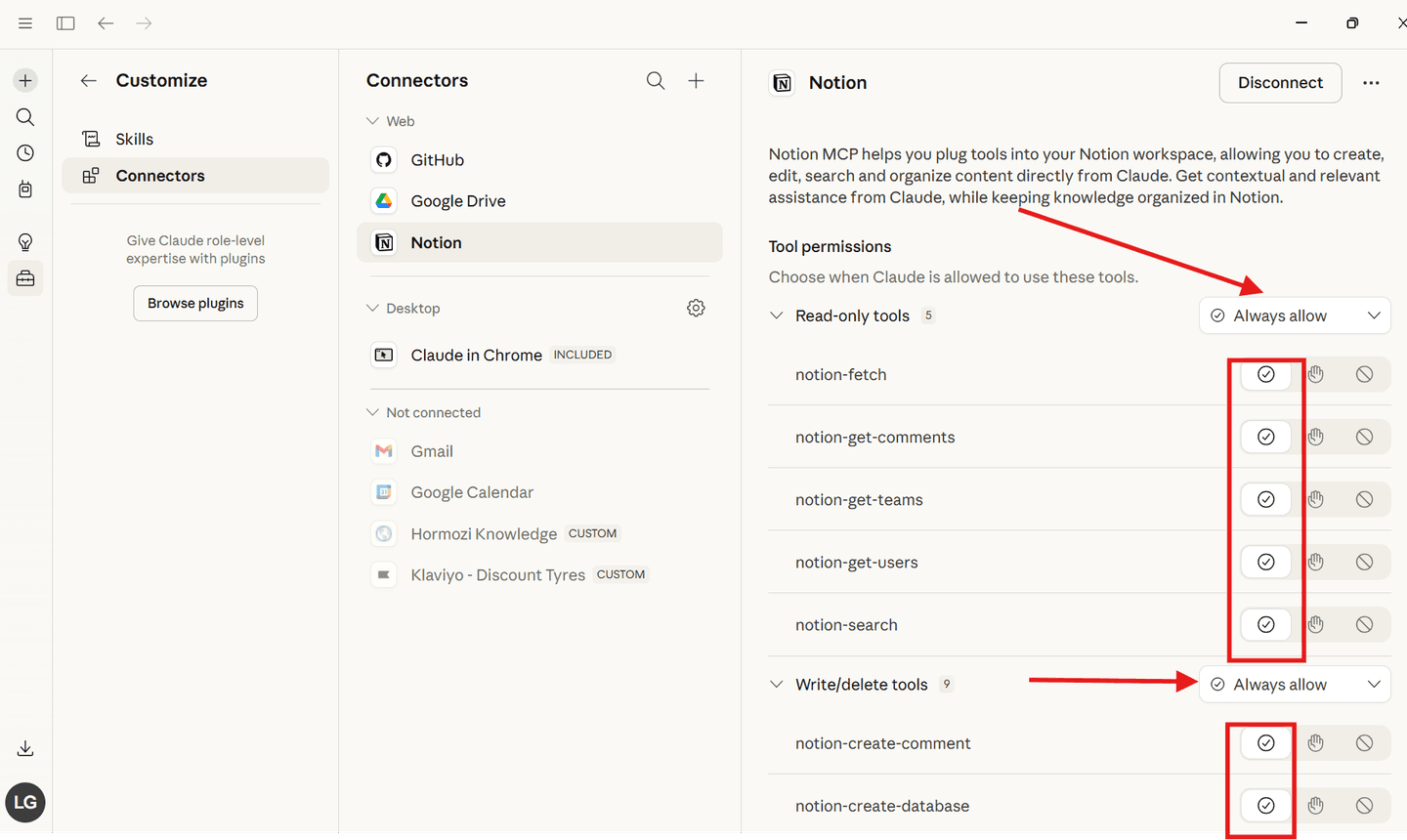
Once connected, set both Read-only tools and Write/delete tools to Always allow (as shown in the image above). This lets Claude read from and create pages in your Notion without asking for permission every time.
Build the /linkedin-post Skill
What are skills?
Skills are reusable commands you build once and use forever. Instead of typing a long prompt every time, you create a skill with all your instructions baked in, then run it with a single /command. Think of it as building your own AI tool.
Go to Customise → Skills, click the + button at the top, hover Create skill, then pick Write skill instructions. A dialog opens where you fill in the name, description, and instructions.
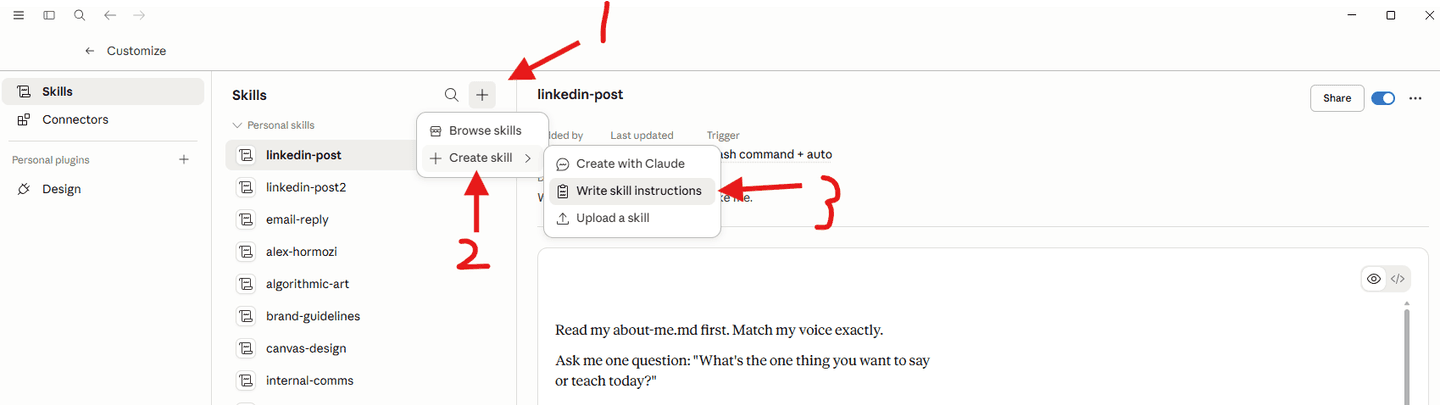
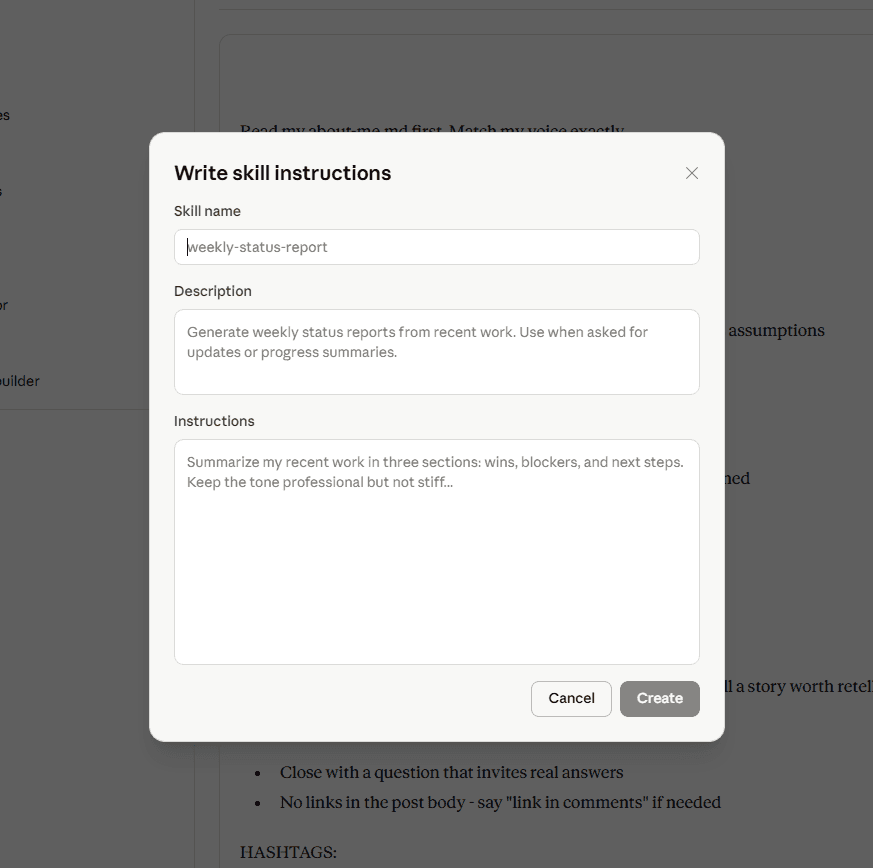
Paste these three blocks into the matching fields on the dialog:
linkedin-post
Writes a LinkedIn post in my voice using my profile, then saves it to Notion
Read my about-me.md in my Claude-Cowork folder before doing anything.

Ask me one question: "What's the one thing you want to say or teach today?"

Wait for my answer. Then write a LinkedIn post following these rules:

HOOK:
- First line must stop the scroll
- Bold claim, surprising number, or a question that challenges assumptions
- Never open with "I'm excited to" or "I've been thinking about"
- The hook must create a gap the reader needs to close

STRUCTURE:
- One sentence per line. White space is your weapon.
- Start with a short real story - something that actually happened
- Then deliver the insight or lesson
- Write so a 14-year-old could follow it
- No walls of text. No long paragraphs.

VALUE TEST:
- Before finishing, ask yourself: would someone screenshot this and send it to a colleague?
- If no, rewrite. Every post must teach something useful or tell a story worth retelling.
- No fluff. No motivation porn. No "here's what I learned" without the actual lesson.

ENDING:
- Close with a question that invites real answers, not just agree/disagree
- No links in the post body. If needed, say "link in comments"

HASHTAGS:
- 3 maximum. Place at the bottom, not inline.
- One broad, one niche, one topic-specific.

VOICE:
- Match MY voice from about-me.md exactly
- If I write in fragments, use fragments
- If I'm direct, be direct
- If I'm casual, be casual
- Sound like ME, not LinkedIn-generic
- Never use words or phrases that aren't in my natural vocabulary

After generating the post, save it as a new page in my Notion workspace titled with today's date and the topic.
See the last line of the skill?
After generating the post, save it as a new page in my Notion workspace titled with today's date and the topic.
That one sentence is what hands the finished post off to Notion. Because you connected the Notion connector in Step 6, Claude already knows how to write to your workspace — this line just tells the skill to do it every time. Add a sentence like this to any skill and you can push the result into any tool you've connected (Slack, Google Docs, your inbox).
Run It
Open a new Cowork conversation and follow these steps:
Type / in the message box — a list of your skills will appear
Select linkedin-post from the list
When Claude asks what you want to write about, tell it something real — e.g. “I want to write a LinkedIn post about [something you want to promote about your company, service, or product]”
What just happened
Read a file locally on your computer
Followed your global instructions automatically
Wrote a LinkedIn post in your voice
Sent the finished work to Notion because you connected it
The skill knew exactly what to do - all from one / command
Now start thinking bigger. What else is possible?
Bonus: Schedule It to Run Automatically
You just ran a LinkedIn post skill manually. But what if Claude did it for you every week — without you asking?
Scheduled tasks let you set up recurring automations that run on a schedule while your computer is on. Think of it as a personal assistant that handles routine tasks in the background.
Step 1 — Open Scheduled Tasks
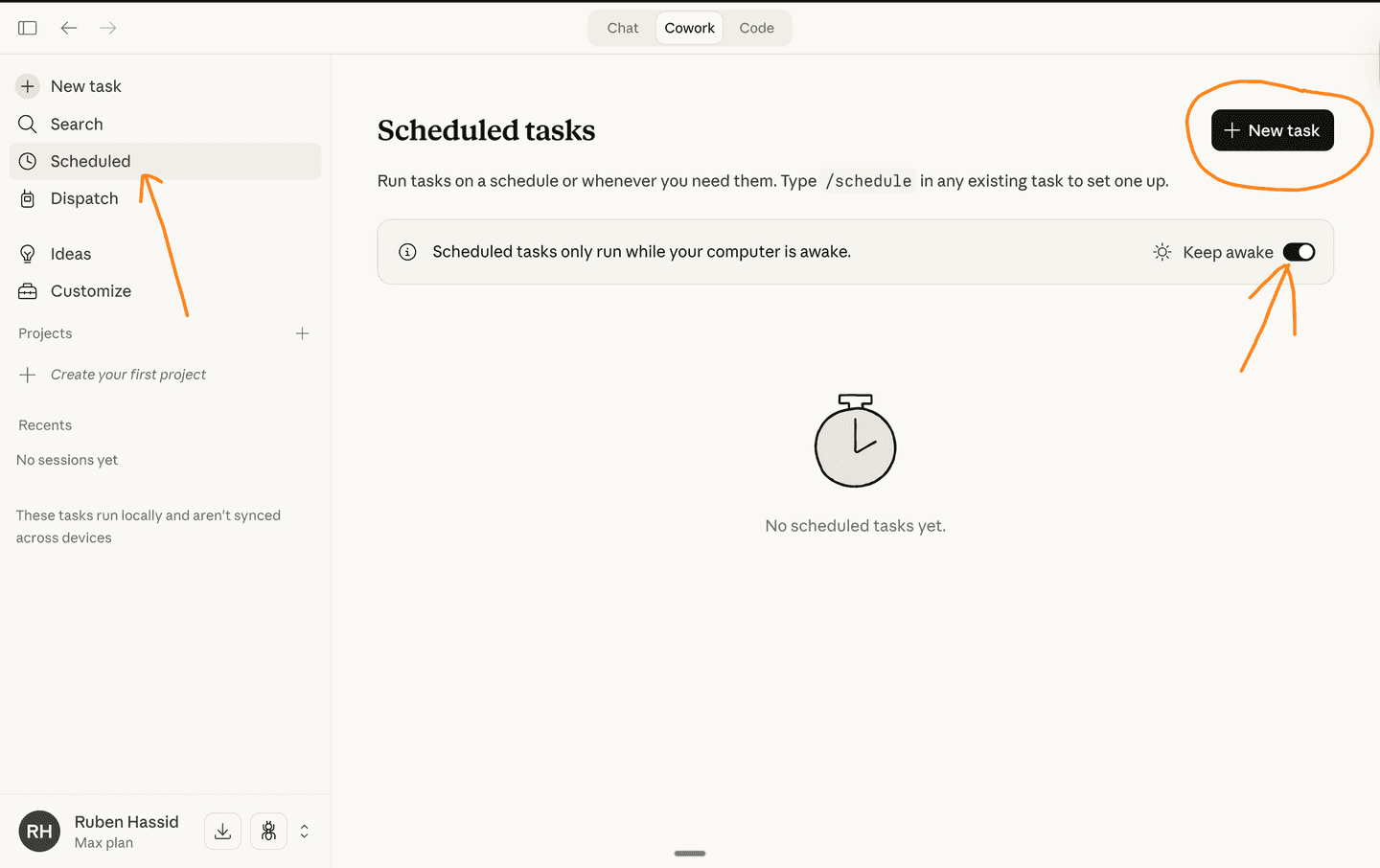
In the Cowork sidebar, click Scheduled. You'll see an empty panel. Click + New task to create your first one. Turn on Keep awake so your computer stays on to run scheduled tasks.
Step 2 — Create a weekly LinkedIn post task
Fill in the form. Give it a name, a description, and a prompt telling Claude what to do. Set the frequency to run weekly.
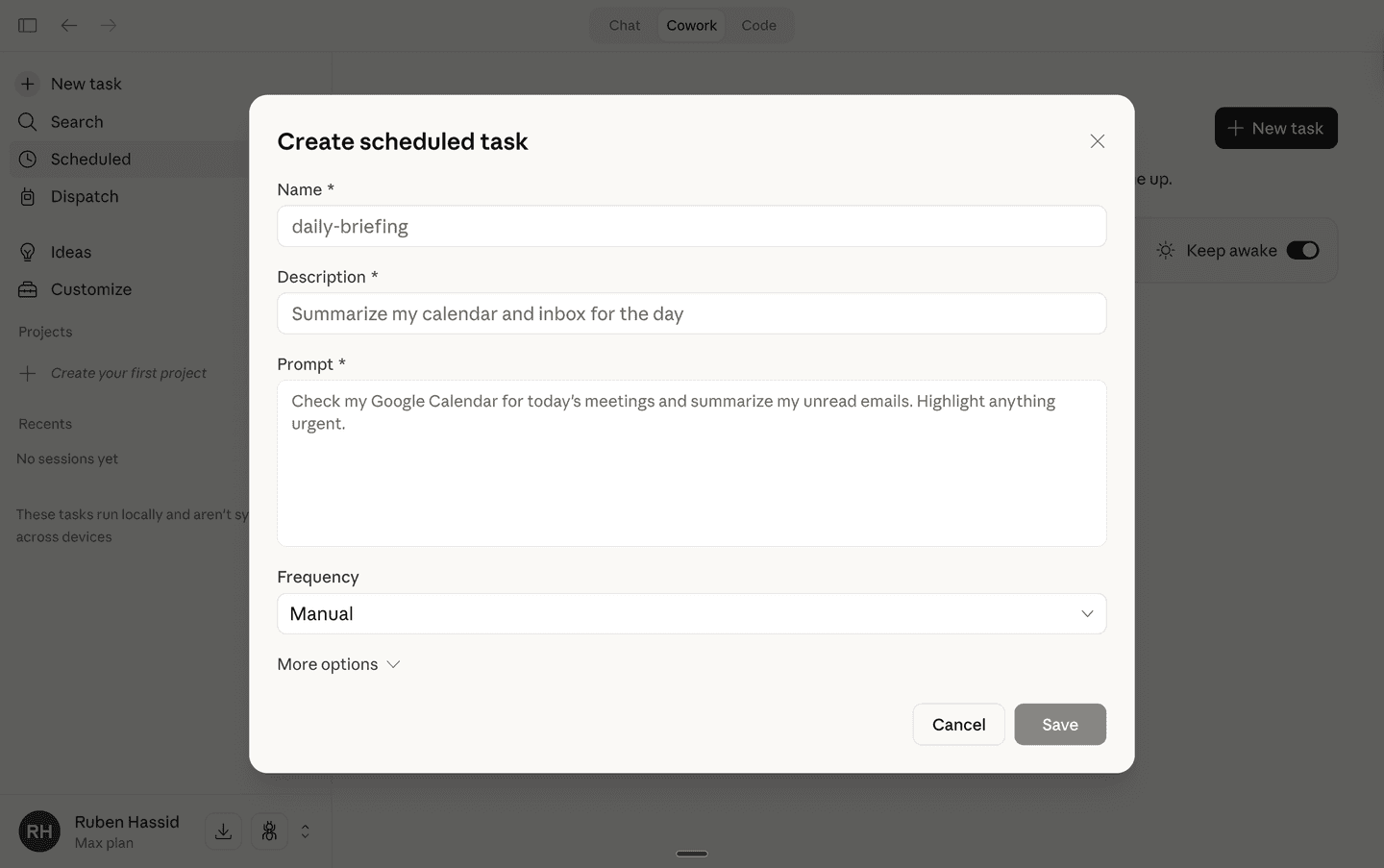
Example settings:
Name: weekly-linkedin-post
Description: Draft a LinkedIn post based on this week's industry news
Prompt: Read https://www.stuff.co.nz/money (or replace with a news site relevant to your industry). Pick one story that my audience would care about. Use my /linkedin-post skill to write a post sharing my take on that story — what it means, why it matters, and what people should do about it. Save the draft to Notion so I can review and post it.
Frequency: Weekly (Monday morning)
What else could you schedule?
A daily morning briefing that checks your calendar and inbox
A weekly report that pulls stats from your connected tools
A monthly content plan with post ideas saved to Notion
A daily social media roundup of trending topics in your industry
A weekly competitor check — what are they posting about?
The key lesson
You're not just using AI when you remember to. You're building a system that works for you on autopilot. The skills you created, the tools you connected, the voice you defined — scheduled tasks put all of that on repeat.
Homework: Connect Your Phone with Dispatch
This is extra homework.
Try this on your own after the workshop. It takes about 5 minutes and turns your phone into a remote control for Claude on your computer.
What is Dispatch?
Dispatch connects your phone to Claude on your computer. You send a message from the Claude app on your phone, and Claude executes the task on your computer — opening browsers, checking websites, filling in forms, running reports. All while you're away from your desk.
Think of it as a walkie-talkie. Your phone sends the instruction, your computer does the work, and Claude reports back to your phone when it's done.
Requirements
• Mac only (Windows coming soon)
• Claude desktop app — download from claude.ai/download
• Claude Pro ($20/mo) or Max ($100/mo) subscription
• Claude mobile app on your phone (iOS or Android)
Step 1 — Enable Browser and Computer Use
Open the Claude desktop app. Go to Settings → Desktop app → General. Turn on Allow all browser actions and Computer use.
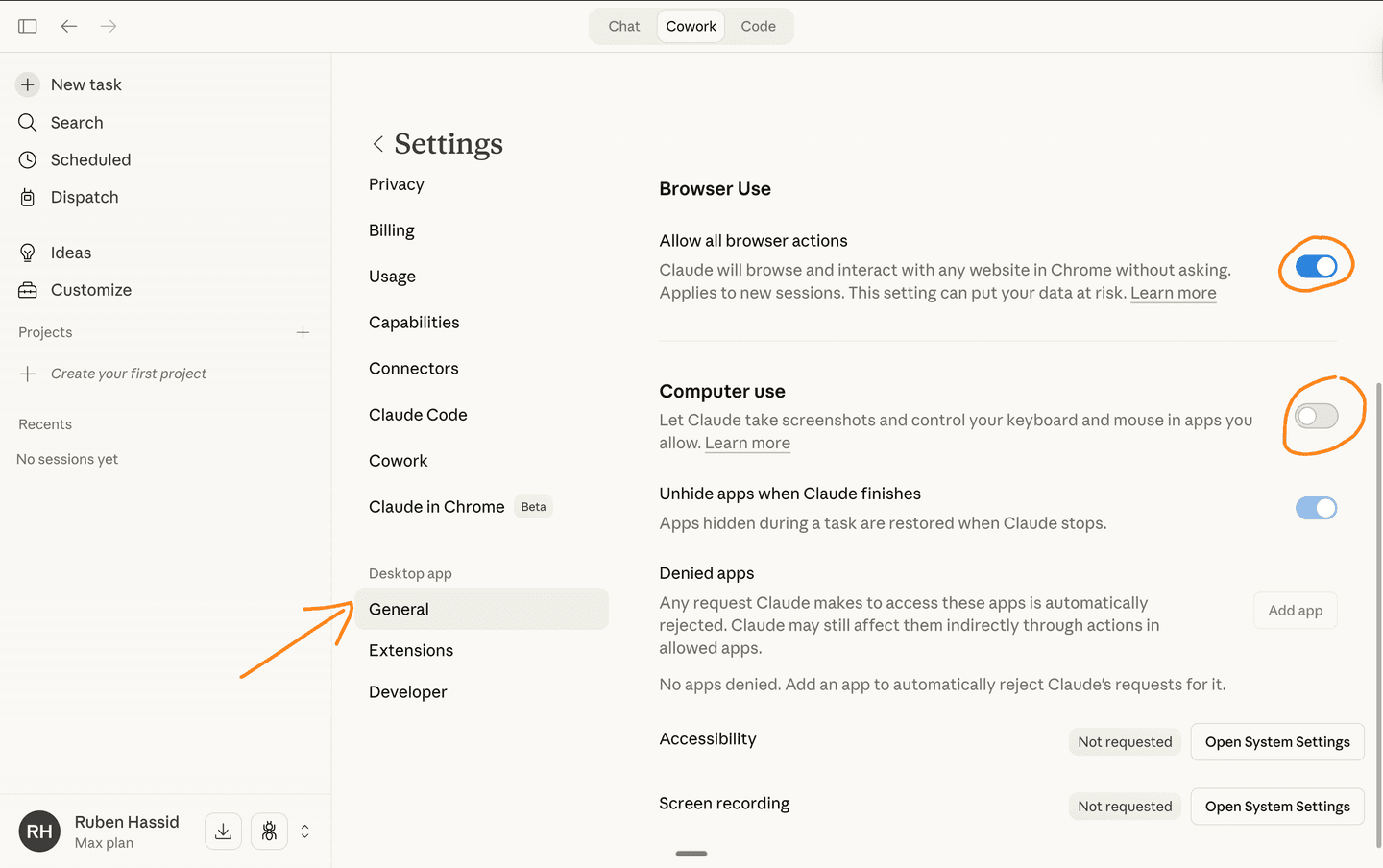
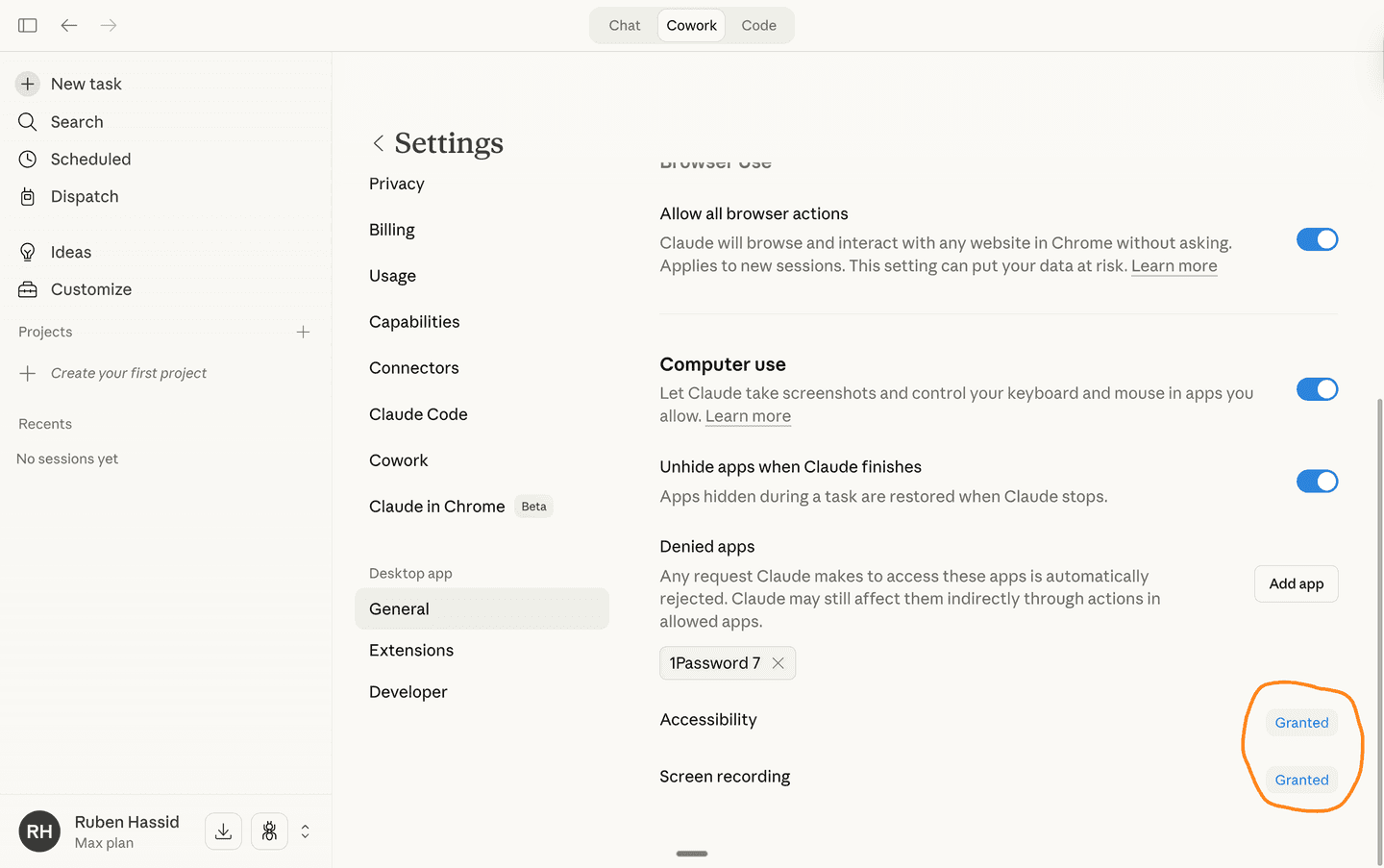
Claude will ask you to confirm. Click Turn on. Then grant Accessibility and Screen recording permissions when prompted.
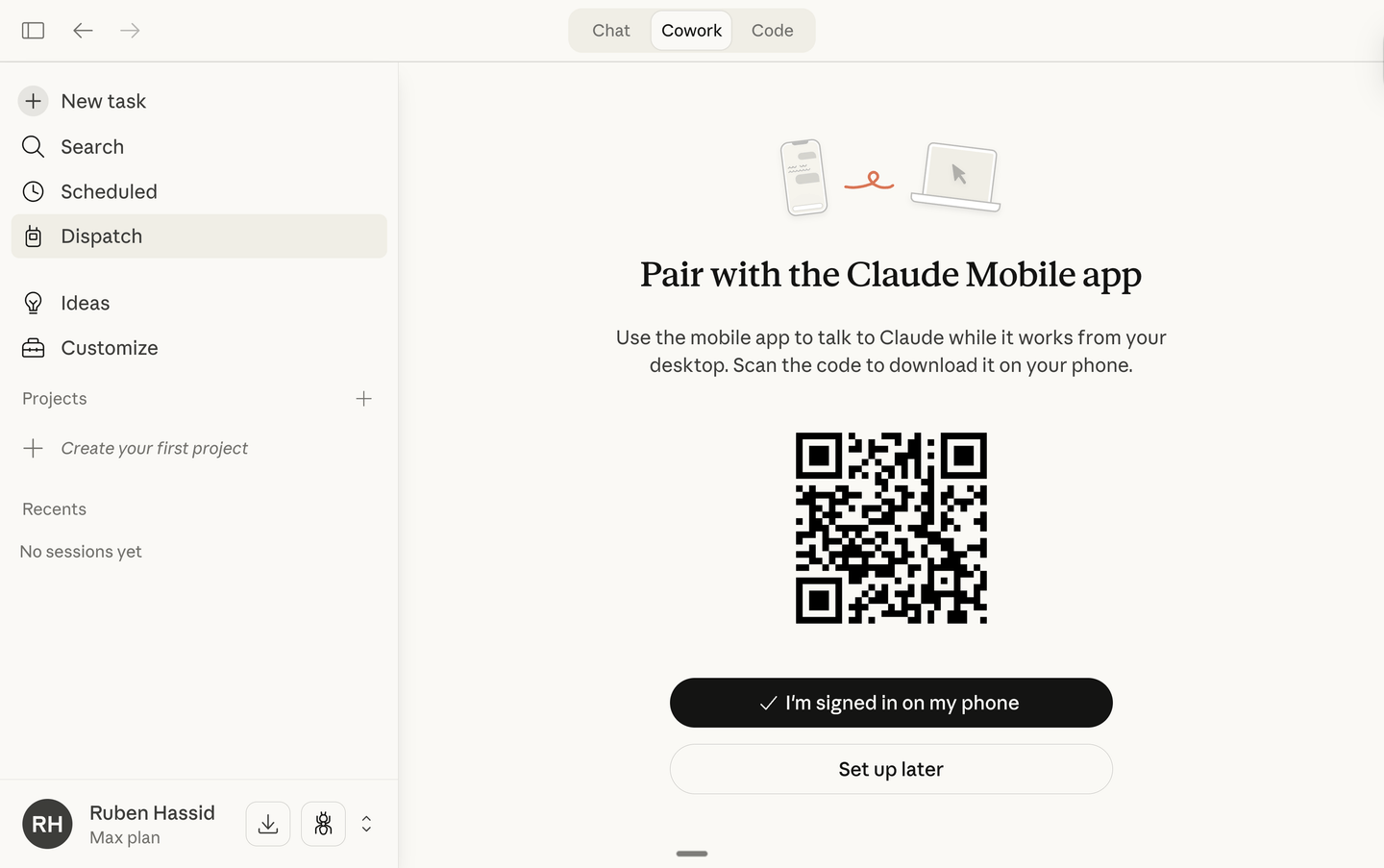
Step 2 — Open Dispatch and scan the QR code
Click Dispatch in the left sidebar, then Get started.
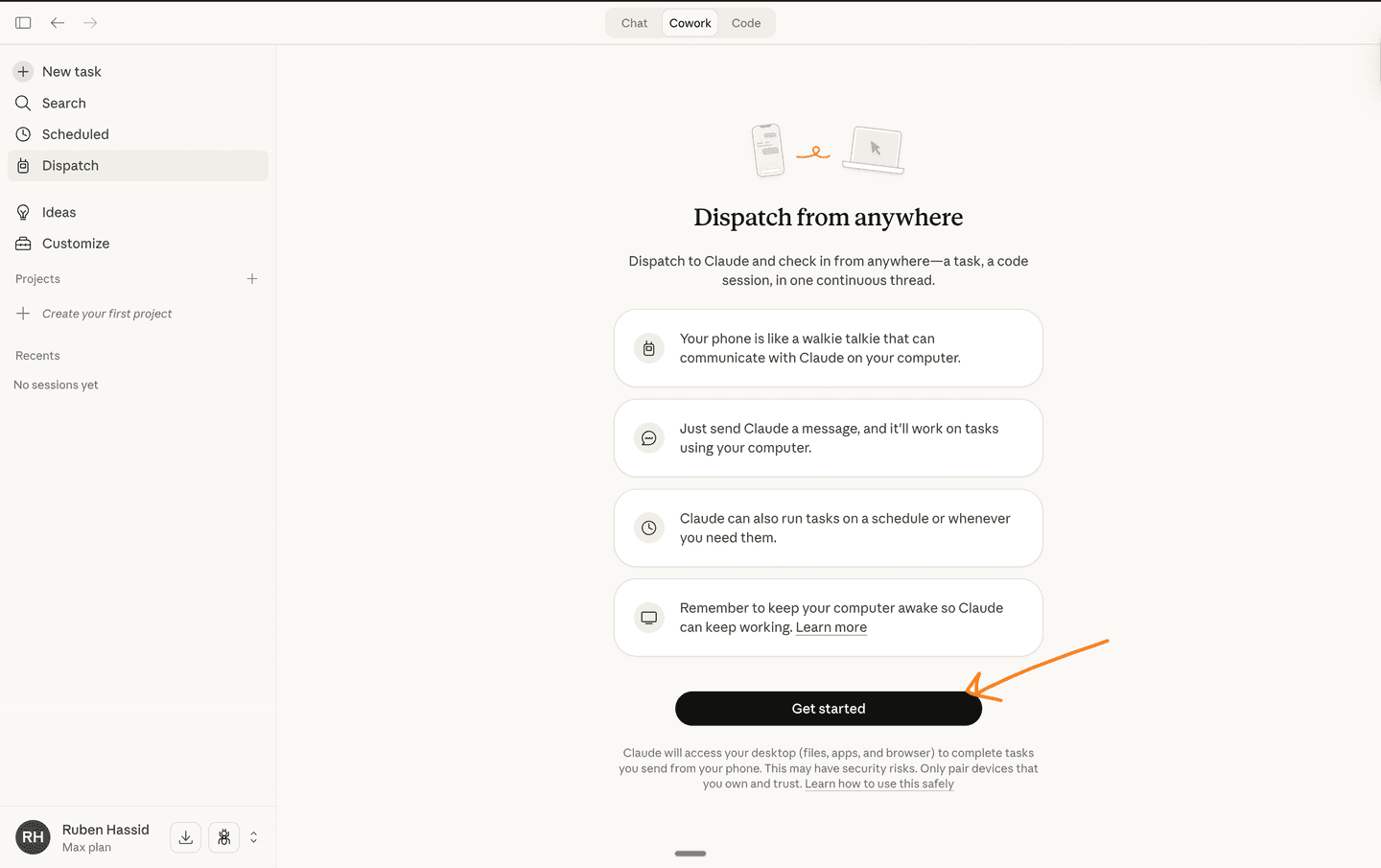
A QR code appears. Open the Claude app on your phone and scan it to pair the two devices.
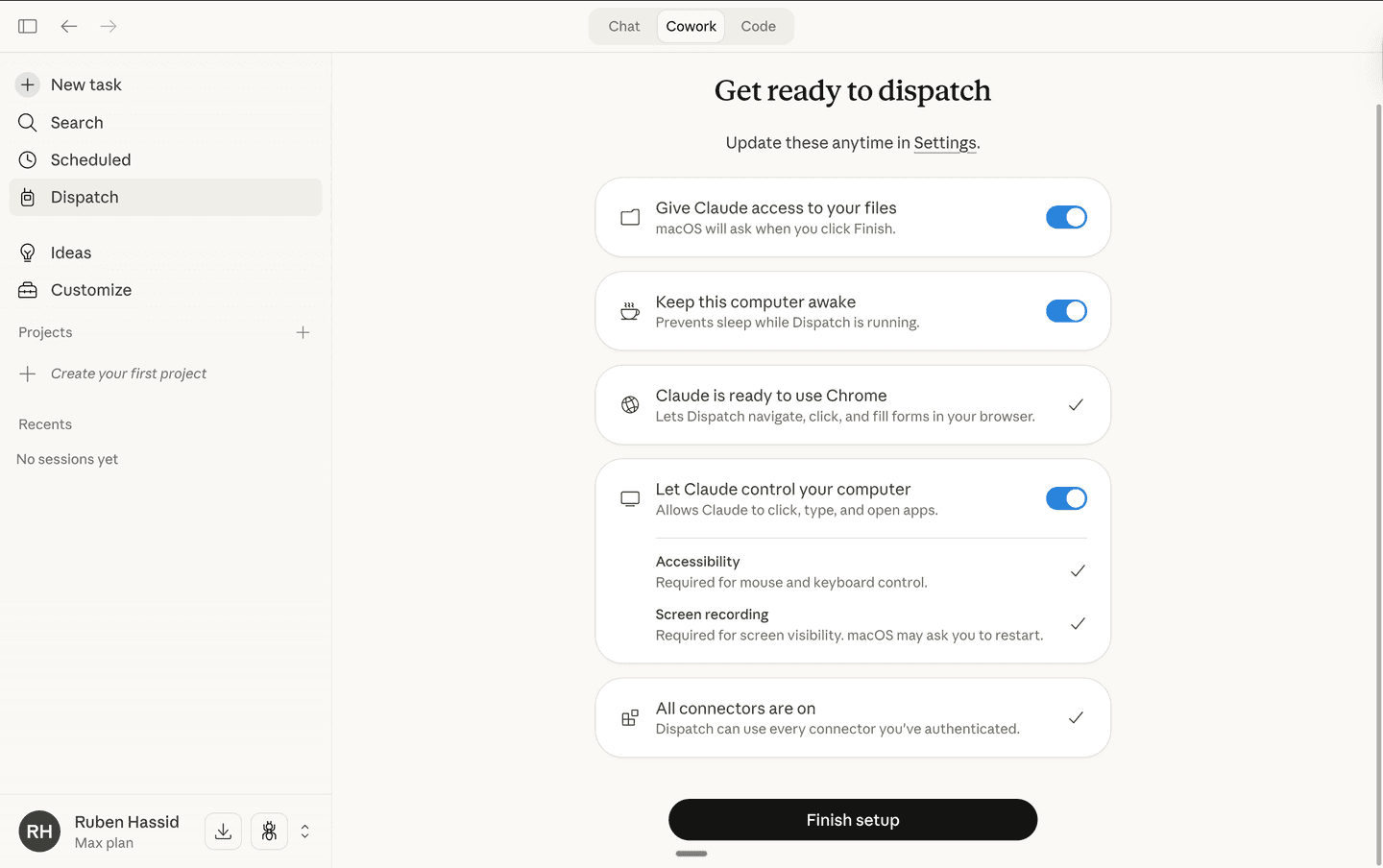
Step 3 — Finish setup
Enable the permissions — file access, keep awake, browser, and computer control. Click Finish setup.
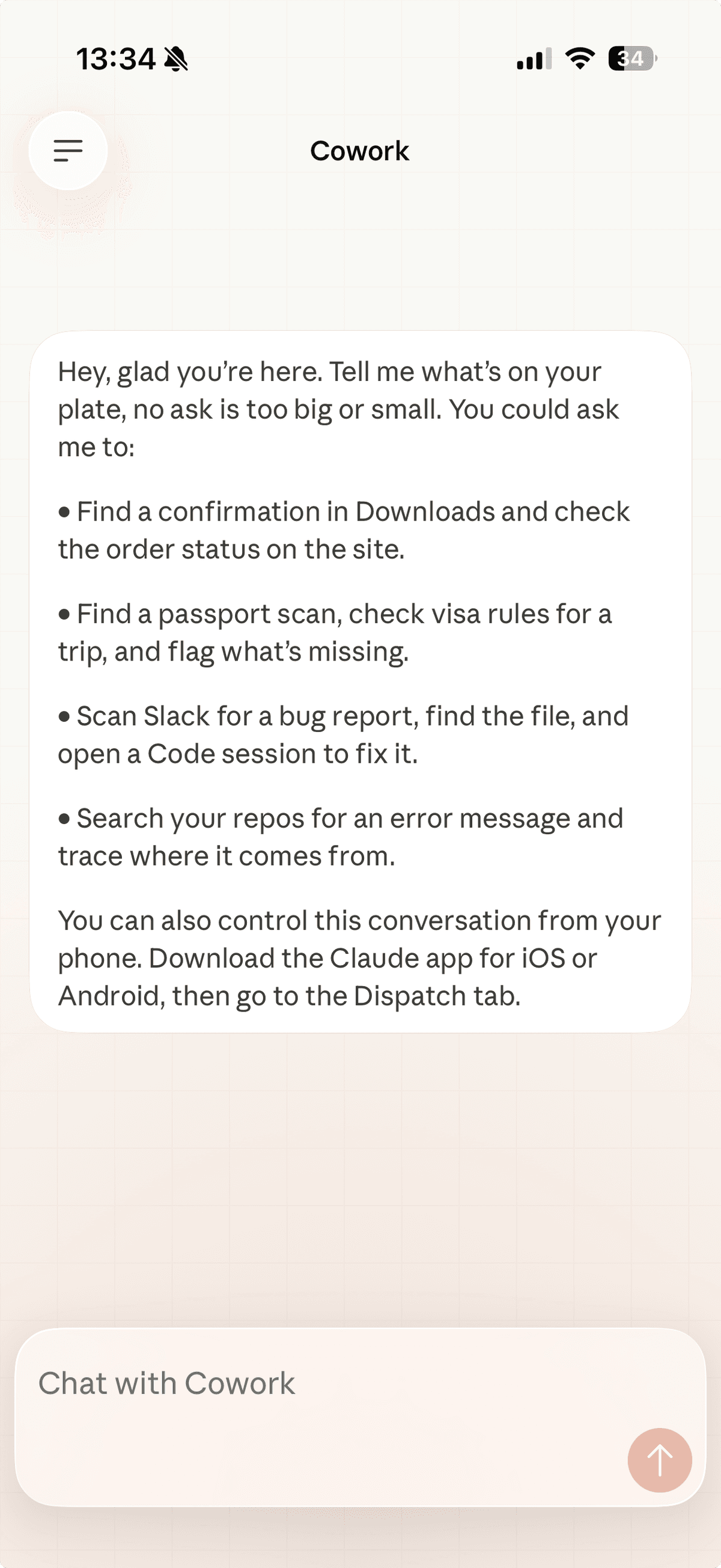
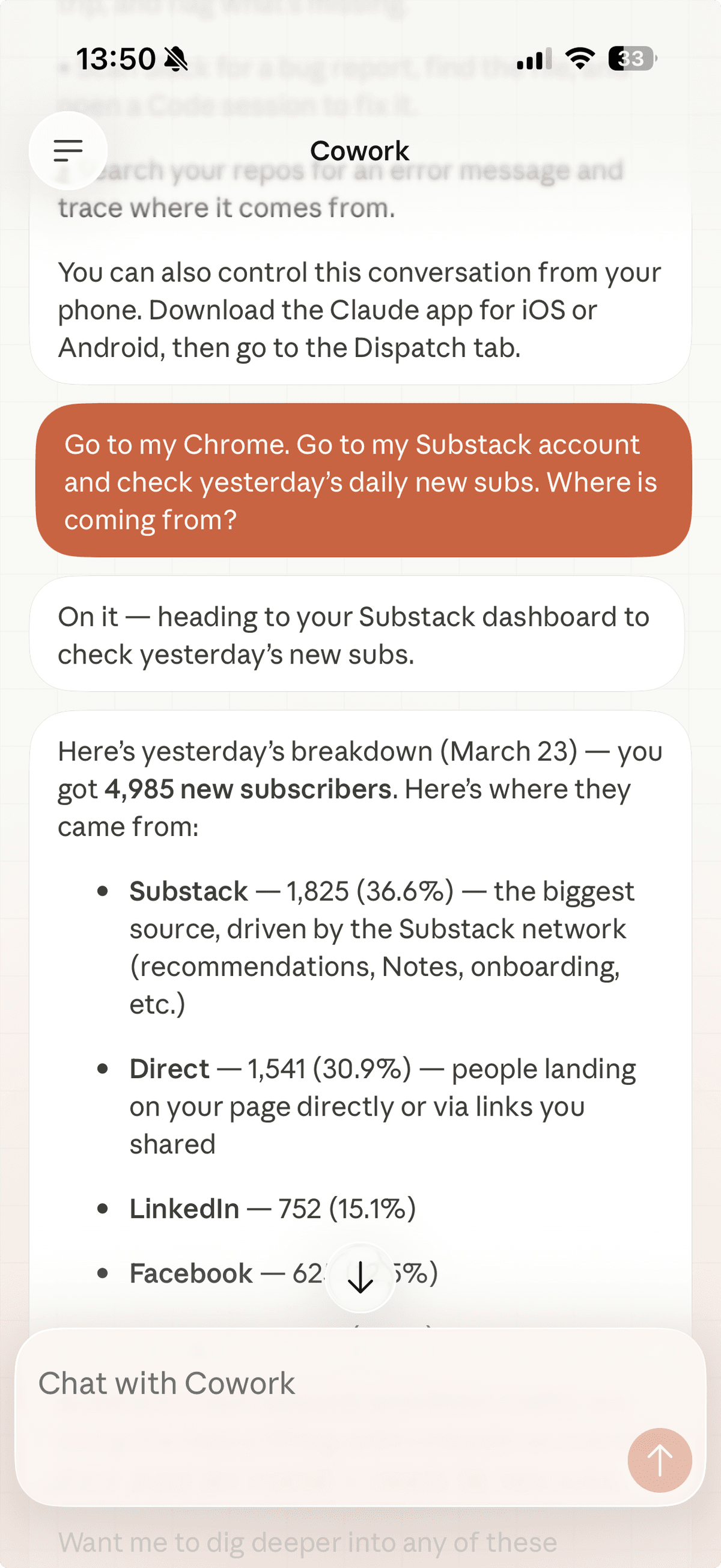
Step 4 — Send a task from your phone
Open the Claude app on your phone, go to the Dispatch tab, and type a task. Claude will execute it on your computer and report back to your phone when it's done.
When to use Dispatch
You're in a meeting and need Claude to pull a report from your computer
You're commuting and want Claude to check your emails and draft replies
You're at lunch and want to send Claude a task to research while you're away
You want to run your scheduled LinkedIn post skill while you're out of the office
You need Claude to check a website, fill in a form, or download a file
Setup guide adapted from Ruben Hassid's guide.
Ready to build?
Cowork handles documents and tools. Claude Code builds entire applications from plain English.
Continue to Claude Code→Instructions coming soon